
Content
Display an Instagram feed
Pull a public Instagram feed onto your CrownTV displays. Filter by handle or hashtag, set rotation speed and layout. Set up via the App Store in 60 seconds.
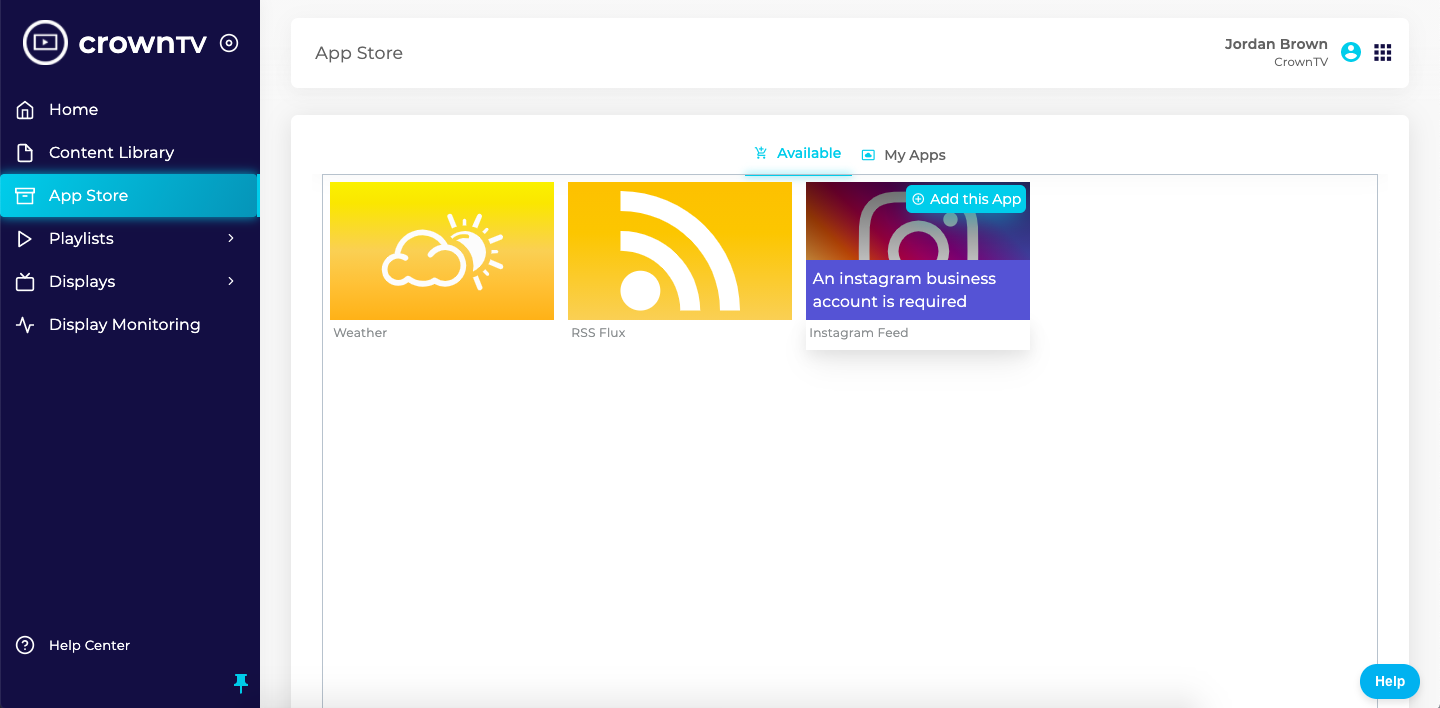
The Instagram Feed app shows posts from chosen Instagram accounts and/or hashtags on your displays. You need an Instagram Business Account.
Steps
- Open App Store in the sidebar.
- Hover the Instagram card and click Add this App.
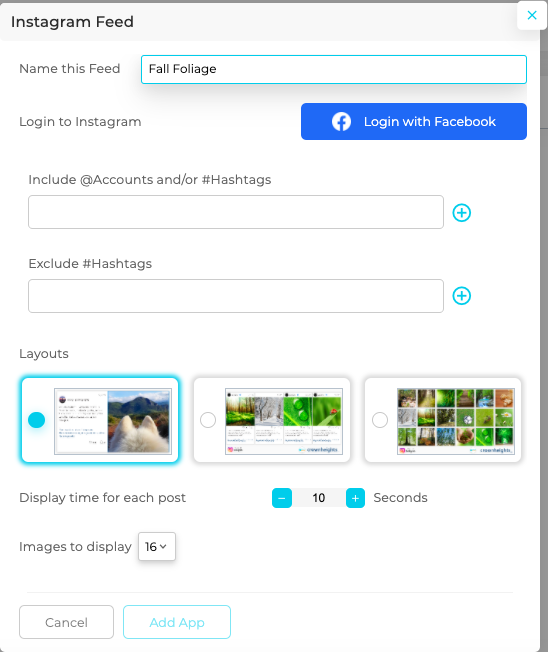
- Name your feed.
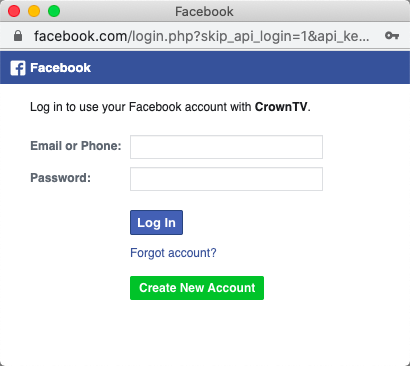
- Click Login with Facebook and sign into the Facebook account connected to your Instagram Business Account.
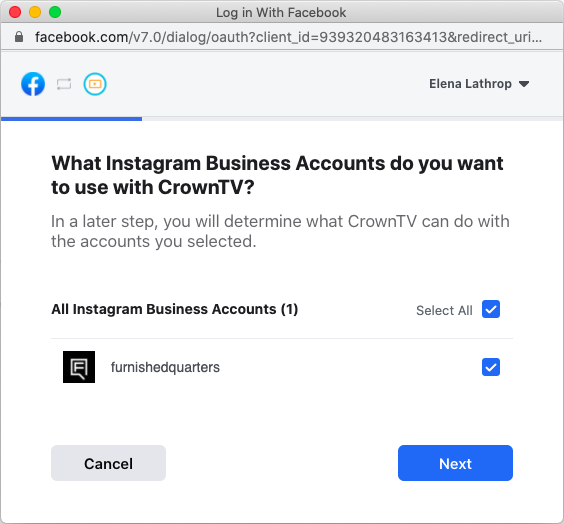
- Pick the Instagram Business Account → Next.
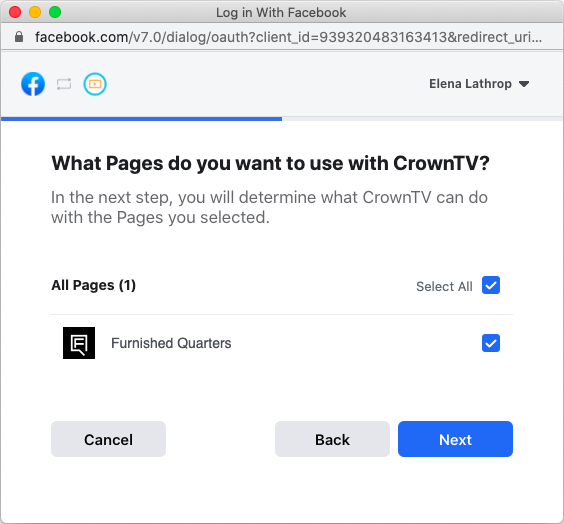
- Pick the connected Facebook Page → Next.
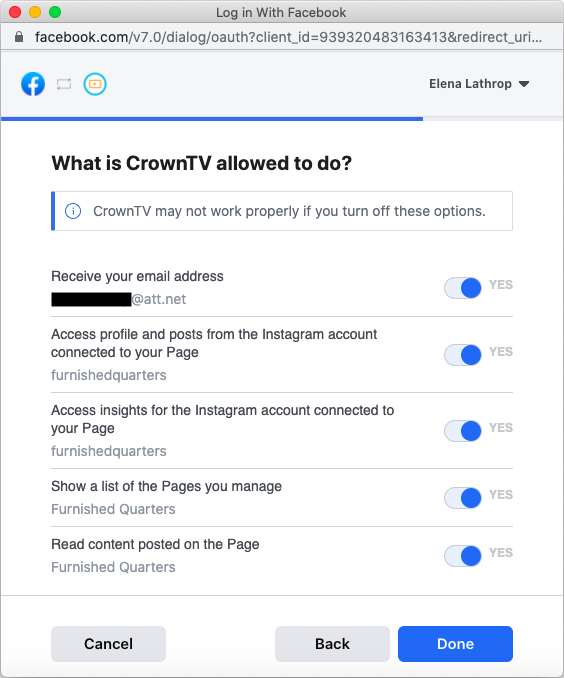
- Review the permissions screen. Choosing NO to any permission may break the feed; YES is recommended. Click Done, then OK.
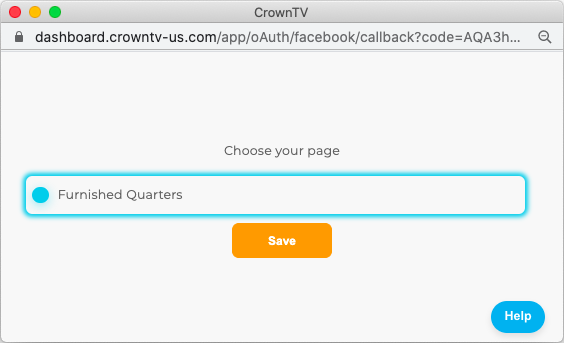
- Pick the page again on the confirmation screen → Save.
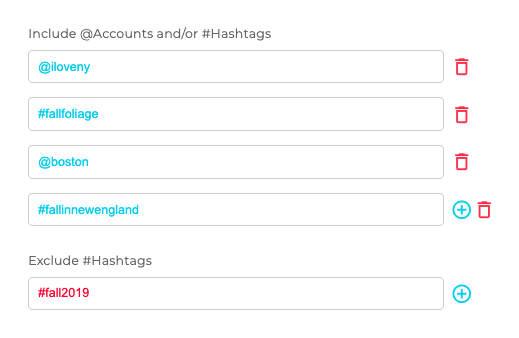
- Add the accounts and/or hashtags to display:
- Use
@accountfor accounts and#tagfor hashtags. - Use the blue + button to add more, the red trash icon to remove.
- You can also exclude hashtags.
- Use
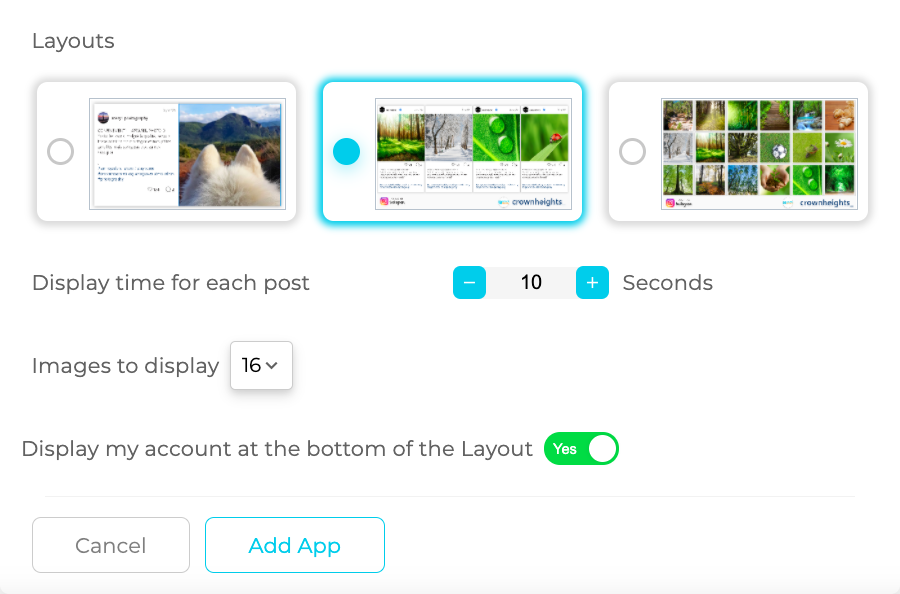
- Pick a layout and configure:
- Seconds per post / per set.
- Number of posts.
- Whether to show your handle at the bottom.
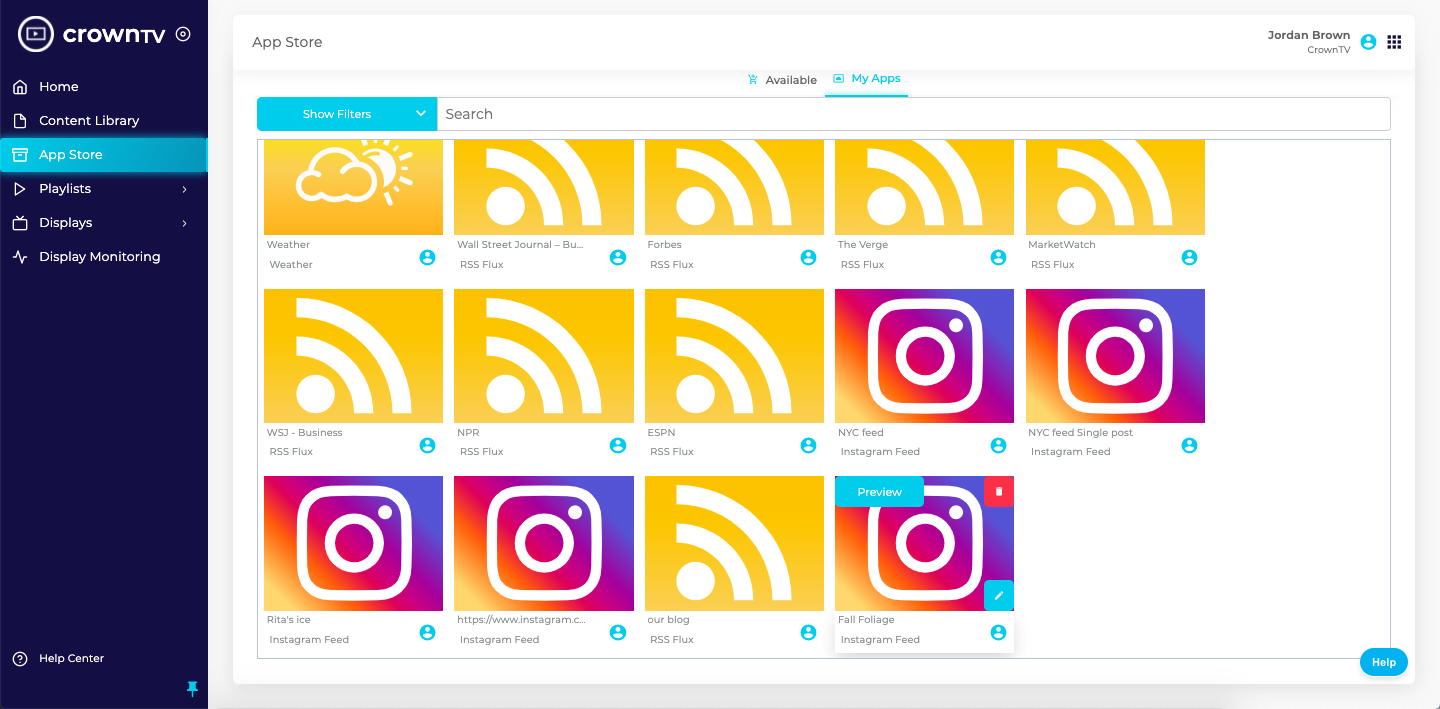
- Click Add App. The new feed appears under App Store → My Apps.
Preview & deploy
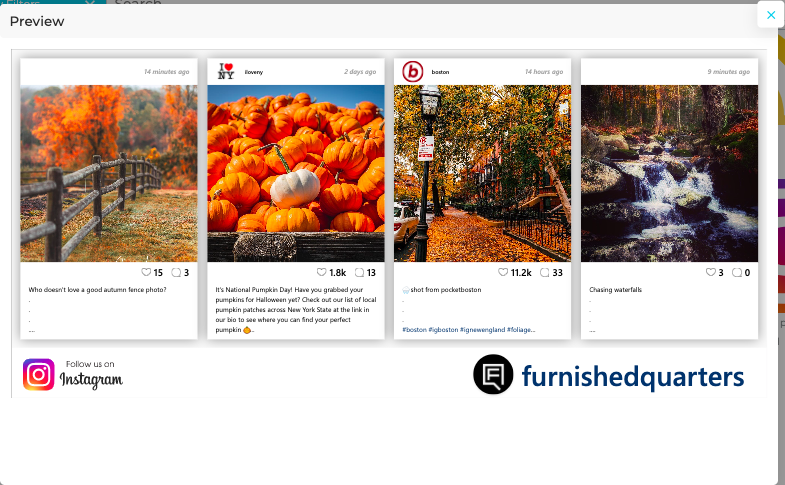
- In App Store → My Apps, hover the saved feed and click Preview to see what it’ll look like.
- Add the feed to a Playlist to push it to your displays.
Reference screenshots
Migrated from the legacy CrownTV help center. The dashboard UI may have evolved — refer to the live dashboard for current screens.
Still stuck?
Submit a ticket and a CrownTV specialist will reply within 2 business hours.