
Content
Canvas app — build templates
Build static or animated templates from scratch with the CrownTV Canvas tool — pick a background, add text, shapes, images. Saves to your Library.
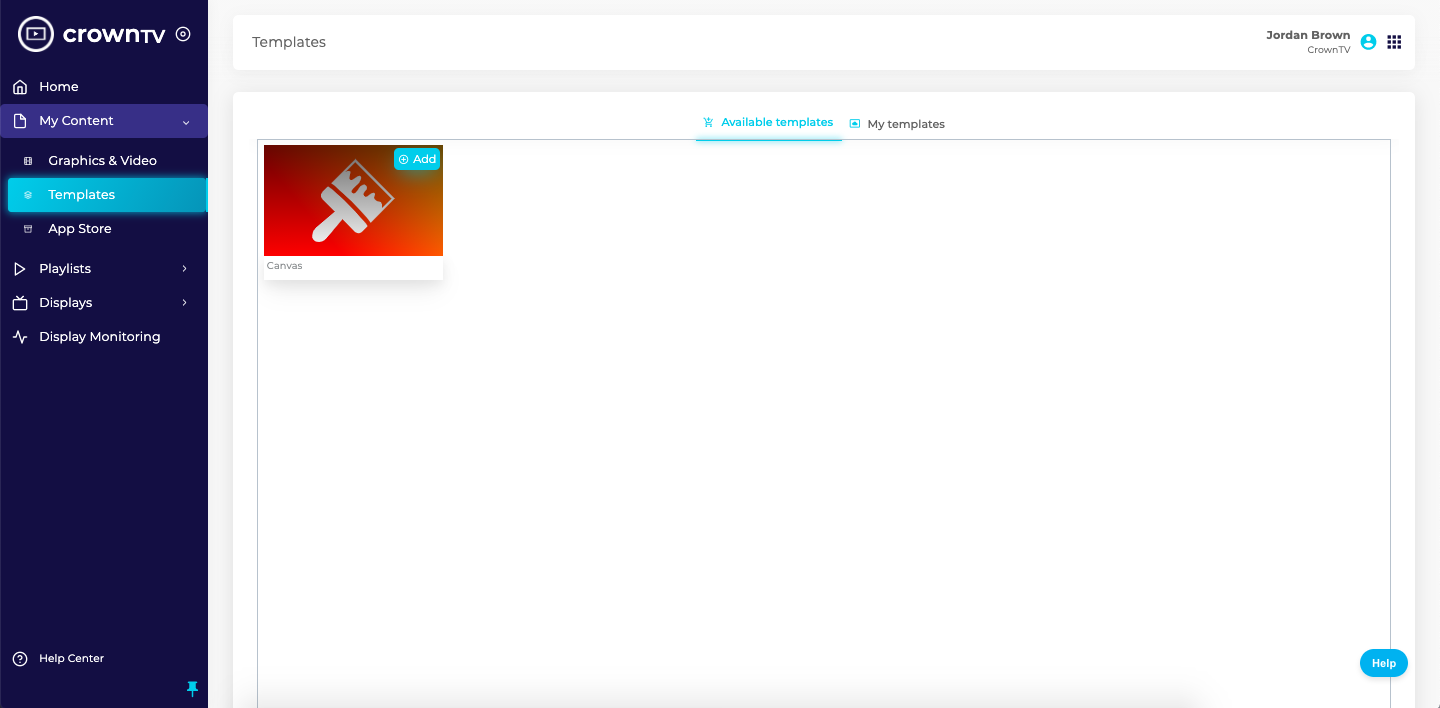
The Canvas app is the in-dashboard design tool for building your own templates. It lives under My Content → Templates and is reached from the + New Canvas button (there’s also an “Add this App” entry surfacing it from the App Store).
Static templates
- Go to My Content → Templates, click + New Canvas.
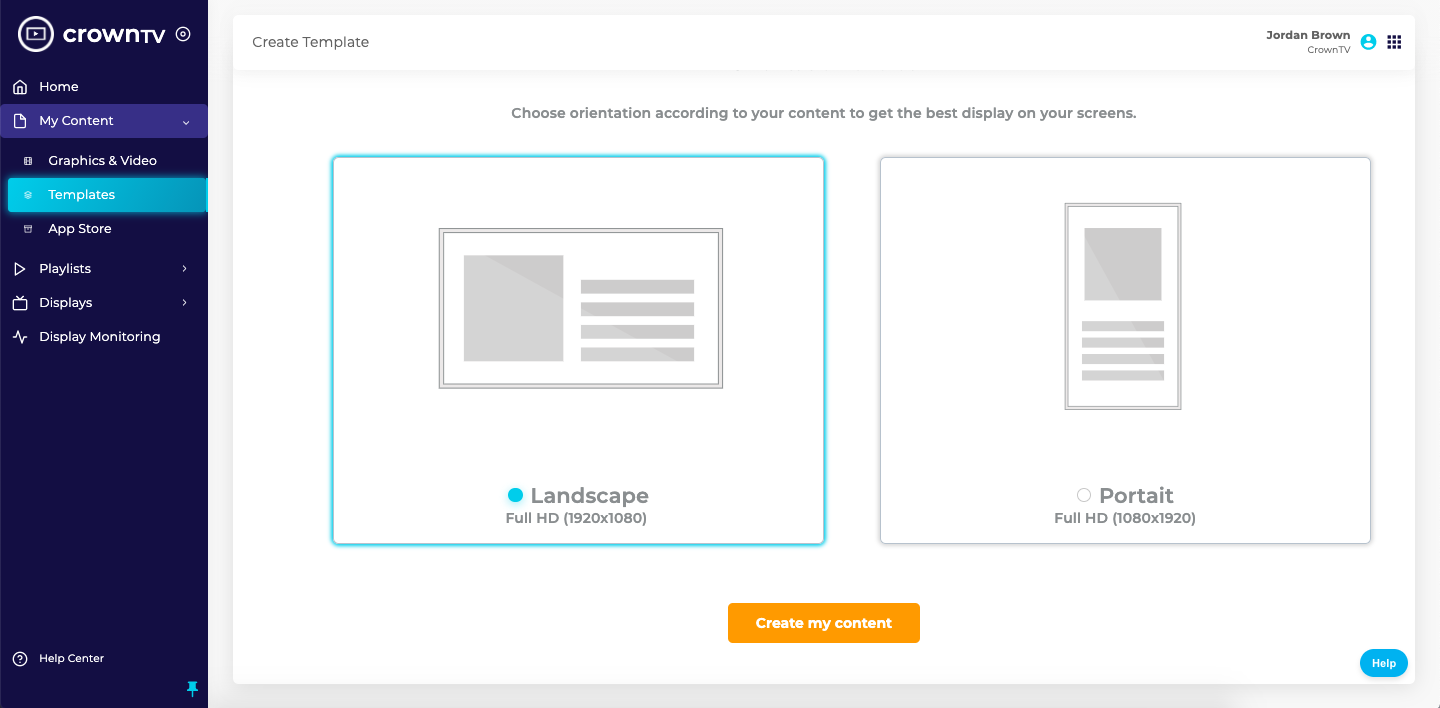
- Pick Landscape or Portait (sic — typo in the dashboard label) to match your display orientation.
- Click Create my content.
- Name the template.
- Choose a background color:
- Use the color picker / hex input.
- Adjust opacity.
- OR click Choose to upload a background image from your desktop.
- Add text — once placed, the right-hand panel lets you set:
- Alignment.
- Font, size, color, style, opacity.
- Draw shapes — pick a shape, set color and opacity.
- Upload images — drop in photos and adjust opacity.
- Click Save in the upper right.
- Find the saved template under My Content → Templates → My Templates. Hover any tile for Edit, Preview, or Delete.
Other features
The toolbar exposes Undo, Redo, Duplicate, Delete, and Position controls.
Animated templates
The animated variant adds a timeline and per-element keyframes so you can make text and shapes move. The flow is the same as static (orientation → name → background → elements → save), with extra steps for choosing start/end positions and duration per animated element. Capture the full animated flow during the next research pass.
Use the template in a playlist
Once saved, the template is a regular Library asset — drop it into a playlist via + New Playlist and it’ll play like any other piece of content.
Reference screenshots
Migrated from the legacy CrownTV help center. The dashboard UI may have evolved — refer to the live dashboard for current screens.
Still stuck?
Submit a ticket and a CrownTV specialist will reply within 2 business hours.