
Scheduling
How to use Playlists
A playlist is the queue of content that plays on a display. You build it once, attach it to one or more displays, and pick a date range.
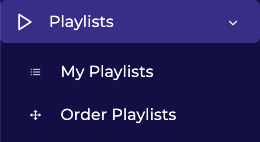
A playlist is the queue of content that plays on a display. You build it once, attach it to one or more displays, and pick a date range.
Find a playlist
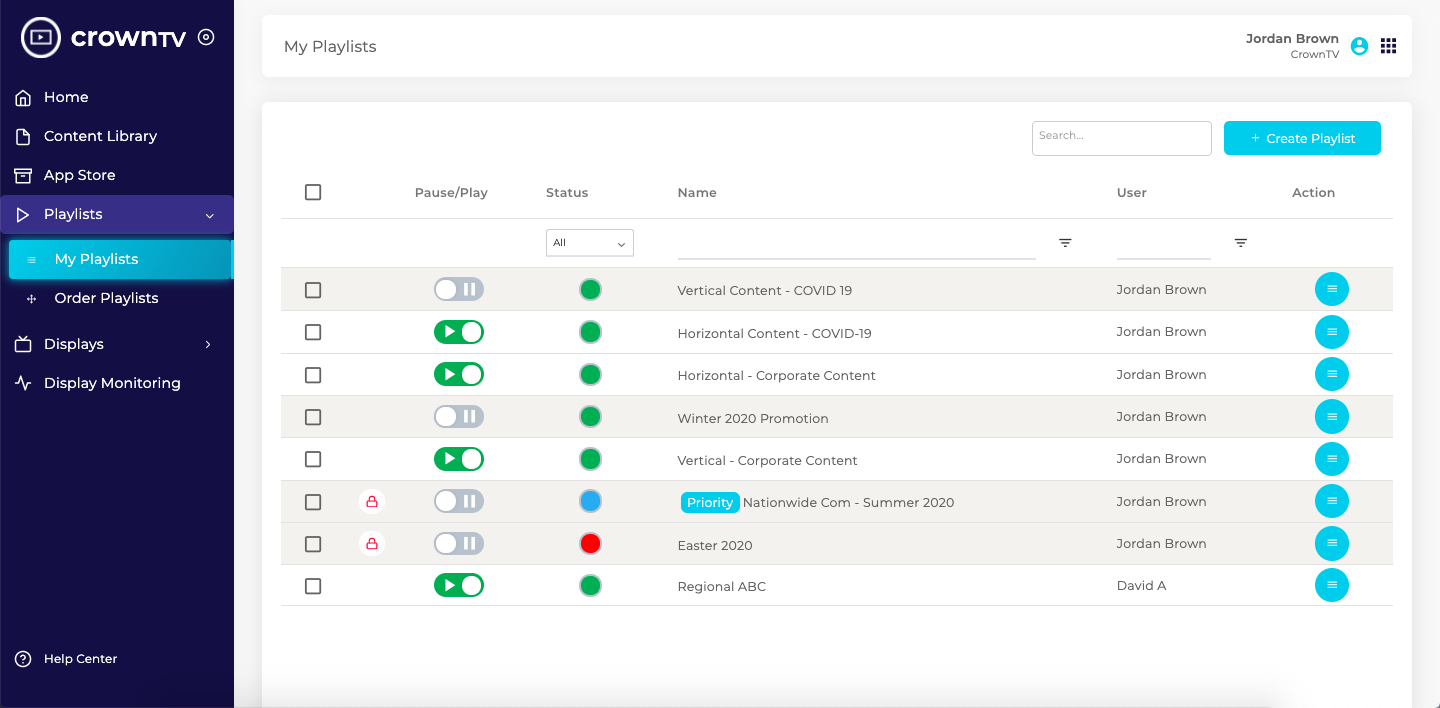
- Sidebar → My Scheduling → Playlists.
- Use Search… to find by name.
- Use the column header filters:
- Status (All / Active / Scheduled / Intermediate / Expired) — narrow to currently-live playlists.
- From / To — filter by schedule window.
- User — filter by who created it.
- The green dot in the Status column = currently active. Red dot = expired. An orange “No displays” badge means the playlist isn’t attached to anything yet.
Create a new playlist
You have three create buttons in the toolbar:
- + New Playlist — for the most common case: one display, one queue. Pick this first if you’re not sure.
- + New Split Screen Playlist — when you want to divide a single display into multiple zones (e.g. a video on the left, a menu on the right, a banner across the bottom). Pair it with a Layout.
- + Create Screen Wall Playlist — when several displays are physically arranged as a single wall and need to stay in sync.
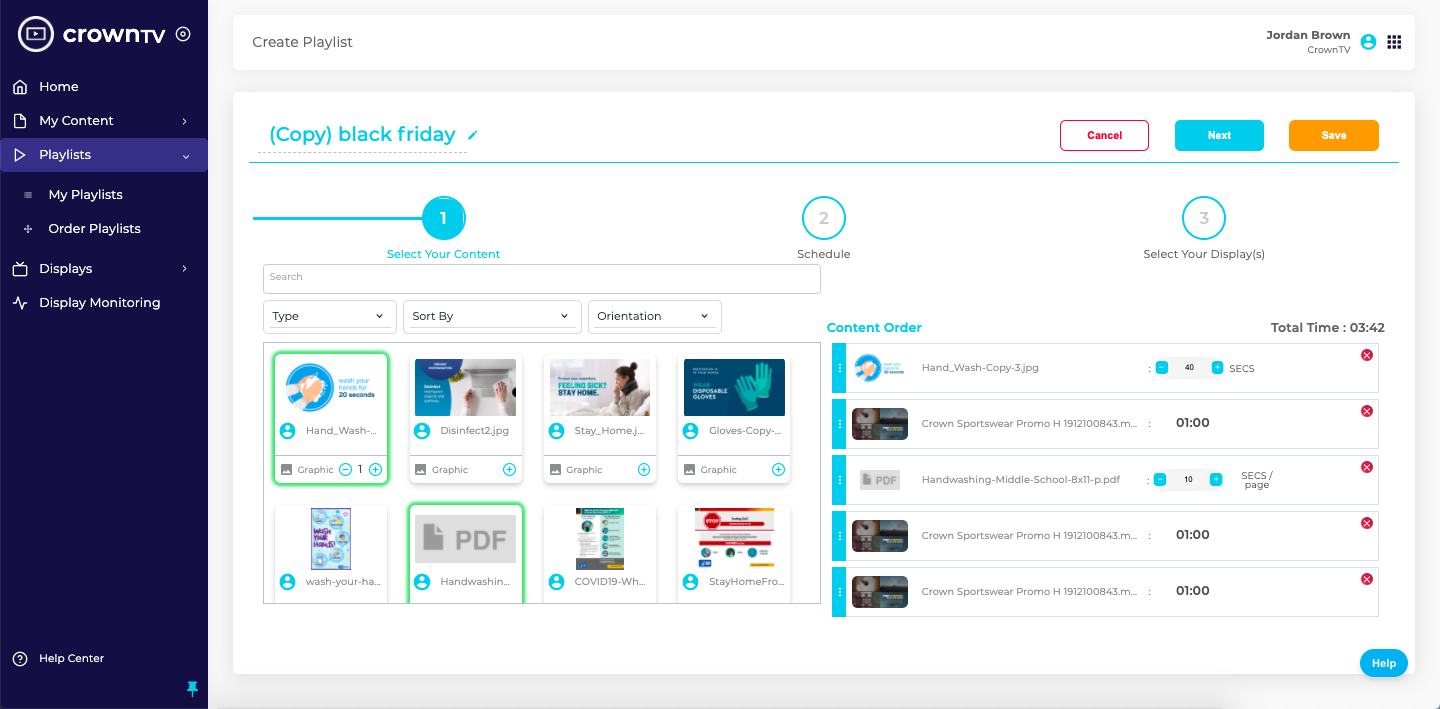
Click one of the create buttons and follow the wizard to:
- Name the playlist.
- Pick the orientation (matches the target display).
- Add content from the Library, Templates, Banners, and App Store.
- Set the From / To schedule.
- Attach displays (or Groups of displays).
- Save. The playlist appears in the table; the Status dot turns green when it’s currently live.
Edit a playlist
In the row’s Action menu (rightmost column) click Edit to open the full editor at /event/{id}/edit. From there you can rearrange items, change durations, swap content, and update the schedule.
Pause / Resume
Use the toggle in the Pause/Play column to instantly pause a playlist on its connected displays, or resume it. No editing required.
Lock to prevent edits
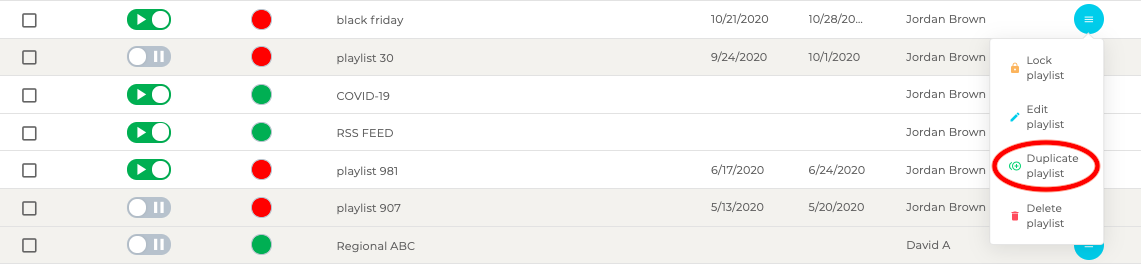
Click Lock in the Action menu to freeze a playlist. A red padlock icon appears in the leftmost column. Unlock from the same menu when you need to make changes.
Duplicate
From the Action menu pick Duplicate. Useful when you want to base a new monthly campaign on last month’s playlist.
Delete
From the Action menu pick Delete. Confirm in the dialog. A delete is permanent — duplicate first if you’ll want it back.
Tips
- An Expired playlist stays in the list — re-enable it by editing and updating the To date.
- Use Lock for playlists tied to legal copy or paid campaigns so a teammate can’t accidentally change them.
- Bulk-select rows with the checkboxes for bulk delete or bulk move.
Reference screenshots
Migrated from the legacy CrownTV help center. The dashboard UI may have evolved — refer to the live dashboard for current screens.
Still stuck?
Submit a ticket and a CrownTV specialist will reply within 2 business hours.