
Content
Display a website
Embed any public web page on CrownTV displays — dashboards, schedules, BI tools. Refresh interval, scroll, full-screen options. Add via the App Store.
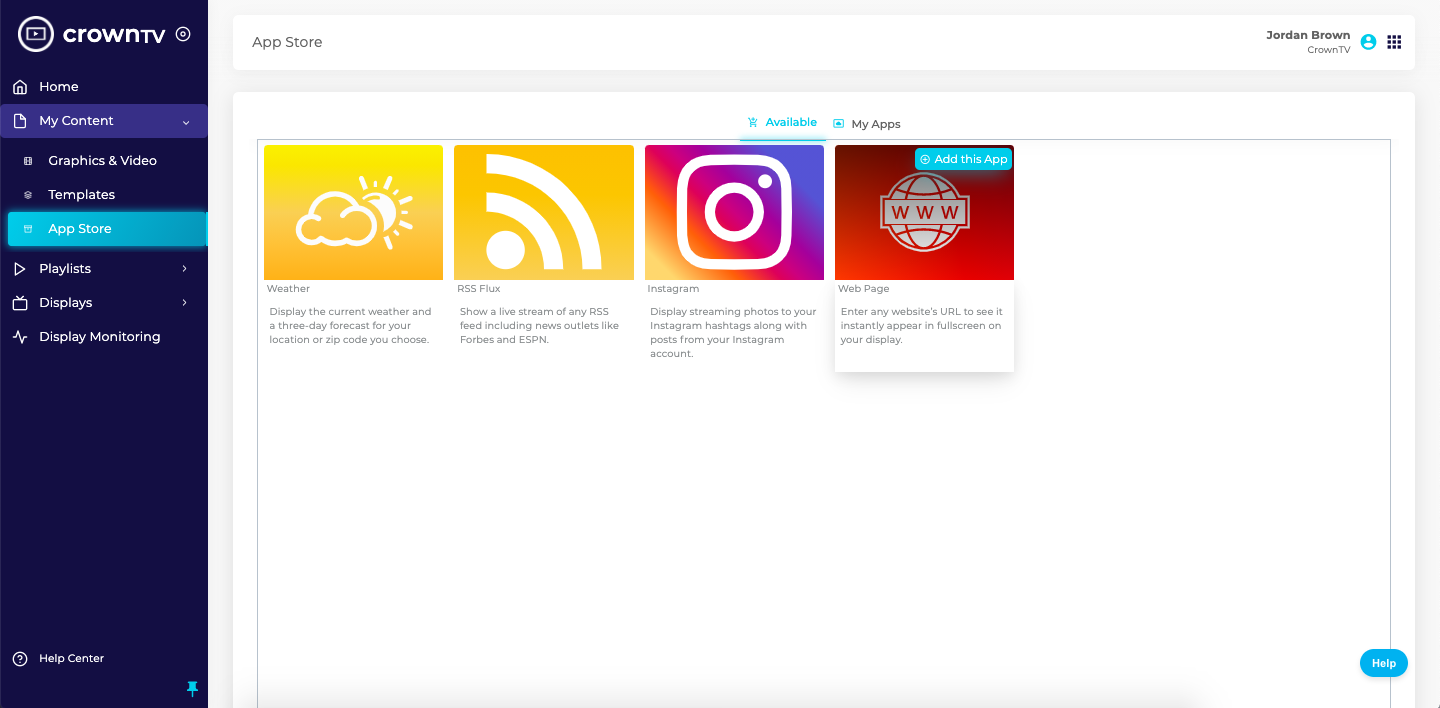
The Web Page app embeds any public URL fullscreen on your displays. It’s the catch-all for “I have data on a webpage and want it on my screen” — dashboards, internal status pages, BI tools, custom-coded HTML pages, etc.
Steps
- Open App Store in the sidebar.
- Hover the Web Page card and click Add this App.
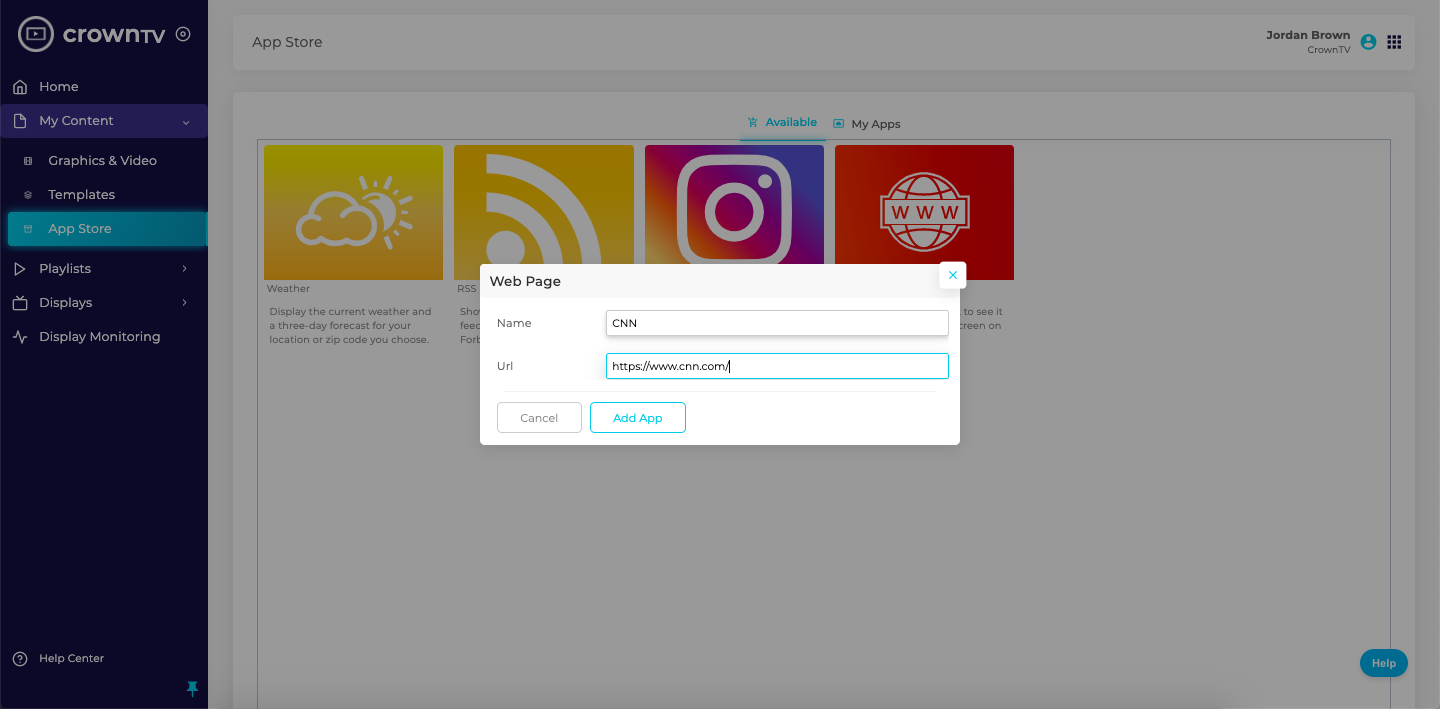
- Name the app instance.
- Paste the URL.
- Save. The app appears under App Store → My Apps.
- Add it to a Playlist to push it to displays.
Tips
- The page must be publicly reachable (or behind an automatic auth that the player can pass — confirm during research).
- Avoid pages that require user interaction (login forms, popups) — there’s no keyboard/mouse on the player.
- For pages that auto-refresh (dashboards, news), set the slot duration in the playlist long enough for the page to render.
Reference screenshots
Migrated from the legacy CrownTV help center. The dashboard UI may have evolved — refer to the live dashboard for current screens.
Still stuck?
Submit a ticket and a CrownTV specialist will reply within 2 business hours.