
Digital Signage Remote Monitoring and Proof of Play: What You Can Actually See
Digital signage remote monitoring in practice: online status, last check-in, logs, screenshots, a proof-of-play CSV, and what to do when a screen goes red.
On this page
Reply within 2 business hours Ask a signage specialist Tap to open the quote form
Remote monitoring is only worth what someone does with it. A page full of red dots that nobody opens is the same as no monitoring at all. Most of what ranks for digital signage remote monitoring is a feature list. This guide is the operator's version: what the CrownTV Dashboard actually shows you, what proof of play looks like when you export it, and the routine we run when a screen goes dark.
We install and support screens as well as run the software, so we see both ends of an offline display: the red row on the page and the unplugged player behind a wall. Everything below sticks to what the Dashboard really does, as documented in our own help center.
What remote monitoring and proof of play actually answer
They answer two different questions. Remote monitoring asks is it on right now? Is the player online, when did it last check in, and what is on the screen? Proof of play asks did it run? What played on each screen, how many times and for how long, over a period you choose.
You need both. A screen can be online and showing last month's promotion. A campaign can be scheduled perfectly and never play because a store unplugged the player on Tuesday. Monitoring catches the second problem the same day. Proof of play shows you, after the fact, how big the gap was.
What the CrownTV Dashboard monitors
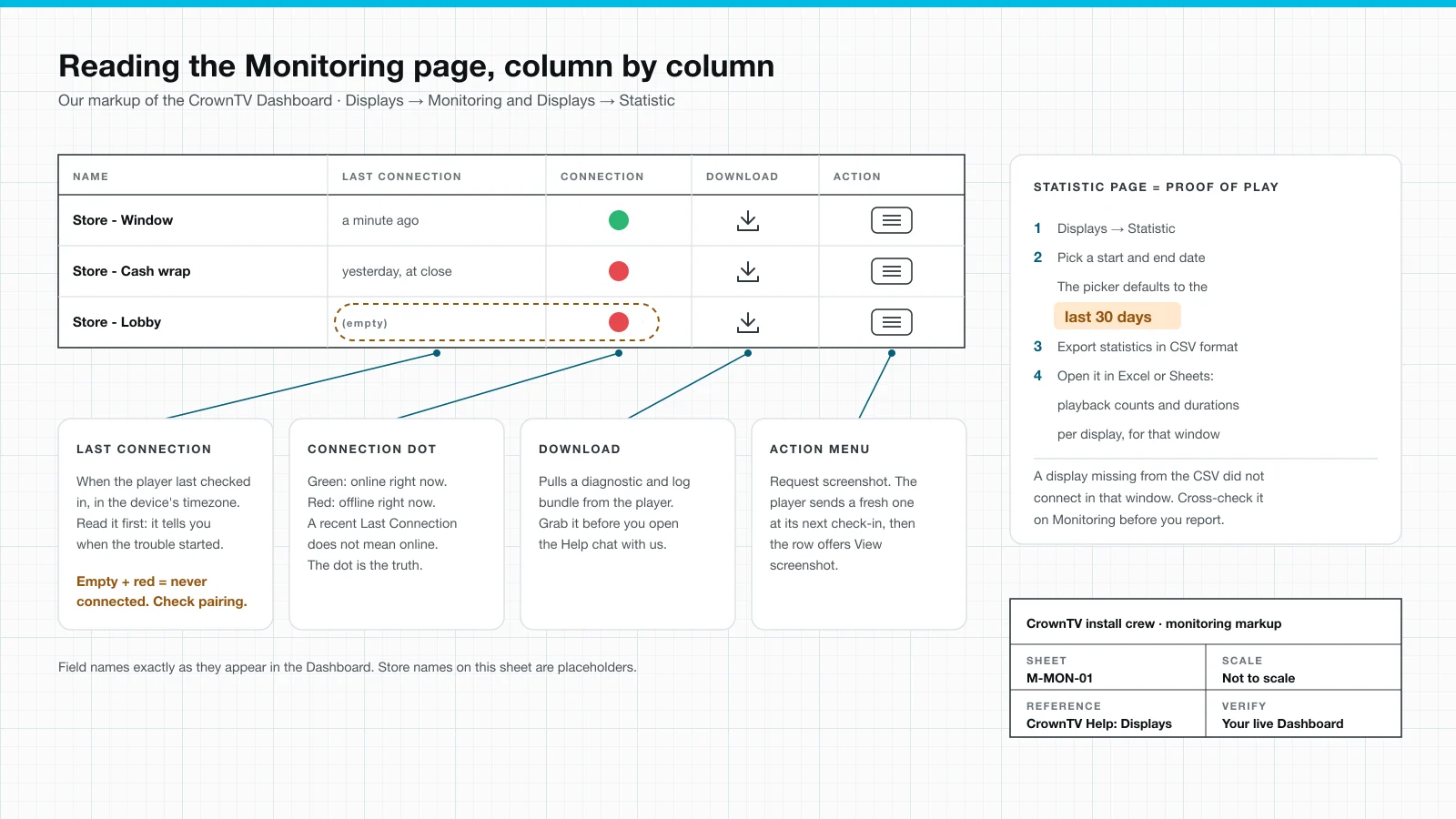
In the CrownTV Dashboard, monitoring lives under Displays → Monitoring. It is one table with a row for every display. Here is what each column tells you and when we use it.
| Column | What it shows | When we use it |
|---|---|---|
| Id and Name | The display in your account | Finding the screen. A name like Site - Location makes this instant |
| Mac Address | The player's hardware identifier | Troubleshooting with our support team |
| Orientation | The configured orientation, such as portrait or reverse portrait | Content arrives sideways or cropped |
| Address, City, Country | Where the display lives | Sorting a big fleet by site |
| Last Connection | The player's last check-in, in the device's timezone | Working out when a problem started |
| Connection | Green dot: online now. Red dot: offline | The daily scan. This column is the truth |
| Download | A diagnostic and log bundle from the player | Before opening the Help chat |
| Action | Request screenshot, then View screenshot | Confirming what is actually on screen |
Column names as they appear on the Monitoring page. Source: our help article How to monitor your displays.
Two details catch people out. First, a Last Connection from a few minutes ago does not mean the player is online now; only the Connection dot tells you that. Second, an empty Last Connection with a red dot means the player has never connected at all. That is a pairing or network setup problem, not a failure.

Request screenshot: proof the right thing is on screen
Open the Action menu on a row and pick Request screenshot. The player sends a fresh screenshot the next time it checks in. Once it arrives, the same menu offers View screenshot; until then the row reads "No screenshot". We use it after every fix and after every big content change. A green dot proves the player is online. Only the screenshot proves the right campaign is playing in the right orientation.
Offline alerts: you don't have to watch the dots
The Dashboard also sends an alert when a display goes offline, so the first sign of a dead screen is a notification, not a store manager's phone call. Route those alerts to whoever owns the triage below (IT, facilities, or us on a managed plan), and keep the daily scan anyway: an alert tells you a player stopped checking in, but only the Monitoring row and a screenshot tell you what the customer is actually looking at.
Proof of play: the Statistic export
Proof of play lives under Displays → Statistic, and it is a download tool rather than a chart. Click the Timeframe input, which defaults to the last 30 days. Pick a start and end date, then click Export statistics in CSV format. The CSV holds playback counts, durations and similar metrics for each display over that window. Open it in Excel, Google Sheets or your BI tool. The steps are in our help article on exporting display statistics.
For monthly reporting, pick the first and last day of the month. If a display is missing from the CSV, it did not connect in that window. Cross-check it on the Monitoring page before you send the report anywhere. If a brand partner pays for screen time in your stores, that CSV is the backup for the invoice. Pull it the same day every month so the numbers line up.
The routine: daily, weekly, monthly
Alerts catch the outages; the routine catches everything else. Monitoring only works as a habit with a named owner. This is the routine we hand to customers who run their own screens.
| When | Where | What to do | What it catches |
|---|---|---|---|
| Every morning, before opening | Monitoring | Scan the Connection column; triage every red row | Unplugged players, dead outlets, network drops |
| Weekly, and after each campaign change | Monitoring → Action | Request screenshots from a few screens per region | Wrong playlist, wrong orientation, stale content |
| Weekly | Displays → Management | Look for any display marked Deactivated | Players that lost pairing or were reset |
| Monthly | Statistic | Export last month's CSV; check for missing displays | Screens that were dark longer than anyone noticed |
| Quarterly | Management | Export the display list as CSV and reconcile it against your sites | Moved, removed or renamed screens |
When a display goes red: the triage order
We check things in the same order every time, cheapest first. Steps two to four need a store employee and nothing else, so logs come after the physical checks, not before.
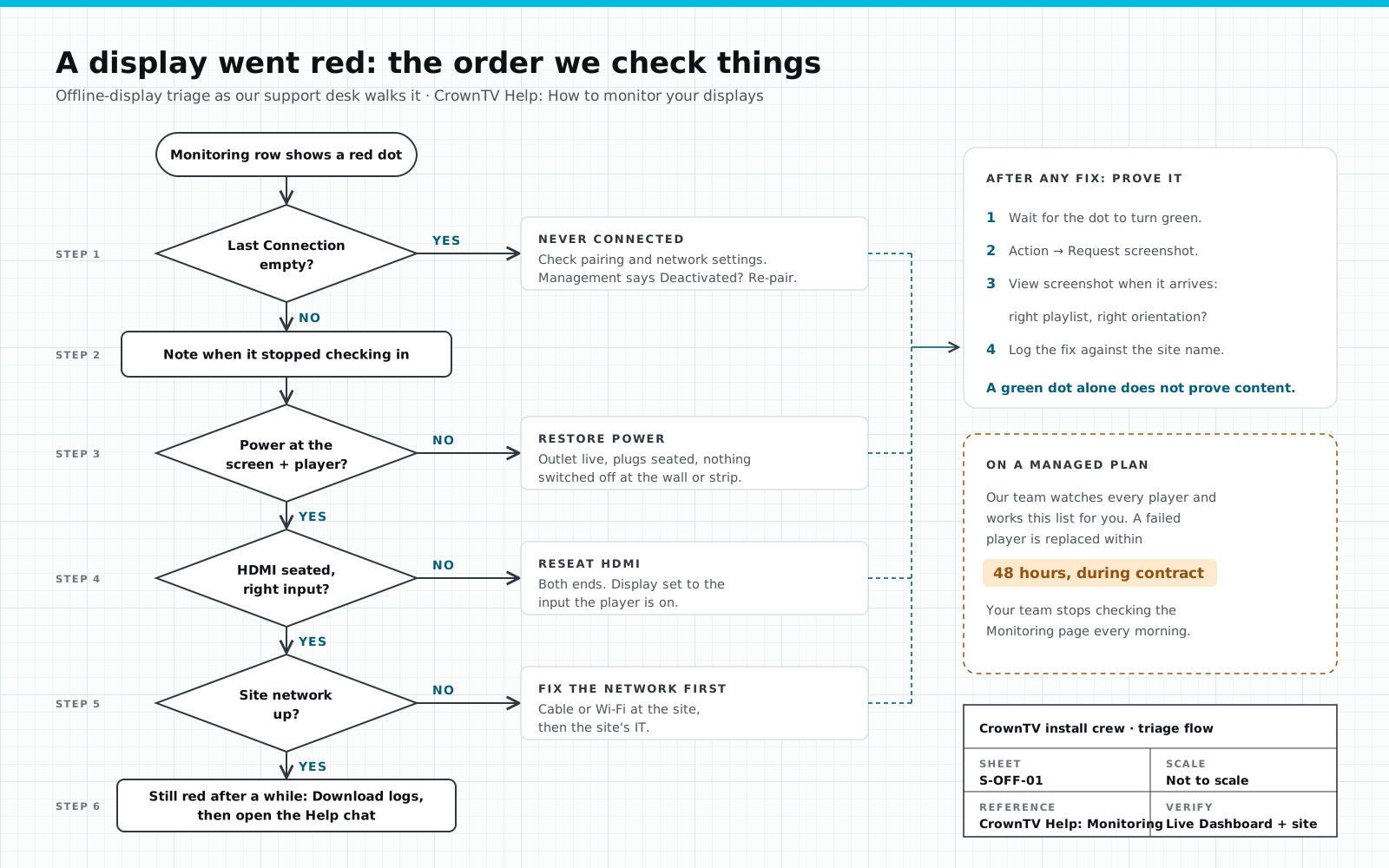
- Read Last Connection. Empty means never connected: check pairing and network settings, and look in Management for a Deactivated status. Otherwise, note when it stopped.
- Power. Is the outlet live, and are both the screen and the player plugged in and switched on?
- HDMI. Reseat the cable at both ends and confirm the display is on the player's input.
- Network. Is the site's cable or Wi-Fi up? If the whole store is offline, that is a job for the site's IT.
- Still red after a while? Click Download to grab the logs, then open the Help chat with us and attach them.
The timestamp in step one does more work than it looks. A screen that dropped right at closing time may simply have been switched off with the lights. One that dropped mid-shift sends you to the cables and the network first.
When to hand monitoring to us
Running the routine yourself is fine for a handful of screens at one site. It stops working when nobody owns the morning check, when screens span several regions, or when a dark screen costs real money. That is where our managed digital signage service comes in. It covers 24/7 player and display health checks, remote-first diagnostics, a monthly uptime report per location, and a replacement media player within 48 hours at no charge during the contract.
On the L'Occitane program, device monitoring across 150+ stores catches outages before stores report them. That is the standard to hold any vendor to, us included. If you are planning screens across many sites, start with our multi-location digital signage program, where monitoring is part of the plan from the first install.
FAQ
What is digital signage remote monitoring?
It is checking, from a desk, whether every screen's media player is online, when it last checked in and what it is showing. In the CrownTV Dashboard that lives on the Monitoring page: a green or red Connection dot, a Last Connection timestamp, a log download and an on-demand screenshot for each display.
What is proof of play in digital signage?
Proof of play is a record of what actually played on each screen, how often and for how long, over a date range. In the CrownTV Dashboard it is the Statistic page: pick a start and end date, click Export statistics in CSV format, and you get playback counts and durations per display.
How do I see what a remote screen is showing right now?
On the Monitoring page, open the Action menu on that display's row and pick Request screenshot. The player sends a fresh screenshot the next time it checks in, and the row then offers View screenshot. Use it after every fix, because a green dot proves the player is online, not that the right content is on screen.
What should I do when a display shows offline?
Note the Last Connection time first. An empty value with a red dot means the player has never connected, so check pairing and network settings. Otherwise check power, then HDMI, then the site network. If it stays red, click Download to grab the logs and open the Help chat with us.
Why is a display missing from my proof-of-play CSV?
A display that did not connect during the selected date range will not appear in the CSV. Cross-check the Monitoring page for that display's Last Connection time before you report the gap to a client or a brand partner.
Can CrownTV monitor our screens for us?
Yes. Our managed service includes 24/7 player and display health checks, remote-first diagnostics, a monthly uptime report per location and a replacement media player within 48 hours at no charge during the contract. It is included for year one in every CrownTV turnkey contract, then continues as an optional plan, and it is available standalone for existing hardware.
Keep reading
More guides like this
Operator-grade playbooks, weekly.
Proof, not pitches
See real installs
Live deployments across hospitality, retail, and offices.
Ready to deploy?
Get a quote in 2 business hours
Reply within two business hours. No call required.