
Scheduling
How to preview a playlist
Preview any CrownTV playlist before scheduling — landscape or portrait — directly from My Playlists. Click the screen icon. Setup in 5 seconds.
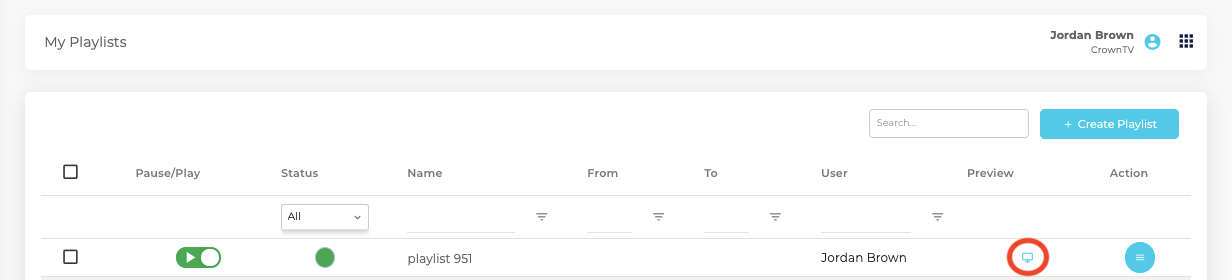
Once you’ve created a playlist, you can preview it before pushing to a display.
How to preview
Go to Playlists → My Playlists.
Find the playlist you want to preview. In the row, click the screen icon (circled in red below). Your playlist will open in a preview window in landscape mode.
Portrait mode
You can also preview your playlist in portrait mode — useful if your displays are mounted vertically. Toggle the orientation control inside the preview window to switch between landscape and portrait.
Related
Still stuck?
Submit a ticket and a CrownTV specialist will reply within 2 business hours.