
Scheduling
Create scrolling banners
Create a scrolling banner — a strip of text that runs across the bottom of your TV screen — and schedule it to play on individual displays or display groups.
A scrolling banner lets you display text at the bottom of your TV screen — perfect for promotional messages, tickers, news, or alerts that need to stay on-screen while the rest of your content rotates.
How to create and schedule a banner
1. Open the Banners section
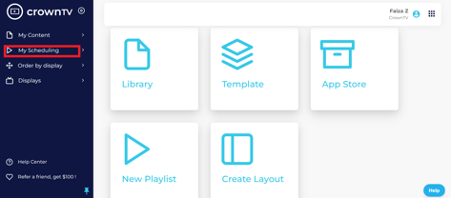
Click My Scheduling in the top left side of your dashboard.
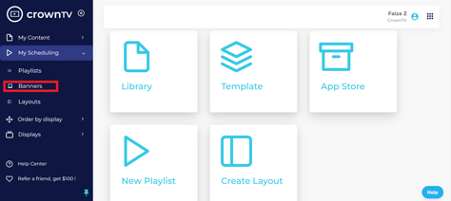
From the drop-down menu, click Banners.
2. Start a new banner
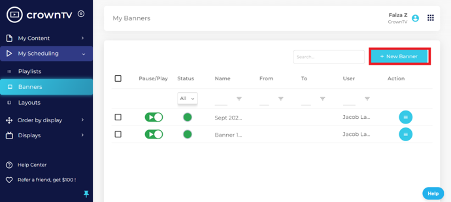
In the top right corner, click + New Banner.
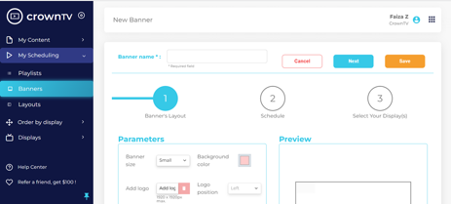
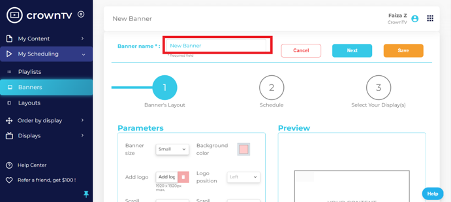
Enter a banner name. For example, New Banner.
3. Set the banner parameters
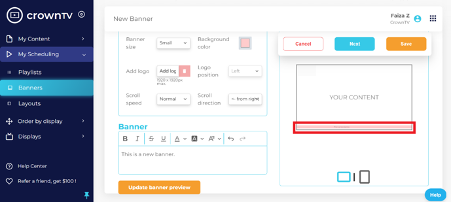
Pick the banner size, background color, optional logo (1920 × 1920px max), logo position, scroll speed, and scroll direction.
Now, write the text you want to display on the banner. For example: This is a new banner.
Click Update banner preview to see it render.
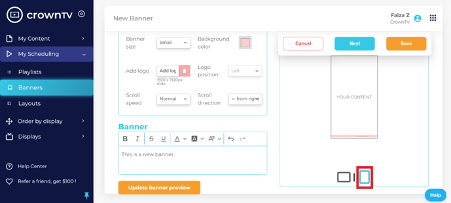
You can also see how the banner will appear on a vertical (portrait) screen.
Click Next in the top right corner.
4. Schedule the banner
Schedule the banner for later, set a start/expired time, limit days of the week, or limit hours of the day. If you want the banner to run continuously, leave the schedule fields as-is.
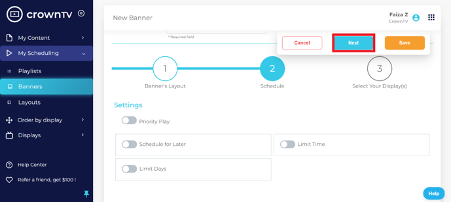
Click Next to proceed to step 3.
5. Pick the displays
Select an individual display or a display group where you want the banner to appear.
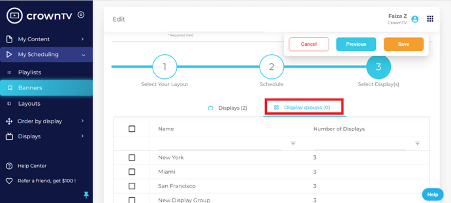
Click Save at the top right corner.
6. Manage existing banners
Your banner appears in the My Banners library. Pause or play it using the slider — the green circle in the Status column shows that the banner is active.
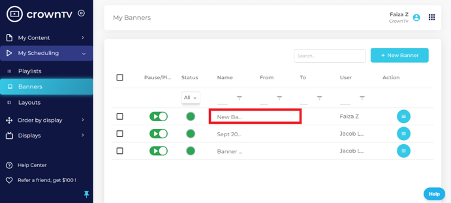
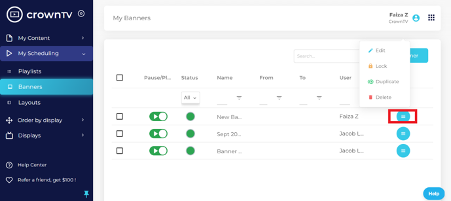
You can also Edit, Lock, Duplicate, or Delete an existing banner by clicking the three lines (action menu) on the right side.
Tips
- Use a banner for time-bound promos (
Happy Hour 4–6pm) rather than baking it into a playlist — easier to swap later. - Use Lock on finalized brand banners to prevent accidental edits.
- A banner overlays whatever’s playing in your playlist, so you don’t need to rebuild your playlist when the banner copy changes.
Related
Still stuck?
Submit a ticket and a CrownTV specialist will reply within 2 business hours.