Android Digital Signage: Setup Guide + When to Go Commercial-Grade
Android digital signage, step by step: pick the right device class, kiosk-pin the CMS app, automate reboots — and know when a $30 stick will fail you.
On this page
Android is the default operating system of the digital signage industry — most dedicated media players sold today run some build of it. That's the good news: android digital signage is cheap to start, the app ecosystem is enormous, and almost any screen with an HDMI port can join the network. The catch is that "Android" covers everything from a $20 TV stick that will heat-soak and freeze by week three to a $500 fanless commercial player rated to run for years.
CrownTV has deployed digital signage for 13+ years across 1,800+ businesses, with 16,000+ screens currently live for clients like L'Occitane and Herman Miller — and our White Glove team has replaced more dead consumer sticks than we can count. This guide gives you the honest DIY setup, step by step, then shows you exactly where the consumer-device path runs out of road.
You'll get:
- A five-step Android signage setup that actually survives contact with real-world use
- The device-class decision: consumer TV stick vs enterprise Android player, with real prices
- How kiosk lockdown really works on Android — screen pinning, lock task mode, and what sticks can't do
- The three failure modes of consumer Android TV hardware (thermal, networking, Play Store drift)
- A commercial Android vs Samsung Tizen comparison table
What is Android digital signage?
Android digital signage is a setup where a signage CMS app runs on Android-based hardware — a consumer TV stick, an Android tablet, or a dedicated commercial Android media player — and drives content to a connected display. You install the app, lock the device to it in kiosk mode, and manage content remotely from the CMS dashboard. Total hardware cost runs $20–$100 for a consumer stick or $250–$600 for a commercial-grade player.
Why most digital signage runs on Android
Walk a trade-show floor and count the player boxes: the majority run Android under the hood. Three reasons the industry converged on it:
- Every CMS supports it. Because Android is open source and hardware-agnostic, virtually every signage platform ships an Android app first. Compare that with Samsung's Tizen or LG's webOS, where the app must be built for one manufacturer's panels.
- Hardware at every price point. The same OS family spans a $20 onn stick, a $150 Android box, and a $600 enterprise player with PoE and a watchdog timer. You can pilot cheap and standardize on serious hardware later without changing software.
- Familiar tooling. Sideloading an APK, provisioning with a QR code, managing devices through an EMM — any IT team that has touched Android phones already knows the workflow.
The flexibility is real. So is the trap: the ecosystem makes it easy to build a signage network on hardware that was engineered for three hours of Netflix a night. The steps below work on both device classes — but step 1 is the decision that determines whether the network still works in a year.
Step 1: Choose your device class — consumer stick or enterprise player
This is the fork in the road, so get it right before you buy anything.
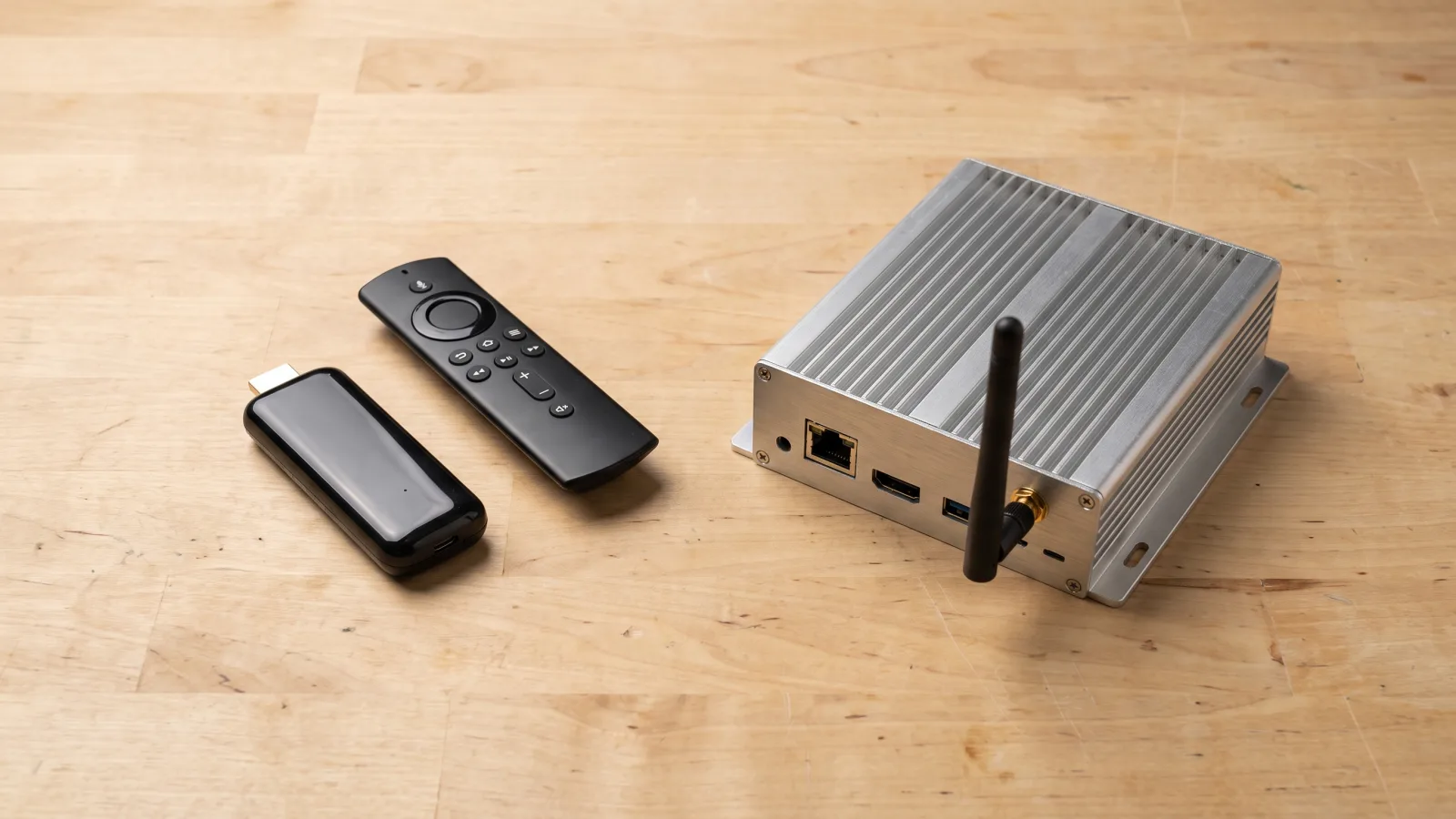
Consumer Android TV devices ($20–$100)
Sticks and pucks like the onn 4K, Chromecast with Google TV, and Fire TV Stick (which runs Fire OS, an Android fork without Google services). Plastic body, passive cooling, Wi-Fi networking, and a consumer OS that pushes recommendations, ambient screensavers, and automatic updates. Fine for a pilot screen, a break-room TV, or a proof of concept — our guide to turning a TV into digital signage covers that scrappy path in detail, and cheap digital signage shows what the full budget stack looks like.
Commercial Android players ($250–$600)
Purpose-built signage players running a stripped-down, usually AOSP-based build with no consumer UI. What the extra money buys, concretely:
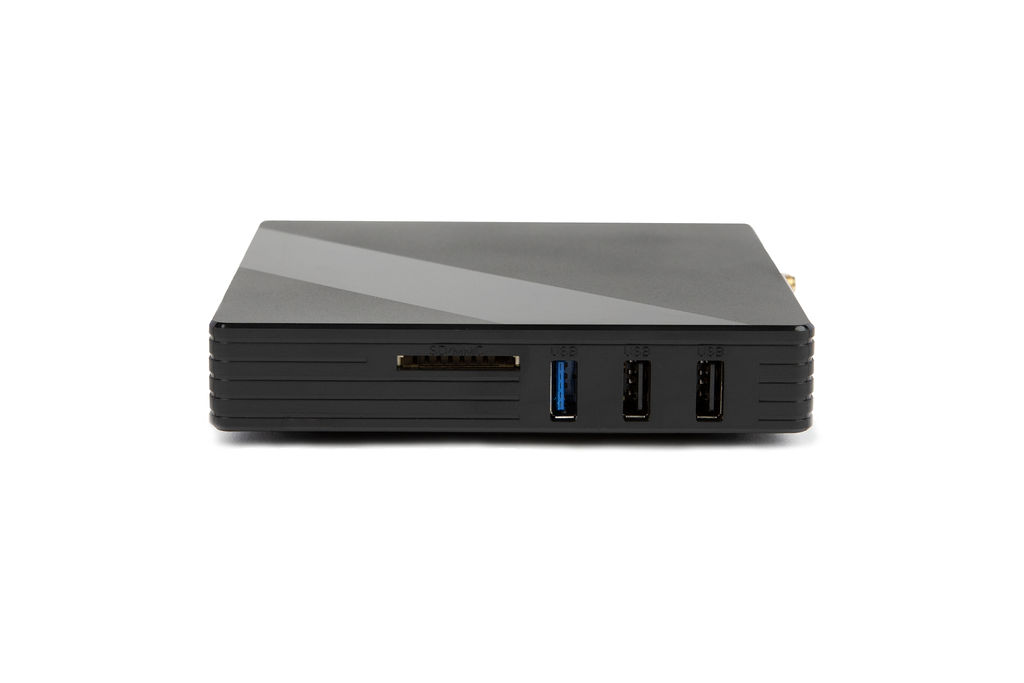
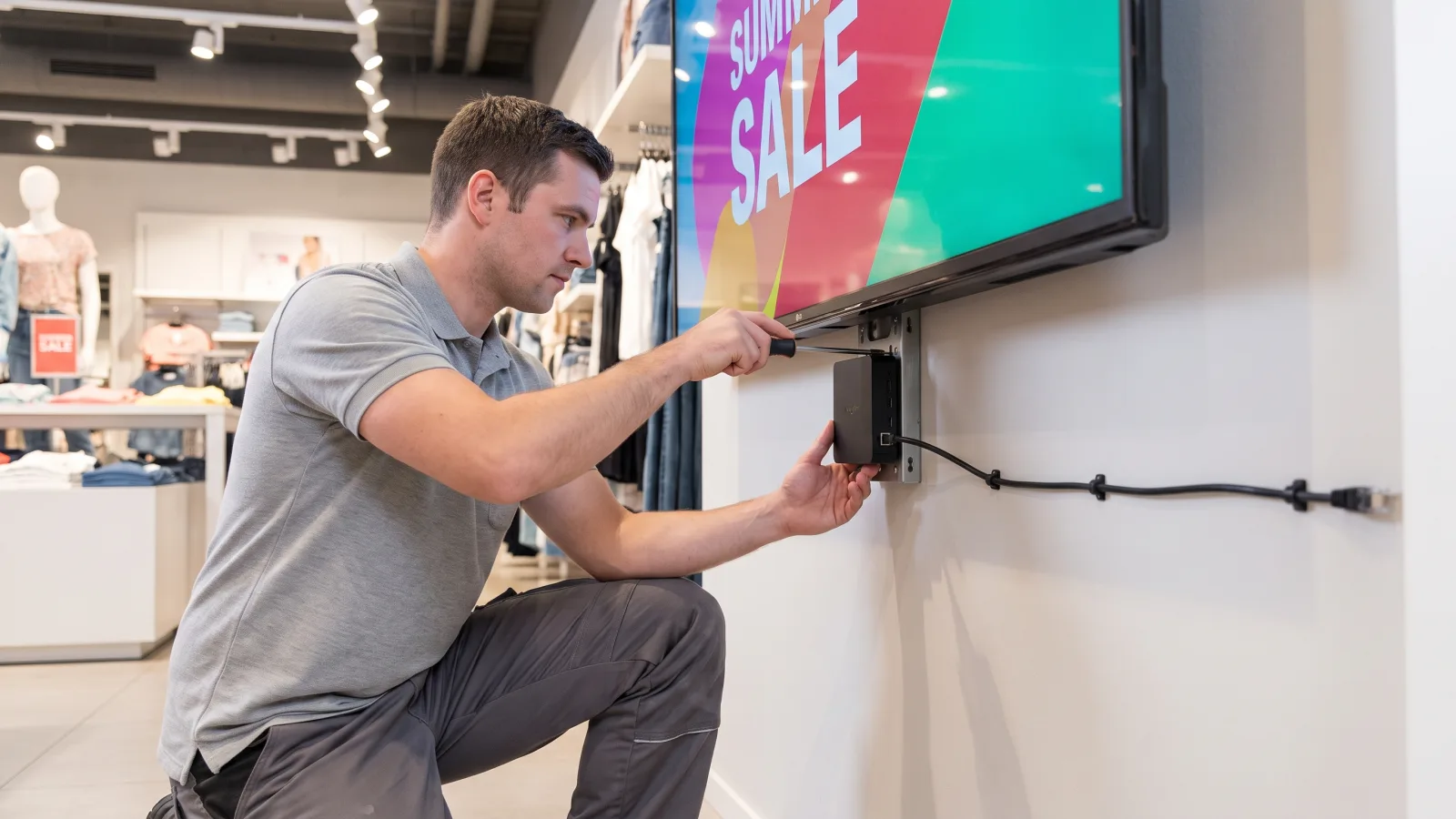
- Fanless metal chassis engineered to dissipate heat through the case during continuous all-day playback
- Wired Ethernet, often with PoE — one cable for power and network, no Wi-Fi drops behind a mounted screen
- Hardware watchdog timer that automatically resets a hung device without a site visit
- Real-time clock for scheduled power on/off and reboots that fire even after a power cut
- Controlled firmware — updates happen when you stage them, not when a storefront OS decides
- Kiosk lockdown in firmware, so the device boots straight into your signage app every time
Our rule from the field: a consumer stick is acceptable for one or two screens that nobody's business depends on. The moment a screen faces a customer, runs 10+ hours a day, or lives in a fleet you manage remotely, buy commercial. A dead $30 stick doesn't cost $30 — it costs a truck roll and a dark screen in front of your customers. CrownTV ships a dedicated media player with every managed deployment for exactly this reason.
Step 2: Install the CMS app
The software workflow is the same on both device classes:
- From an app store. Most signage platforms publish to Google Play (or the Amazon Appstore for Fire OS). Search, install, open.
- By sideloading an APK. Commercial players and Google-free AOSP devices skip the store: download the platform's APK from a URL, install it directly, done. Every serious CMS documents this path.
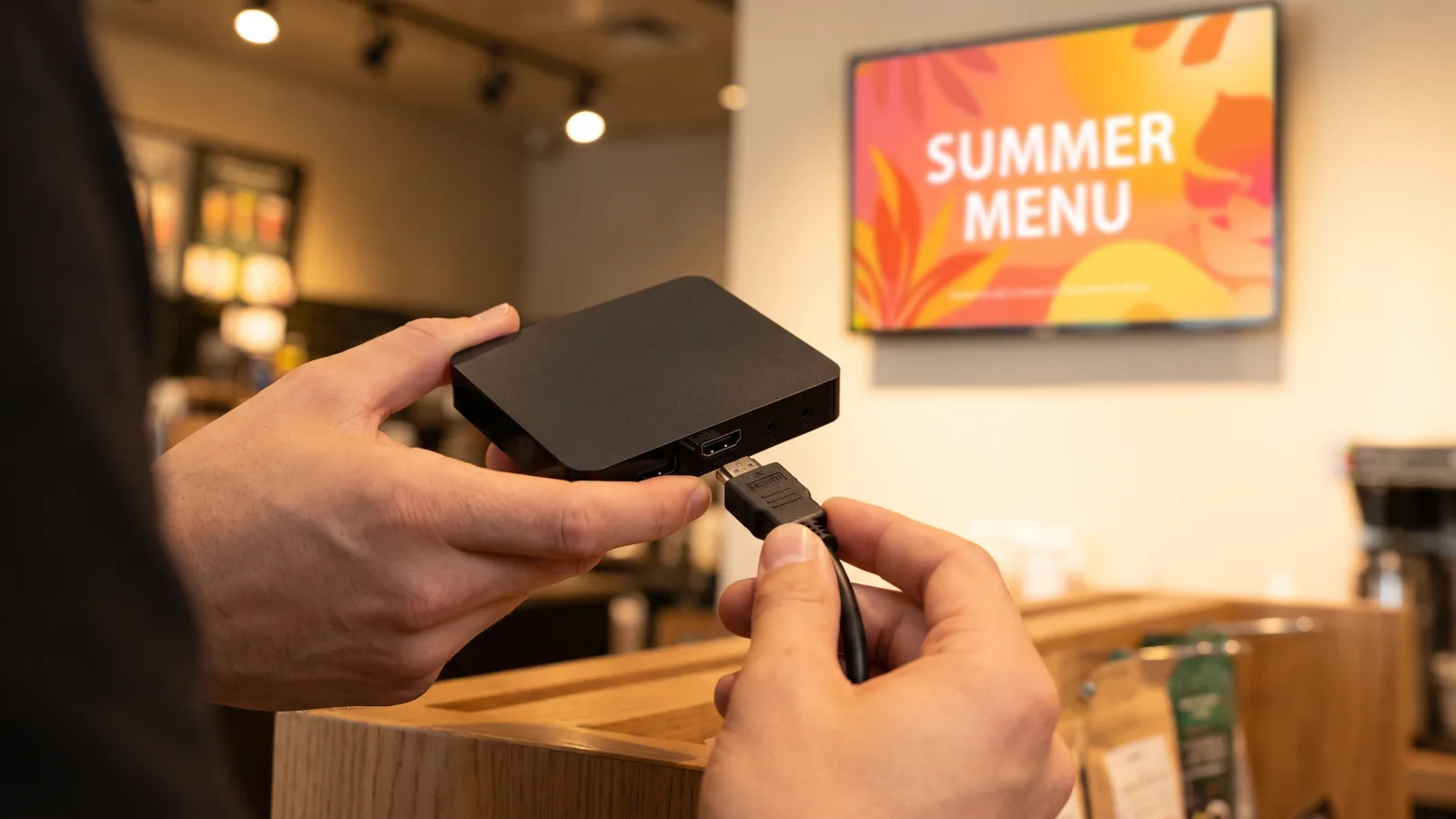
- Pre-provisioned. Managed providers ship the player with the app installed and the device already paired to your account — plug in HDMI and power, and the screen registers itself. This is how CrownTV deployments arrive on site.
Once installed, the app displays a short pairing code; enter it in the CMS dashboard and the screen appears in your fleet, ready for content. (New to the plumbing? How digital signage works walks the whole content-to-screen chain.)
Step 3: Lock the device into kiosk mode
A signage device without lockdown is a screen waiting to show the home launcher, a pop-up, or whatever an employee with the remote decides. Lockdown is not optional. How deep you can lock down depends entirely on the device class:
- Screen pinning (tablets and phones). Built into Android under Settings → Security → App pinning. It holds one app on screen but can be escaped with a button combination, so treat it as a demo tool, not a deployment tool.
- Lock task mode via device owner (the real thing). Provision the device with a management agent set as device owner — via a QR code at first boot, or an EMM console — and that agent can hold the signage app in lock task mode (the mechanism described in Android's lock task mode documentation): no home button, no status bar, no escape. Dedicated lockdown apps (Fully Kiosk Browser, SureLock, Scalefusion and similar) package this for you.
- Consumer TV sticks — the weak spot. Android TV and Google TV don't offer screen pinning, and on Google-branded hardware you can't replace the launcher. Signage apps fall back to autostart-on-boot: the app relaunches when the device restarts, but the consumer UI is still reachable underneath. This is a structural limit of the device class, not something a better app fixes.
- Commercial players — solved at the factory. The firmware boots directly into the signage app with no launcher, no store, and no settings UI exposed. Nothing to escape to.
Rather skip the ADB cables and watchdog scripts?
Tell us your screen count and locations — we'll scope commercial players, displays, software, and licensed-insured installation in one number, with lockdown and remote reboot configured before the hardware ships.
Get a turnkey quote in 2 business hours →Step 4: Set up auto-restart and remote reboot
Every always-on Android device accumulates cruft — memory leaks, stuck WebViews, a playback engine that's been decoding video for 400 hours straight. The fix is boring and non-negotiable: a scheduled daily reboot, typically at 3–4 a.m. when nobody's watching.
- On commercial players: set the reboot schedule in firmware or the CMS dashboard once, and the real-time clock enforces it forever. The hardware watchdog covers the other case — a fully hung device gets power-cycled automatically, no human involved.
- On consumer devices: your options are the signage app's own restart function (which can't help if the whole OS locks up) or a smart plug that cuts power on a schedule — a blunt instrument that works until it corrupts the storage it's yanking power from. There is no watchdog. A hard freeze means someone walks to the screen and pulls the plug.
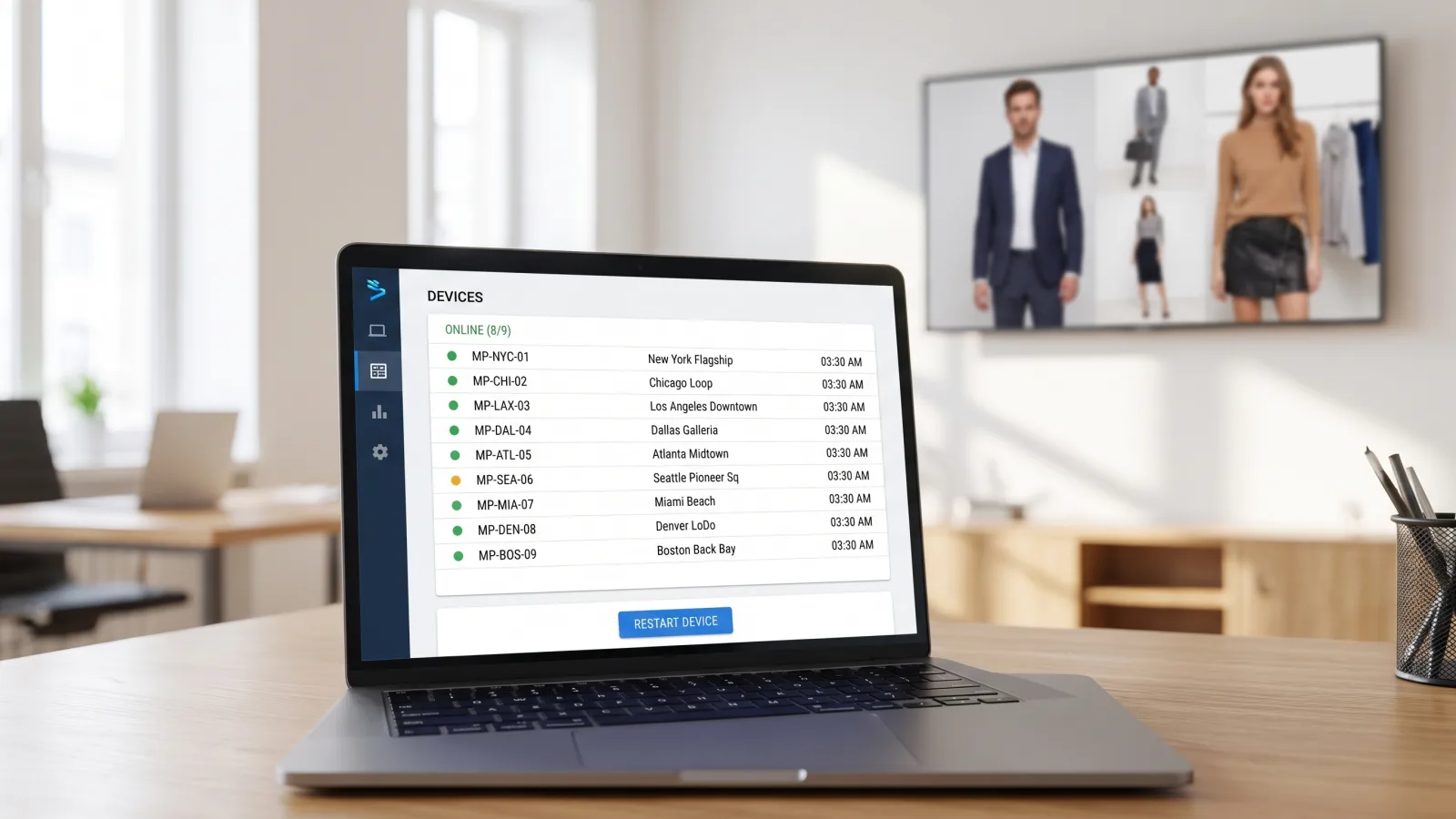
- Remote reboot: confirm your CMS can trigger a restart per device from the dashboard. When screen 14 of 40 misbehaves, this is the difference between a 10-second fix and a site visit.
Step 5: Enroll and manage the fleet
One screen needs a pairing code. Forty screens need a provisioning strategy:
- QR or code-based provisioning. At first boot, the device scans a QR code (or you enter a short token) that installs the management agent, sets it as device owner, applies the kiosk policy, and pairs the CMS account — one unattended flow per device.
- Zero-touch enrollment. Android Enterprise devices bought through participating resellers can be pre-assigned to your management configuration before they ship — unbox, connect, and the device provisions itself. This is the enterprise path for large rollouts.
- Group your screens the way you operate. By location, by zone, by daypart. Content assignments, reboot schedules, and firmware staging should all target groups, never individual devices.
- Stage updates. Push app and firmware updates to a small test group first, watch for a few days, then roll fleet-wide. Never let 200 screens update themselves overnight — that discipline applies to every signage OS, and it's doubly important on consumer devices where you don't fully control the update channel.
Where consumer Android TV sticks fall short
We're not anti-stick — we're anti-surprise. Here's what fails, specifically, when consumer hardware meets a signage duty cycle:
Thermal limits
A streaming stick is engineered around an evening-use assumption: a few hours of video, then idle. Signage inverts that — 10 to 16 hours of continuous decoding, often inside a cabinet or behind a wall-mounted panel with no airflow. Passively cooled plastic hardware heat-soaks, the SoC throttles, playback stutters, and eventually the device locks up. Constant content caching also chews through the cheap eMMC storage these devices ship with. Commercial players are fanless too, but their metal chassis is the heatsink — that's the entire point of the enclosure.
No wired networking, no PoE
Sticks are Wi-Fi-first; Ethernet, where possible at all, hangs off an adapter dongle. Behind a mounted display, Wi-Fi signal is attenuated by the panel itself, and a dropped connection means stale content or an offline screen. Commercial players ship RJ45 as standard and often PoE — one cable delivering power and network, which also means the screen location doesn't need a second outlet for the player.
Play Store drift
Consumer Android updates itself on Google's (or Amazon's) schedule, not yours. Overnight OS updates change behavior, ambient screensavers re-enable themselves, recommendation UIs get more aggressive, and an app that ran fine on Tuesday misbehaves on Wednesday. On a personal device that's a mild annoyance; across a fleet of screens it's a support queue. Commercial players run controlled firmware — the OS you validated is the OS that keeps running until you decide otherwise.
Commercial Android player vs Samsung Tizen SoC
The other credible way to skip consumer hardware is to skip the external player entirely: Samsung commercial displays ship with Tizen, a built-in System-on-Chip that plays content with zero extra boxes. Here's how the two approaches compare when you're specifying real deployments:
| Commercial Android player | Samsung Tizen SoC (built-in) | |
|---|---|---|
| Extra hardware | External box, $250–$600 per screen | None — built into the panel |
| Display compatibility | Any brand with HDMI — Samsung, LG, NEC, mixed fleets | Samsung commercial panels only |
| App ecosystem | Broad — most CMS platforms ship Android apps first | Narrower — HTML5 apps and Tizen-specific builds |
| Kiosk lockdown | Firmware-level boot-to-app | Panel boots to assigned content natively |
| Firmware control | You stage updates on your schedule | Samsung's cadence (~twice yearly); updates can shift behavior |
| When it fails | Swap the player in minutes, panel stays on the wall | SoC issue = service call on the display itself |
| Best for | Mixed-brand fleets, 5+ screens, data-heavy or interactive content | Small Samsung-only installs, 1–5 screens, simple playback |
Our house position hasn't changed since we wrote the Tizen vs Google TV comparison: built-in SoC playback is genuinely fine for a small Samsung-only deployment, and it hits a ceiling around five screens. Past that — or the moment a second display brand enters the fleet — an external player plus a hardware-agnostic CMS like the CrownTV Dashboard is the architecture that scales, with the SoC sitting behind it as a redundancy path.
What an Android signage deployment actually costs
The DIY math per screen: $20–$100 for a consumer stick or $250–$600 for a commercial Android player, plus signage software at typically $20–$50 per screen per month, plus the display itself — and read commercial displays vs consumer TVs before you put a living-room TV in a store window, because the panel has the same consumer-vs-commercial split as the player.
If you'd rather buy the outcome than the parts list, CrownTV packages are all-in and one-time per screen: $3,250 for a 32″, $3,850 for a 55″, and $5,200 for a 75″ — commercial 4K display, mount, media player, professional installation by licensed and insured technicians, setup, and the first year of software in one number. Indoor 500-nit placements only; window-facing and outdoor screens are quoted separately.
Frequently asked questions
Can I use an Android TV stick for digital signage?
Yes, for one or two screens running light content on limited hours. A $20–$100 stick (onn, Chromecast with Google TV) plays a signage app well enough for a pilot or a break-room screen. The trade-offs show up fast: passive cooling built for a few hours of evening streaming, Wi-Fi-only networking, no watchdog reset, and OS updates you don't control. For screens that must run all day in front of customers, step up to a commercial player.
Can I use an Amazon Fire Stick for digital signage?
Technically yes — Fire TV runs Fire OS, an Android fork, and several signage apps publish to the Amazon Appstore. But Fire OS ships without Google services, pushes aggressive home-screen advertising, auto-plays screensavers, and updates on Amazon's schedule, all of which fight a signage workload. Of the consumer options, it's the one we'd skip; a Google TV stick behaves better, and a commercial player removes the problem entirely.
How do I lock an Android device to one app for signage?
On tablets and phones, use lock task mode: provision the device with your management tool (or CMS agent) set as device owner, and it can pin the signage app so no other UI is reachable. Built-in screen pinning under Settings → Security works for quick tests but can be escaped with a button combo. On consumer Android TV sticks there's no full lock task equivalent — signage apps rely on autostart-on-boot, which is weaker. Commercial Android players ship with lockdown built into firmware.
Is Android or Tizen better for digital signage?
They solve different problems. Tizen is the OS built into Samsung commercial displays — zero extra hardware, ideal for small Samsung-only deployments. Android runs on an external player box that works with any display brand, offers a far broader app ecosystem, and can be swapped in minutes if it fails. For mixed-brand fleets or anything past roughly five screens, an external player plus a hardware-agnostic CMS is the pattern we deploy.
How much does an Android digital signage player cost?
Consumer sticks run $20–$100. Commercial-grade Android signage players run $250–$600 per screen — fanless metal chassis, wired Ethernet (often PoE), watchdog reset, and controlled firmware. Signage software typically adds $20–$50 per screen per month. If you want the whole screen handled for you, CrownTV's all-in package — commercial 4K display, mount, media player, licensed-insured installation, and the first year of software — starts at $3,250 for a 32″ and runs $3,850 for a 55″.
Do Android signage players need to be rebooted?
Plan for it. Any always-on device benefits from a scheduled daily reboot — typically 3–4 a.m. — which clears memory leaks before they become frozen screens. Commercial players make this trivial with firmware-level schedules plus a hardware watchdog that resets a hung device automatically. On consumer sticks you're relying on the app to restart itself, and a hard lockup means someone physically pulls the plug.
What's the difference between Android TV and a commercial Android signage player?
Android TV (and Google TV) is a consumer entertainment OS: recommendation rows, ambient screensavers, mandatory Google updates, plastic passively-cooled hardware. A commercial Android signage player runs a stripped-down build (usually AOSP-based) with none of that — no storefront UI, controlled firmware, wired networking, real-time clock for scheduled power, and a watchdog timer. Same kernel family, completely different duty rating.
Read Next
Keep reading
More guides like this
Operator-grade playbooks, weekly.
Proof, not pitches
See real installs
Live deployments across hospitality, retail, and offices.
Ready to deploy?
Get a quote in 2 business hours
Reply within two business hours. No call required.