
Windows Digital Signage: How to Run Screens From a PC (and When Not To)
Windows digital signage, step by step: kiosk mode, autostart, sleep and update lockdown — plus the honest math on when a PC beats a dedicated player.
On this page
A Windows PC makes a perfectly capable digital signage player — if you set it up like an appliance instead of a desktop. That means kiosk mode, automatic sign-in, autostart that survives a reboot, sleep disabled at the OS and BIOS level, and Windows Update pinned to hours when nobody is watching the screen. Skip any one of those and you'll eventually walk past your lobby screen and find a login prompt, a sleeping panel, or a "Getting Windows ready" spinner where your content should be.
This guide covers the whole windows digital signage setup in six steps, then the part most DIY guides skip: what a signage PC actually costs to own versus a dedicated media player, and the specific cases where Windows is genuinely the right call. CrownTV has deployed digital signage for 13+ years across 1,800+ businesses — 16,000+ screens live today for clients like L'Occitane and Herman Miller — and we've run both architectures at scale, including White Glove installs where we inherit someone's PC-based fleet. The opinions below come from that service history.
You'll get:
- A six-step Windows 11 setup: prep, display, software, kiosk mode, update lockdown, remote management
- The exact settings that prevent the three classic failures (sleep, lock screen, update reboot)
- A cost-of-ownership table: Windows PC vs dedicated media player
- When Windows wins (interactive, dashboards) and when it doesn't (fleets, simple loops)
What is Windows digital signage?
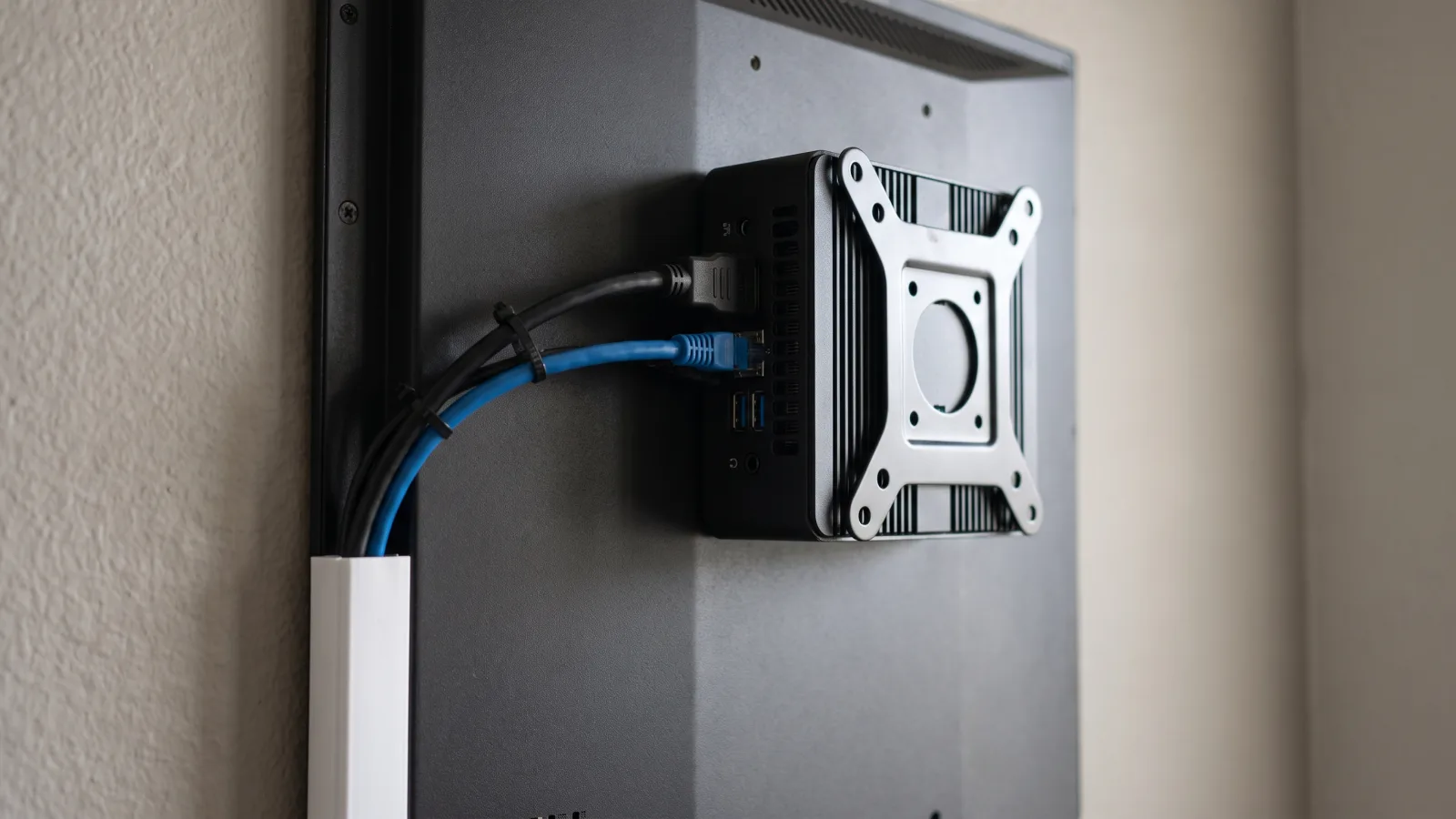
Windows digital signage is a setup where a Windows PC — usually a compact mini PC mounted behind the screen — plays scheduled content on a commercial display instead of a dedicated media player. The PC runs signage software or a browser locked in kiosk mode, signs in automatically, and restarts into content after power loss or updates. It suits interactive kiosks and data-heavy dashboards; dedicated players suit everything else.
What you need before you start
Gather this first — the setup goes from an afternoon to an hour when nothing is missing:
- A dedicated PC. A $200–$600 mini PC with a quad-core CPU, 8 GB of RAM, and an SSD handles standard 4K playback. It must be dedicated — a signage PC that doubles as someone's workstation will be misconfigured within a month.
- Windows 11 Pro. Kiosk mode (Assigned Access), Remote Desktop hosting, and Group Policy all require Pro or better. Home works only with workarounds and gives you no update control.
- A commercial display, not a consumer TV. Commercial panels are rated for all-day duty and carry 3-year warranties; consumer TVs run continuously typically fail in 18–30 months and void their warranty doing it. Our guide to turning a TV into digital signage covers the distinction honestly if you're tempted.
- Wired network. Ethernet to the PC. Wi-Fi is the number-one cause of "the screen is frozen" tickets that turn out to be a dropped connection.
- Signage software with a Windows player or web player. More on the options in step 3 — here's how digital signage works end to end if you want the architecture first.
Step 1: Prep the PC for signage duty
Start clean. A fresh Windows 11 Pro install (or at minimum a reset) beats inheriting whatever lived on the machine before. Then:
- Run every pending Windows Update now. You want the big cumulative updates done on your bench, not on opening day.
- Create a dedicated local standard account for playback — something like
signage. Content plays from this account; you keep a separate administrator account for maintenance. Windows 11's kiosk wizard can create this account for you in step 4. - Strip the noise. Uninstall preloaded apps, turn off notifications (Settings > System > Notifications), disable the lock screen's tips and suggestions, and turn off the screen saver. Every popup Windows can draw, it will eventually draw on your screen in public.
- Name the machine sensibly —
SIGN-LOBBY-01beatsDESKTOP-K3J9X2the day you're remoting into a fleet of them.
Step 2: Connect the display and set the resolution
Mount the PC behind the panel (most mini PCs include a VESA bracket that shares the display's mount holes), run HDMI, and check three things:
- Native resolution and scaling. Set the output to the panel's native resolution — 3840 × 2160 for a 4K commercial display — and display scaling to 100%. Signage content is designed to the pixel; 150% desktop scaling produces soft, cropped layouts.
- Overscan. If the image bleeds past the screen edges, fix it in the display's own picture menu (look for a "Just Scan" or "1:1" picture size), not by shrinking the desktop.
- The display's power behavior. Commercial panels can be scheduled to turn on and off by clock and to wake on signal. Set the panel's on/off timer to match business hours and disable any auto-standby that triggers on a static image. This is a genuine commercial-display advantage — a consumer TV mostly can't be told when to wake up.
Orientation for portrait screens is set in Windows (Settings > System > Display > Display orientation) — do it now, before kiosk mode locks the desktop away.
Step 3: Install your signage software
You have two workable patterns on Windows:
- A native Windows player app from your signage platform. It installs like any desktop program, caches content locally so playback survives an internet outage, and reports back to the dashboard. This is the sturdier option.
- A web player in a kiosk browser. The screen loads a player URL in Microsoft Edge running full-screen kiosk mode. Zero installs, works with almost every platform, but it's only as resilient as the browser session — cache behavior and offline playback vary by platform.
Whichever you run, build your playlist and schedule in the CMS first and confirm content plays windowed before you lock anything down. Debugging a playlist inside kiosk mode is miserable. CrownTV's Dashboard pairs with our own media player hardware rather than a Windows app — relevant later, when we get to the fleet math.
Weighing a DIY PC build against a managed rollout?
Send us your screen count and locations — we'll scope displays, players, software, and licensed-insured installation in one number, so you can compare it honestly against the DIY route.
Get a turnkey signage quote in 2 business hours →Step 4: Lock Windows into kiosk mode and set autostart
This is the step that separates a signage appliance from a desktop with a video playing on it.
Kiosk mode (Assigned Access)
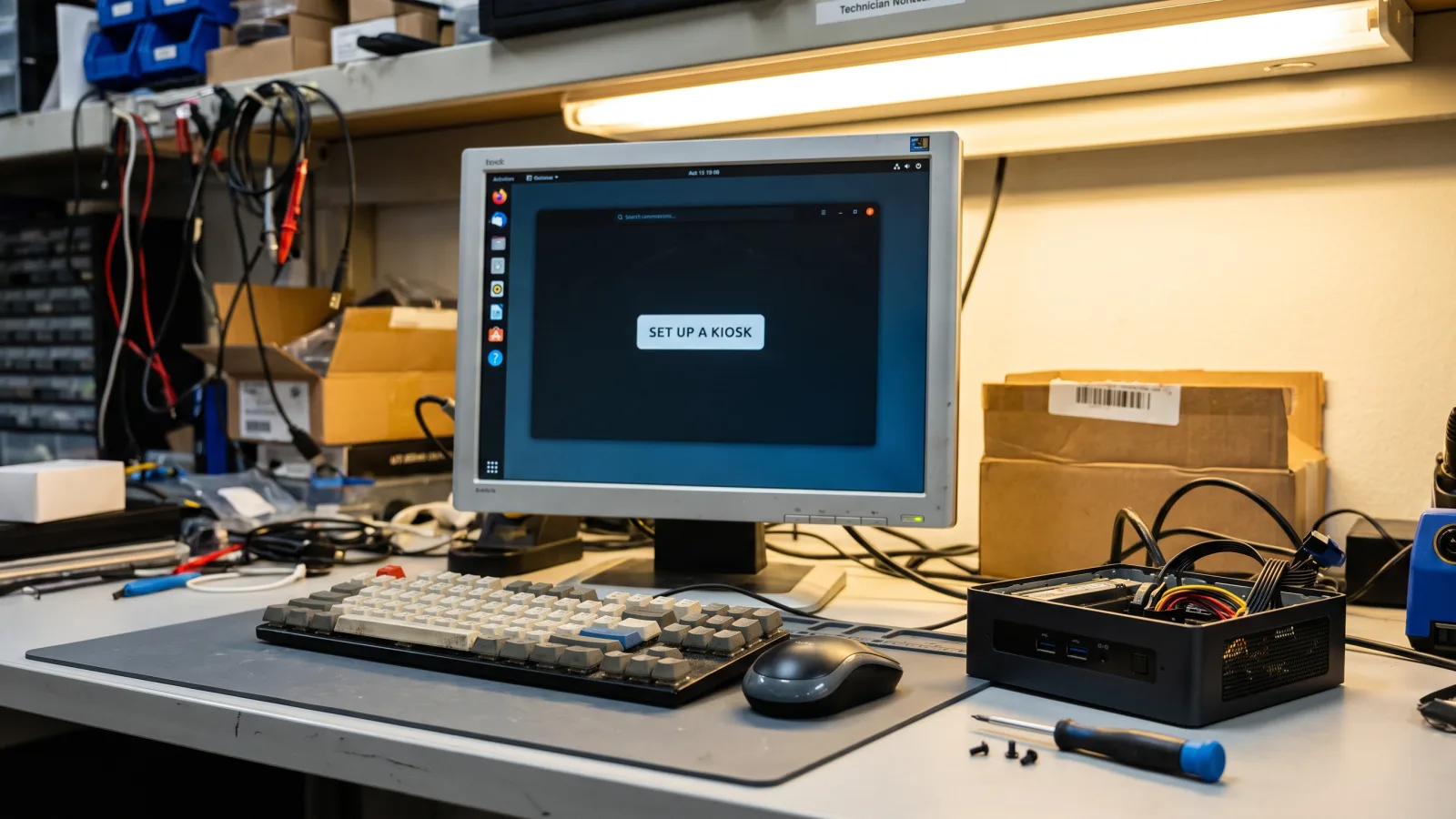
On Windows 11 Pro: Settings > Accounts > Other users > Set up a kiosk. The wizard creates (or converts) a local standard account that signs in automatically at boot and runs a single app full-screen, with the rest of the desktop unreachable. For web players, choose Microsoft Edge, select the digital-signage experience, and enter your player URL. One catch worth knowing before you commit: the built-in kiosk flow runs Edge or Store (UWP) apps — most classic .exe desktop player apps can't be selected here, as Microsoft's Assigned Access documentation details. For those, use the auto sign-in route below instead.
Auto sign-in without kiosk mode
Running a desktop player app? Configure the signage account to sign in automatically: run netplwiz, select the account, and untick "Users must enter a user name and password." On Windows 11 that checkbox is hidden by default — first go to Settings > Accounts > Sign-in options and turn off the "only allow Windows Hello sign-in" toggle, then netplwiz behaves. Local account, strong password, physical security on the PC itself — auto sign-in means anyone with a keyboard is signed in.
Autostart that survives failure
Simplest: drop a shortcut to the player app into the Startup folder (Win+R, shell:startup). Sturdier: create a Task Scheduler task triggered At log on of the signage account, pointed at the app, with two settings changed from default — "If the task fails, restart every 1 minute" and "Stop the task if it runs longer than" unchecked. That restart-on-failure behavior is the poor man's watchdog, and it's the difference between a crashed player recovering in 60 seconds and recovering when someone notices.
Step 5: Disable sleep and tame Windows Update
The two failure modes that account for most dead PC-driven screens we're called in to fix: the machine went to sleep, or Windows Update rebooted it into a login screen. Both are preventable.
Kill sleep everywhere
- In Windows: Settings > System > Power — set screen-off and sleep to Never. From an admin command prompt, the equivalent (plus hibernation off) is:
powercfg /change monitor-timeout-ac 0powercfg /change standby-timeout-ac 0powercfg /h off - In the BIOS/UEFI: set "Restore on AC Power Loss" (wording varies by vendor) to Power On. After an outage, the PC boots itself, auto-signs-in, and the autostart task brings content back — no site visit.
Windows Update: schedule it, don't fight it
You cannot permanently switch off Windows Update with supported settings, and an internet-connected PC running unattended for years is the last machine that should skip patches. What you can do is control when it bites:
- Active hours (Settings > Windows Update > Advanced options): Windows won't auto-restart inside this window. The trap: the window maxes out at 18 hours, so a 24/7 screen always has an exposure window. Put it where the fewest people are watching.
- On Pro, schedule installs with Group Policy:
gpedit.msc> Computer Configuration > Administrative Templates > Windows Components > Windows Update > Configure Automatic Updates — set it to auto-download and schedule the install, and pick a fixed overnight day and time. Predictable beats random. - Make the reboot harmless. This is the real fix. With auto sign-in, autostart, and BIOS power-on all configured, an update reboot costs you a few minutes of downtime at 3 a.m. — not a lock screen until someone walks by with a keyboard.
Step 6: Set up remote management
Never deploy a signage PC you can't reach without a ladder. Layer these:
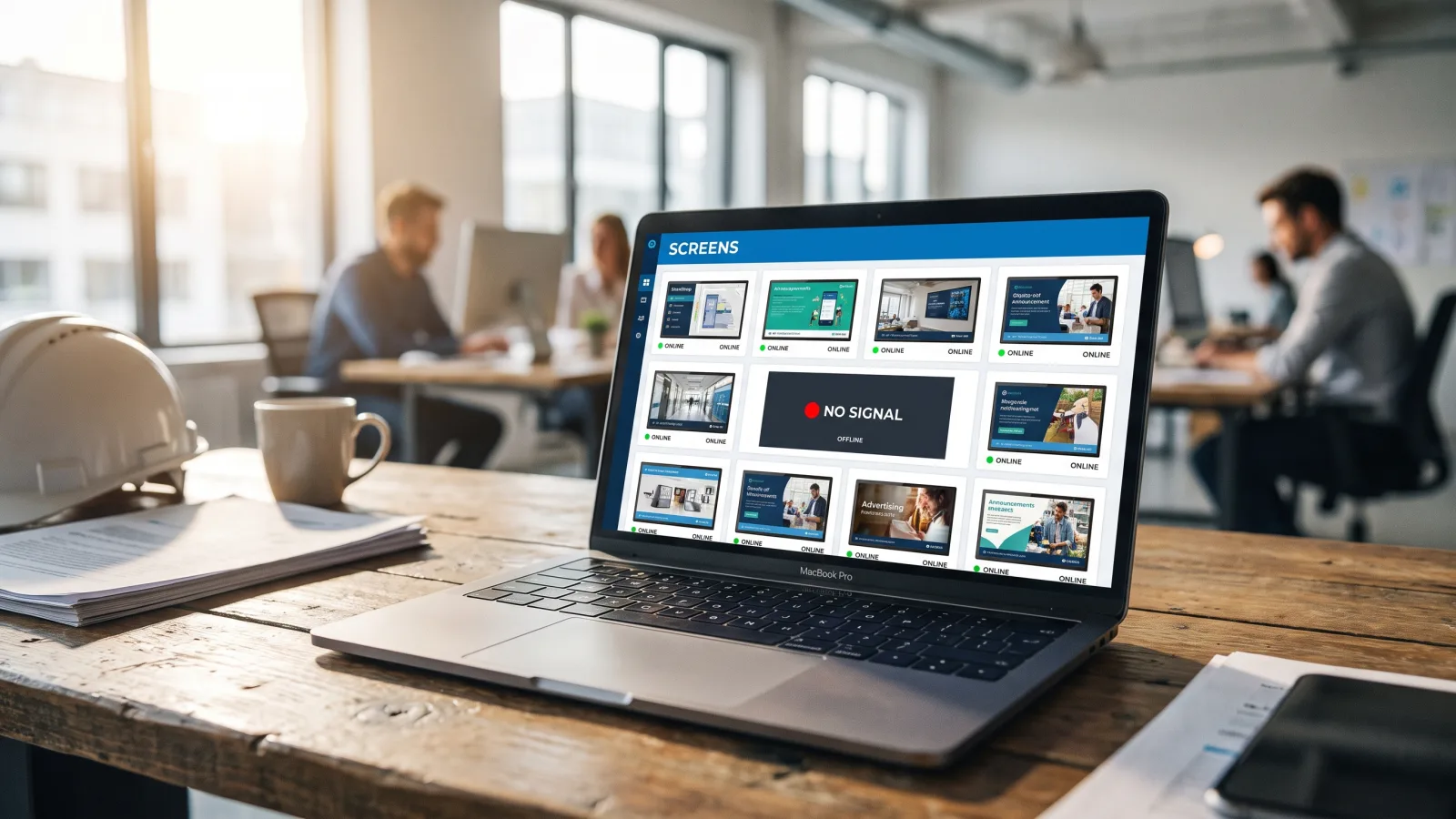
- CMS monitoring first. Your signage platform's dashboard should show per-screen online status and ideally playback proof (screenshots or a health ping). That's your smoke alarm.
- Remote Desktop or a remote-access tool. RDP is built into Pro (enable it under Settings > System > Remote Desktop) but is only directly reachable on your own network — fine for an office, not for a screen behind someone else's router. Third-party tools like TeamViewer or AnyDesk trade that limitation for an agent that phones home.
- A recovery path that doesn't need Windows. Wake-on-LAN if the machine is reachable, or a networked smart PDU/plug so you can hard power-cycle a hung PC remotely. Crude, effective, and the thing you'll be gladdest you installed.
This is also where the honest comparison with dedicated hardware starts: everything in this step ships as standard behavior on a purpose-built signage player. Here's what a digital signage player actually is and why the category exists.
The real cost of ownership: Windows PC vs dedicated player
The upfront sticker favors the PC surprisingly often — a capable mini PC costs about what commercial player hardware does, and a repurposed machine looks free. Three years of ownership tells a different story:
| Windows mini PC | Dedicated media player | |
|---|---|---|
| Hardware upfront | $200–$600 (plus Windows Pro license if not included) | Comparable per unit; commercial players are often bundled with software and support |
| Power draw, always on | ~30–60 W → roughly $35–$70/year per screen at $0.13/kWh | ~5–15 W → roughly $6–$17/year per screen |
| What interrupts playback | Windows Update reboots, driver rot after feature updates, antivirus scans, disk fill-up, the occasional blue screen | Firmware updates pushed and scheduled by the platform; the device boots straight to content |
| Recovery from a hang | Whatever you built in step 6 — or a site visit | Remote reboot from the CMS is a standard feature |
| IT time | A real, recurring line item: it's a Windows endpoint to patch, secure, and troubleshoot | Near zero — it's an appliance, managed from the dashboard |
| Best at | Interactive touch apps, live data dashboards, multi-output video walls, peripheral hardware | Scheduled content loops, menu boards, fleets of 5 to 5,000 screens |
The power line alone is worth pausing on: across 20 screens, the PC route burns roughly $600–$1,300 more electricity per year — real money spent displaying the same content. And the failure modes differ in kind, not just frequency. When a dedicated player misbehaves, you reboot it from the dashboard; when a Windows box misbehaves, you're diagnosing an operating system. Multiply that by a fleet and it's why our windows digital signage conversations with multi-site operators usually end in a hardware swap. If budget is the driver, there are better places to save — our cheap digital signage guide ranks them, and the full digital signage cost breakdown shows where the money actually goes.
When Windows is right — and when a player wins
Real cases where we'd spec a Windows PC without hesitation:
- Interactive kiosks with complex flows. Touch applications built as Windows software, multi-step check-in or configurator experiences, anything needing a full browser engine with local peripherals.
- Data-heavy dashboards. Power BI, Grafana, Excel-driven KPI walls, legacy line-of-business apps that only exist as Windows programs. If the content is a Windows application, the debate is over.
- Peripheral hardware. Barcode scanners, badge readers, cameras, printers hanging off the signage experience — Windows' driver ecosystem is the whole point.
- Multi-output video walls driven by one machine with a workstation GPU, where per-output players would fight the sync problem instead of solving it.
And where a dedicated player wins: essentially everything else. Scheduled promotional loops, menu boards, lobby and waiting-room screens, corporate comms — content that plays unattended is exactly what appliance hardware is built for. That includes System-on-Chip options where the player lives inside the panel itself: no external box at all. Our Tizen vs Google TV comparison covers when built-in SoC playback is enough and when it isn't.
The pattern we see from 13+ years of service calls: Windows deployments start as one clever screen and hurt at screen ten. If your roadmap says "a few dozen displays across locations," pick the appliance architecture on day one — migrating a PC fleet later means re-doing every install.
How CrownTV helps
One contract for hardware, software, install, and service:
- Dedicated CrownTV media players managed from one Dashboard — remote reboot, health monitoring, and scheduled content per screen
- Samsung Authorized Reseller — commercial displays sized to the placement, never consumer TVs
- All-in per-screen packages from $3,250 (32″) to $5,200 (75″): commercial 4K display, mount, media player, licensed-insured installation, setup, and the first year of software
- White Glove installs in all 50 states, including takeovers of existing PC-based signage fleets
- 13+ years, 1,800+ businesses, 16,000+ screens live — L'Occitane, Herman Miller, and operators from single stores to national fleets
Get a signage quote in two business hours →
Frequently asked questions
Can I use a Windows PC for digital signage?
Yes. Any reasonably recent Windows 10 or 11 PC can drive a digital signage screen: connect it to the display over HDMI, install your signage software's Windows player app or run a browser in kiosk mode, set the account to sign in automatically, disable sleep, and schedule Windows Update outside business hours. The setup works well for interactive kiosks and live dashboards. For simple content loops across many screens, a dedicated media player is usually the cheaper, more reliable choice.
How do I make Windows start my signage content automatically after a reboot?
Three layers. First, automatic sign-in: Windows 11 kiosk mode handles this for you, or use netplwiz on a standard account (on Windows 11, turn off the Windows Hello-only sign-in requirement first or the checkbox won't appear). Second, autostart: a shortcut in the shell:startup folder, or a Task Scheduler task triggered at log-on with restart-on-failure enabled. Third, power: set the BIOS to power on after AC loss so the PC self-recovers from an outage.
How do I stop Windows Update from interrupting my digital signage?
You can't fully disable Windows Update through supported settings — and you shouldn't, since an unpatched always-on PC is a liability. Instead, set active hours to cover your full business day (the window maxes out at 18 hours), and on Windows Pro use Group Policy to schedule installs for a fixed overnight slot. Then make the reboot harmless: with auto sign-in and autostart configured, the screen comes back playing content instead of sitting at a lock screen.
What specs does a Windows digital signage PC need?
Less than you'd think for standard playback: a modern quad-core CPU, 8 GB of RAM, a small SSD, and an HDMI 2.0 output for 4K at 60 Hz. A $200–$600 mini PC covers most single-screen jobs. Spec up — 16 GB, a current-generation CPU, discrete graphics — only for multi-output video walls, heavy interactive touch apps, or dashboards rendering live data in a browser all day. Always cable Ethernet rather than trusting Wi-Fi.
Do I need Windows Pro for digital signage, or is Home enough?
Buy Pro. Windows 11's built-in kiosk mode (Assigned Access) requires Pro, Enterprise, or Education — Home doesn't have it. Pro also adds Remote Desktop hosting and Group Policy, which is how you schedule Windows Update installs to a fixed overnight window instead of hoping. You can improvise signage on Home with auto sign-in and a Startup-folder shortcut, but you lose the lockdown, the remote access, and the update control that make a PC tolerable as a signage device.
Is a Windows PC cheaper than a dedicated digital signage player?
Upfront, often yes — a used or budget mini PC can undercut commercial player hardware. Over three years, usually no. A signage PC draws 30–60 W around the clock against roughly 5–15 W for a dedicated player, needs Windows licensing, and consumes IT time every time an update, driver, or disk misbehaves. Dedicated players are appliances: they boot to content, recover on their own, and are managed remotely by design. Fleet buyers almost always land on players.
Can I plug a Windows signage PC into a regular TV?
It will display a picture, but consumer TVs are the wrong tool for signage duty: they're not rated for all-day operation, running them continuously typically voids the warranty, and most fail within 18–30 months of continuous use. A commercial display is built for 16–24 hours a day, carries a 3-year commercial warranty, and exposes control interfaces like RS-232C so it can be powered and scheduled remotely. Put the savings in the PC, not the panel.
Read Next
Keep reading
More guides like this
Operator-grade playbooks, weekly.
Proof, not pitches
See real installs
Live deployments across hospitality, retail, and offices.
Ready to deploy?
Get a quote in 2 business hours
Reply within two business hours. No call required.