
Digital Signage for Government Buildings: What a City Hall Lobby Actually Needs
Digital signage for government buildings: the five lobby screens worth installing, closure banners, ADA mounting, a separate VLAN and PO purchasing.
On this page
Reply within 2 business hours Ask a signage specialist Tap to open the quote form
Digital signage for government buildings goes wrong in one predictable way: too many screens, each trying to do everything. Here is the opinion this guide is built on. A public lobby needs a screen for each question people ask at the counter, and nothing more. Where do I go? How long is the wait? What do I need to bring? When is the meeting? Answer those four on a wall and the line at the information desk gets shorter.
CrownTV has deployed 10,000+ commercial displays since 2012, and 16,000+ screens run on our Dashboard today. We have not published a government case study, so this is not a project story. It is the plan we walk a facilities manager through on a site survey of a city hall, a county service center or an agency lobby: what goes where, how it connects, and how purchasing works.
What digital signage for government has to do
A government lobby serves people who want to finish and leave. Brand video matters less than clear, current, plain-language information. This is the scope we start from.
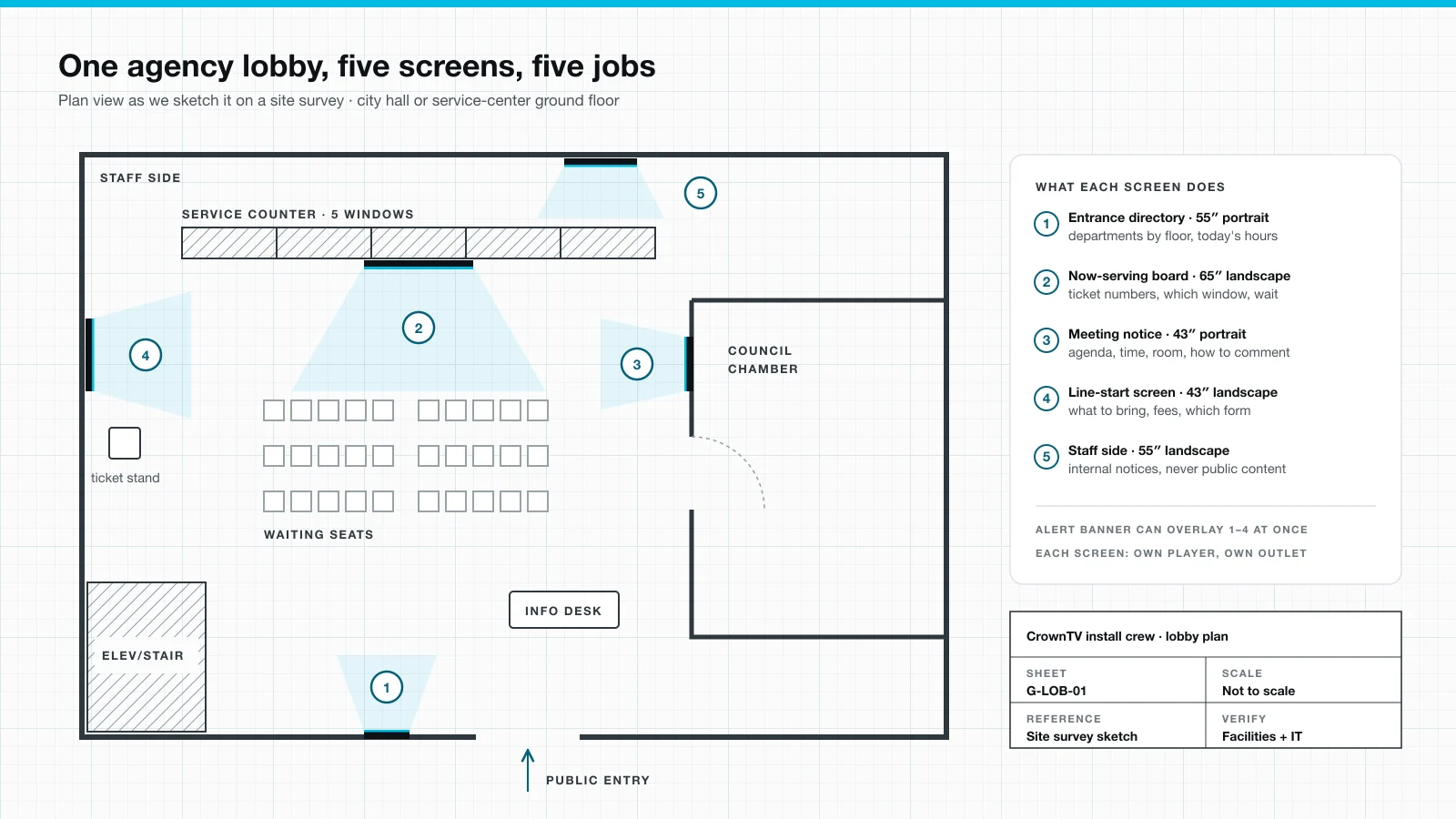
| Screen | Where it goes | Its one job | What we usually spec |
|---|---|---|---|
| 1. Entrance directory | Inside the main entry, before the first decision point | Departments by floor, today's hours, closures | 55″ portrait |
| 2. Now-serving board | Above the service counter, facing the seats | Ticket number, which window, current wait | 65″ landscape |
| 3. Meeting notice | Corridor wall outside the council or hearing room | Agenda, time, room, how to comment | 43″ portrait |
| 4. Line-start screen | Beside the ticket stand or the start of the line | What to bring, fees, which form | 43″ landscape |
| 5. Staff side | Behind the counter or in the break room | Internal notices, never public content | 55″ landscape |
Sizes follow our survey rule: a 12-foot sightline wants at least a 43″ screen; a 25-foot lobby wants 65″ or larger. Your room sets the final number.
The five screens in an agency lobby
The plan at the top of this page is our survey sketch. Each screen has its own media player and power outlet, and staff run all five from one Dashboard.
1. The entrance directory
A portrait screen lists departments by floor, today's hours and any closed office. Portrait suits lists because people read top to bottom. Our digital building directory package covers the hardware and the template. One ADA detail: section 216.1 of the 2010 Standards exempts building directories from the sign rules, but permanent room signs still need tactile characters under 216.2. The screen supplements the room-number signs. It never replaces them.
2. The now-serving board
This is the screen that calms the room. It shows the ticket number being served, which window to go to, and an honest wait estimate. If you already run queue software and it publishes a display page that opens in a browser without a login, the Dashboard's Web Page app can show it in one zone of a layout, with your own notices in the other. If the queue system only drives its own box, that box gets the screen's HDMI input and we mount it. For the screen and mount side of a waiting area, see our waiting-room screen packages.
3. The meeting notice
Put it outside the chamber, where people already look for the agenda. Schedule each notice with start and end dates so it comes down after the meeting. Ask your clerk or counsel whether a screen counts as the official posting under your state's open-meetings law. Until they say yes, keep the paper notice on the board. The screen is the copy people actually read.
4. The line-start screen
A visitor who reaches the window without the right document has wasted a trip, and your clerk has to explain why. A screen at the ticket stand that lists what to bring for your most common transactions catches that before the line starts. Keep it to one transaction per slide.
5. The staff-side screen
Shift notes, system outages, training reminders. It runs its own playlist, assigned only to that display, so an internal notice never lands on a public screen by accident.
Closures, weather and emergency messages
When the building closes early, every screen should say so within minutes. In the CrownTV Dashboard that is a banner: a strip of text that overlays whatever the playlist is showing. You write it once, set a start and end time, and send it to a single display or a whole display group. Because it overlays the playlist, nobody rebuilds content to post a closure.
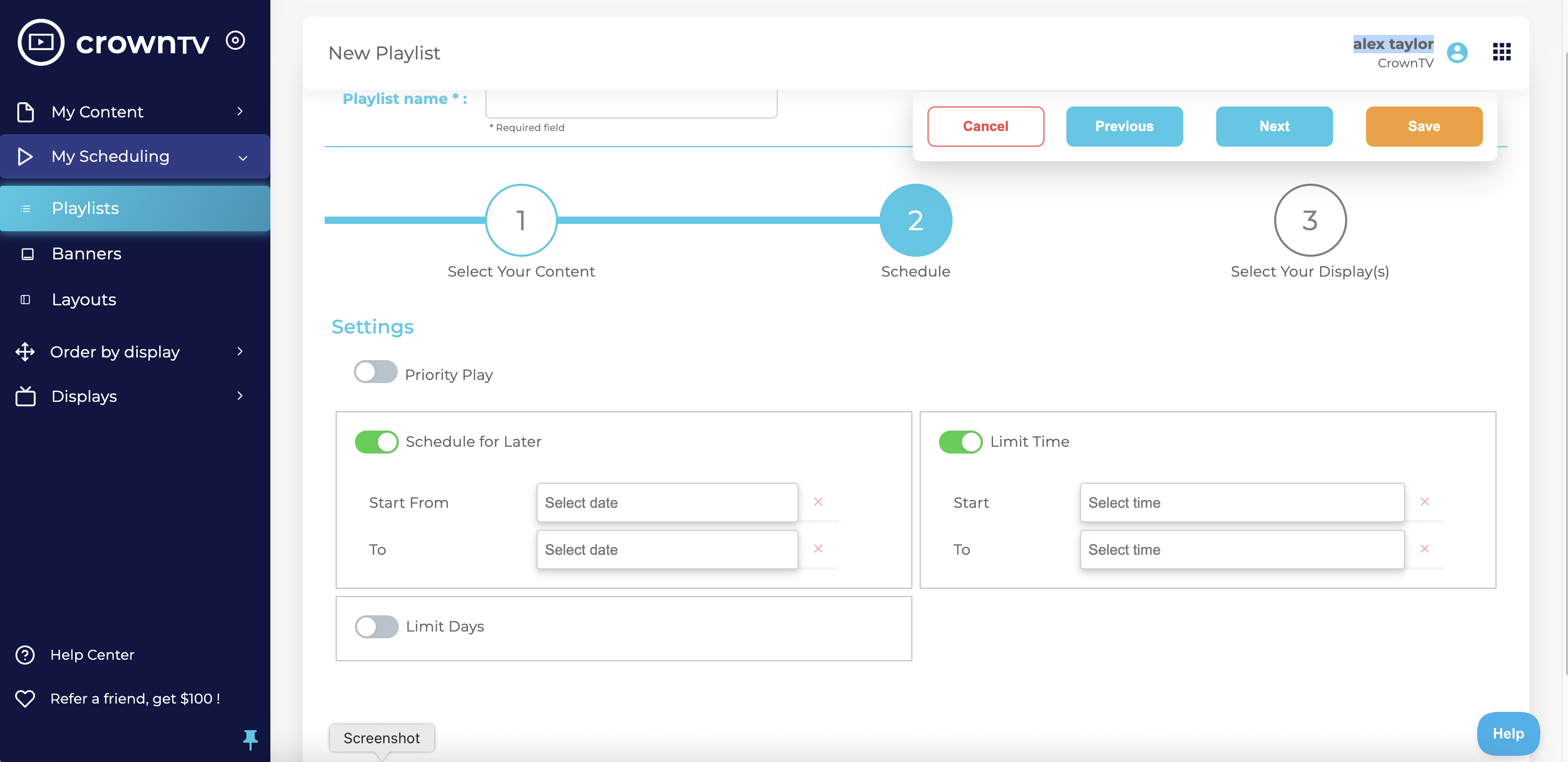
Two more controls matter here. Any playlist can be paused with one toggle, and a finished playlist can be locked so a legal notice cannot be edited by mistake. One limit: a banner is a message your staff publish. It is not an automatic feed from a mass-notification platform. If your emergency system has a signage output, tell us on the survey and we will scope what can connect.
Accessibility: how we mount and what goes on screen
Title II of the ADA applies to every state and local government, whatever its size. For a wall-mounted screen, the rule we design around is section 307.2 of the 2010 ADA Standards: an object with its leading edge between 27 and 80 inches above the floor may protrude no more than 4 inches into a circulation path. A screen on a tilt mount in a corridor can break that rule. So in corridors we use low-profile mounts, recess the screen, or set it above 80 inches with a downward tilt.
Mount height follows our field spec: screen center at 60–65″ for seated viewers and 65–72″ for people standing or walking past. Content rules are simple and we hold them on every public screen:
- Contrast. Light text on a dark background or dark on light. That is the 703.5.1 rule for required signs, and it works on screens too.
- Captions. The Dashboard's YouTube app plays video muted unless you turn audio on, and lobby screens usually run silent, so any clip with speech gets open captions burned in.
- Plain language. One idea per slide, long enough on screen to read twice.
Working with your IT department
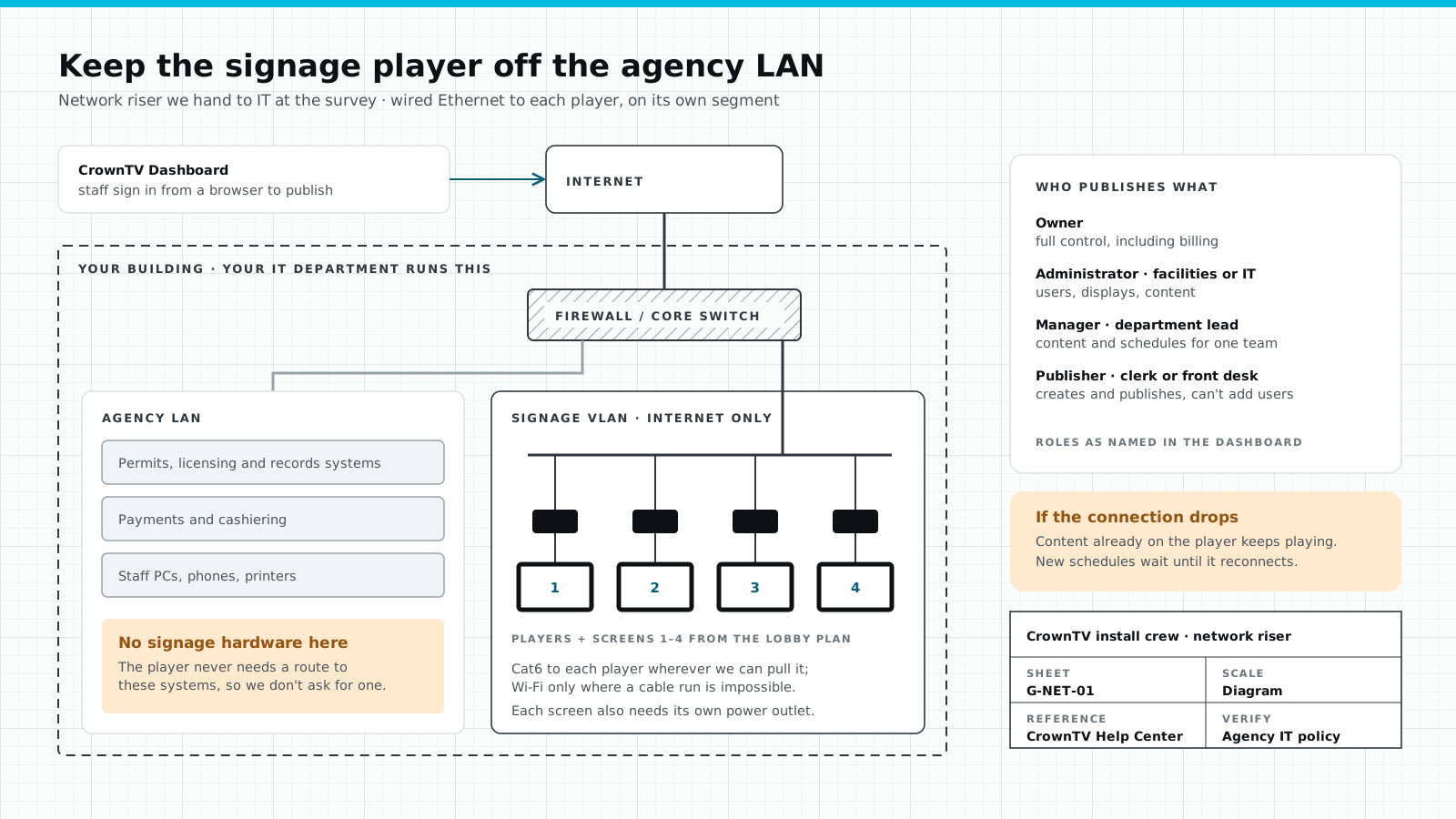
We bring the network answer to the first IT meeting. The CrownTV media player needs a continuous internet connection to receive schedules. It does not need a route to your permitting, payment or records systems. We ask for a wired Ethernet drop to each player on its own VLAN with internet access only. We use Wi-Fi only where a cable run is impossible.
If the connection drops, content already on the player keeps playing and new schedules wait until it reconnects. The Dashboard's Monitoring view shows each player as online or offline with its last check-in time, and you can request a screenshot of what a screen is showing right now.
Access is role-based: Owner, Administrator, Manager and Publisher, as shown in the drawing. We usually give facilities or IT the Administrator role and the clerk's office Publisher access for meeting notices.
Running more than one building
Display groups handle more than one building: one group per building and one per role, such as "Meeting notices", and a screen can sit in both. A closure banner goes to one building; a holiday schedule goes to all of them. Our multi-location digital signage page covers rollouts across sites.
What it costs and how purchasing works
CrownTV prices each screen as one installed package: a commercial 4K display (500-nit, anti-glare, no buttons, rated to run 24/7), a mount, a CrownTV media player, installation by our licensed and insured crew, and the first year of Dashboard software.
| Screen from the lobby plan | Package | Installed price |
|---|---|---|
| Meeting notice, line-start screen | 43″ indoor package | $3,150 |
| Entrance directory, staff side | 55″ indoor package | $3,450 |
| Now-serving board | 65″ indoor package | $4,550 |
| Large lobby or chamber screen | 75″ indoor package | $4,950 |
| Software after year one | CrownTV Dashboard | $20 per screen per month |
Per screen, installed. Displays carry the Samsung 3-year commercial warranty.
The terms public buyers ask about, stated plainly:
- Purchase orders are accepted. Full payment is due to schedule the installation date. We do not offer Net-30.
- Lead time. Typically 5–7 business days from the paid invoice to installed screens.
- Power. Each screen needs a power outlet at its location. We make the clean connection; we do not do high-voltage electrical work, so your electrician adds any missing outlets.
- Vendor paperwork. W-9, insurance certificates and references on request.
If your agency buys through a formal bid, our public-sector RFP responses page lists what we submit. For the crew, the survey and the install day itself, see digital signage installation.
FAQ
What is digital signage used for in government buildings?
Five jobs cover most city halls and agency lobbies: an entrance directory, a now-serving board at the counter, meeting notices outside the chamber, a line-start screen that lists what to bring, and a staff-side screen for internal notices. Staff update all of them from one dashboard.
Does government digital signage have to meet ADA rules?
Title II of the ADA applies to every state and local government. The 2010 ADA Standards limit anything with a leading edge between 27 and 80 inches above the floor to 4 inches of protrusion into a circulation path, so mount and screen depth matter. Permanent room signs still need tactile characters, so a screen never replaces one. Confirm details with your building official.
Can we push a closure or emergency message to every screen at once?
Yes. A CrownTV Dashboard banner overlays whatever is playing, on one display or a whole display group, with a start and end time. It is a message your staff publish, not an automatic feed from a mass-notification system.
Does the media player need to be on our agency network?
It needs a continuous internet connection, not access to your internal systems. We ask IT for a wired drop on its own VLAN with outbound internet only. If the connection drops, content already on the player keeps playing; new schedules wait until it reconnects.
How does a public agency buy CrownTV signage?
We accept purchase orders. Full payment is due to schedule the installation date, and we do not offer Net-30. We can provide a W-9, insurance certificates and references on request, and we respond to formal RFPs. Screens are typically installed within 5–7 business days of the paid invoice.
Keep reading
More guides like this
Operator-grade playbooks, weekly.
Proof, not pitches
See real installs
Live deployments across hospitality, retail, and offices.
Ready to deploy?
Get a quote in 2 business hours
Reply within two business hours. No call required.