
Displays
How to manage Displays
A **display** is one of your physical screens. Each one is registered with CrownTV and identified by an Id like `20005`. From this page you can find a displa…
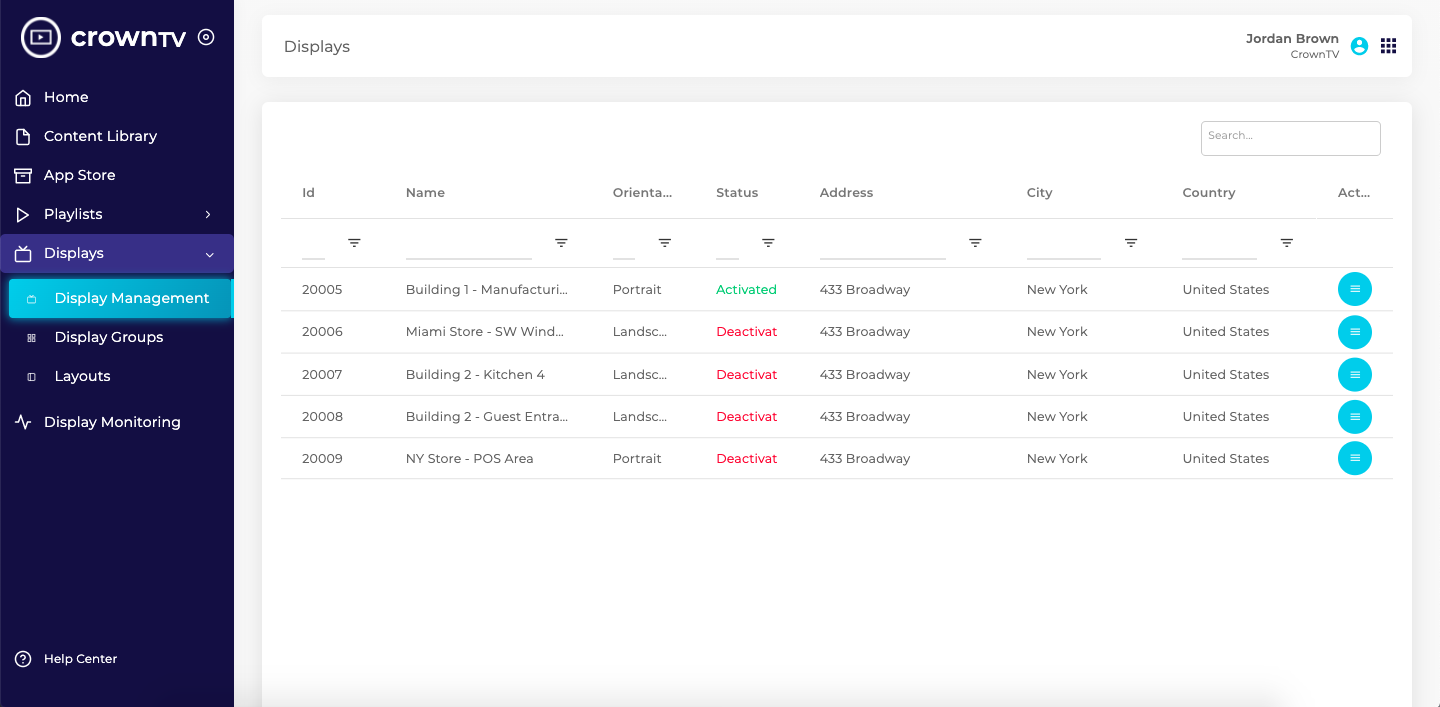
A display is one of your physical screens. Each one is registered with CrownTV and identified by an Id like 20005. From this page you can find a display, edit its settings, activate a new one, or export the full list.
Find a display
- Sidebar → Displays → Management.
- Use the Search… box (matches across all columns) or type into a column’s filter input:
- Id — when you have the player ID handy.
- Name — friendly name (e.g. Miami Store - SW Window).
- Orientation — Landscape, Portrait, Reverse portrait.
- Status — Activated or Deactivated.
- Address / City / Country — by location.
Edit a display’s settings
Click the display Name (the link goes to /player/{id}/edit) or open the Action menu (right edge) and pick Edit Settings. From the edit page you can rename, change orientation, edit the address, change which groups it belongs to, etc.
Activate a new display
When CrownTV ships you a player, it appears in this list as Deactivated. Open the Action menu and pick Activate Display (computer icon) to walk through the activation flow.
Status meanings
- Activated (green) — the player is paired and ready to receive content.
- Deactivated (red) — the player exists in your account but is not paired (often because it’s a new device, was reset, or has lost its pairing).
Display Groups
Each row’s Name cell lists the Display Groups the display belongs to. Groups make scheduling easier — assign content to a group instead of each individual display. Manage groups under Displays → Groups; see How to use Display Groups.
Export the full list
Click Export as CSV to download every row in the table as a CSV — handy for reconciling against your physical inventory or sharing with non-CrownTV teammates.
Tips
- Use a consistent naming convention (e.g.
<Site> - <Location>) so the Name filter and CSV export are useful at a glance. - If a display says Deactivated but is plugged in, check the player’s network connection and screen output before re-activating.
Reference screenshots
Migrated from the legacy CrownTV help center. The dashboard UI may have evolved — refer to the live dashboard for current screens.
Still stuck?
Submit a ticket and a CrownTV specialist will reply within 2 business hours.