
Account & users
How to manage your account
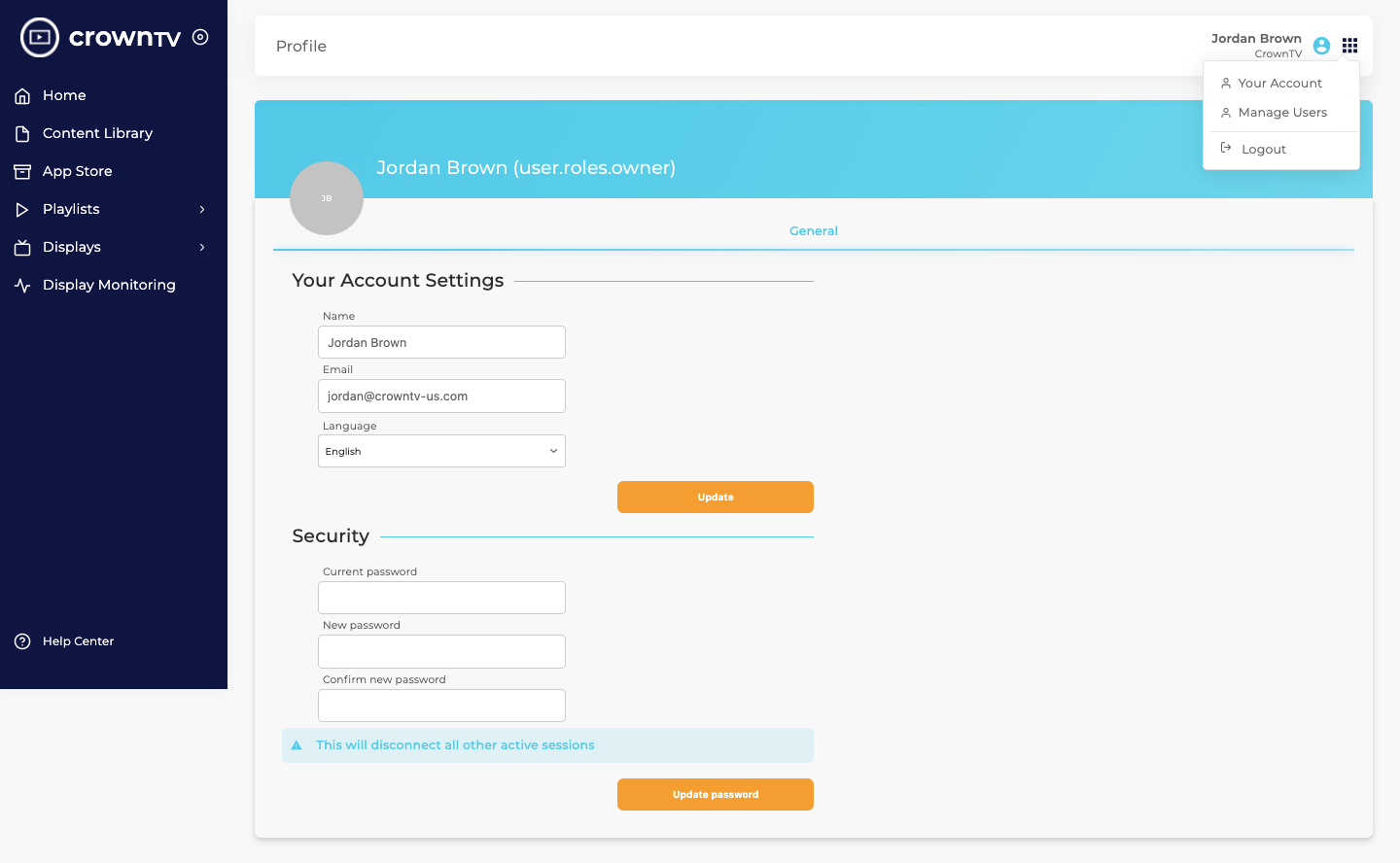
Edit your CrownTV account profile, password, language, and notification preferences. Open via the avatar in the top-right corner → Your Account.
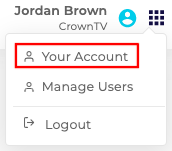
Open this page from the avatar in the top-right corner of any page → Your Account.
Update your profile
- In the Your Account Settings card, change your Name, Email, or Language (currently English or French).
- Click Update to save.
Change your password
- Scroll to the Security card.
- Enter your Current password.
- Enter and confirm a New password.
- Click Update password.
Heads up: changing your password signs you out of every other active session. You’ll stay signed in here.
Manage email notifications
- Scroll to the Notifications card.
- Tick Receive notifications (Email) when a media player is disconnected if you want to be alerted whenever a display drops offline.
- Click Update notifications.
Tips
- Your role (e.g. Owner, Admin) is shown next to your name in the cyan banner. Roles control what you can do — to change someone’s role go to How to manage users and teams.
- Use a unique strong password and turn on the disconnection email — you’ll spot a dead player before a customer does.
Reference screenshots
Migrated from the legacy CrownTV help center. The dashboard UI may have evolved — refer to the live dashboard for current screens.
Still stuck?
Submit a ticket and a CrownTV specialist will reply within 2 business hours.