
School Digital Signage: 21 Real Use Cases (2026 Guide)
21 real school digital signage use cases for K-12 — emergency alerts, wayfinding, cafeteria menus, parent comms — with the hardware specs, software criteria, and budget bands behind each.
On this page
K-12 schools sit somewhere between a corporate campus and a public space. Mixed audiences (students, staff, parents, visitors), tight budgets, and one capability that matters more than any other: emergency alert override. A signage network that can't push an emergency message to every screen in seconds isn't doing the most important part of its job.
CrownTV has been deploying digital signage for 13+ years across 1,800+ businesses, with 16,000+ screens currently running live. Education and campus deployments make up a meaningful share of that work, alongside retail clients like L'Occitane and corporate clients like Herman Miller. The 21 use cases below reflect what's actually working in K-12 facilities — paired with realistic hardware, software criteria, and a budget that fits a typical district.
You'll get:
- 21 specific digital signage use cases for K-12 schools
- Hardware specs and budget bands
- The two non-negotiable capabilities (emergency override and content governance)
- What to look for in school digital signage software — and what to ask any vendor
- Common deployment mistakes
How is digital signage used in schools?
K-12 schools use digital signage for 21 distinct functions: visitor welcome and sign-in, building maps and wayfinding, daily schedule and room-change boards, cafeteria menu boards, parent communications, classroom announcements, and emergency alert overrides. Every screen connects to one CMS so administrators can push lockdown alerts to every display in seconds.
Why schools are moving to digital signage
Printed signs and paper bulletin boards have three problems in a school: they go stale the moment something changes, nobody is sure which version is current, and they do nothing in an emergency. Digital displays for schools fix all three at once. A schedule change, a snow day, a club meeting moving rooms — each is a 30-second edit pushed from one dashboard instead of a stack of reprinted flyers taped over the old ones.
The schools that get the most out of a deployment tend to point to the same handful of outcomes:
- Faster, safer emergency communication. One alert reaches every screen, every hallway, every cafeteria simultaneously — and clears just as fast.
- Less front-office workload. Self-serve wayfinding and welcome screens absorb the "where do I go?" questions during open houses, parent-teacher nights, and election days.
- Stronger school culture. Student-of-the-month, college acceptances, and athletic results on screen carry more weight than a printed flyer nobody stops to read.
- Content that's actually current. Live feeds from the master schedule, the lunch-menu vendor, and the athletics calendar mean the boards are never out of date.
Two non-negotiable capabilities
1. Emergency alert override
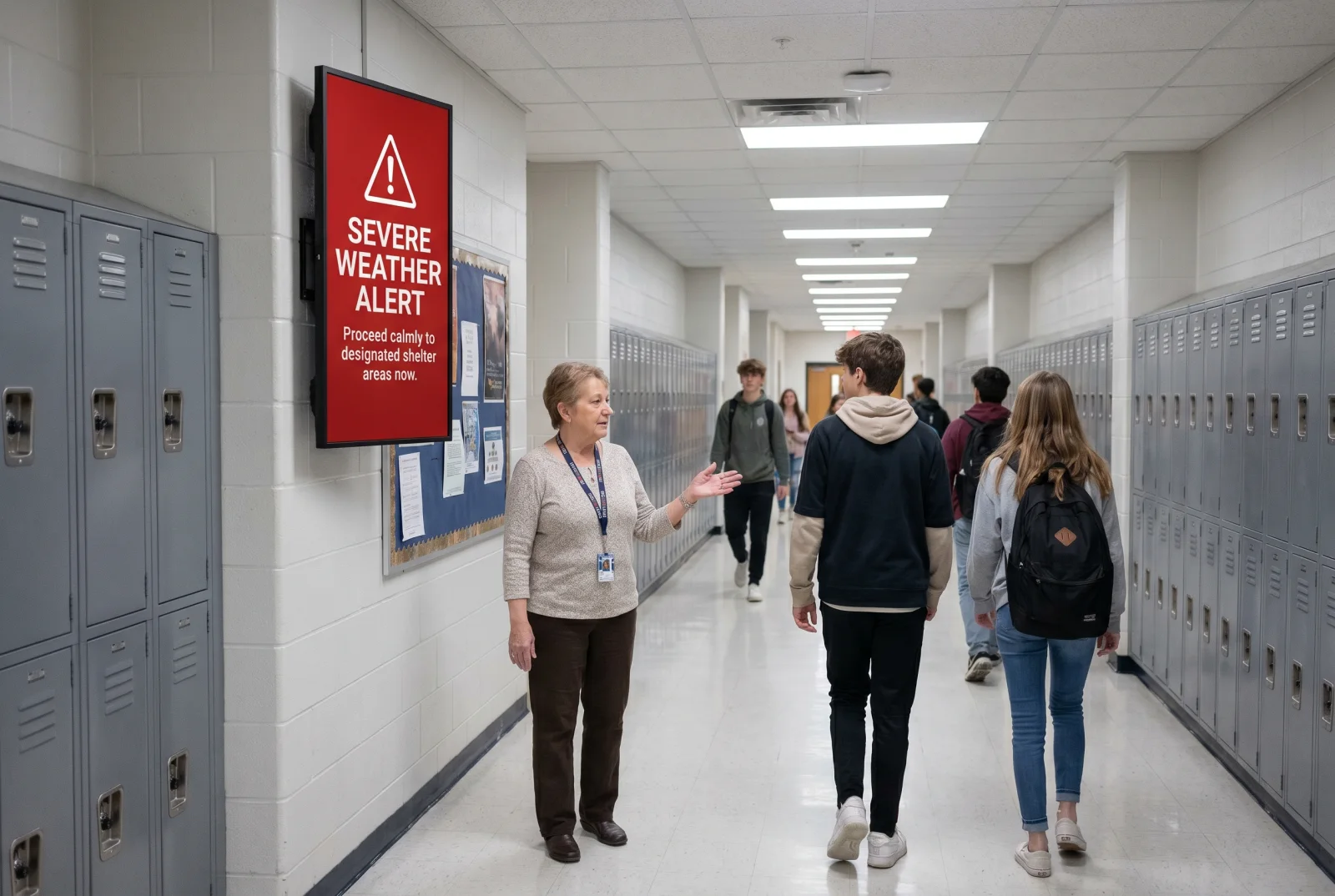
Every screen on the network must be able to receive an immediate full-screen takeover for emergencies — lockdowns, weather, evacuation. The CMS needs an alert button accessible to administrators (not just IT), with predefined messages and the ability to clear and return to normal content. If the platform you're evaluating doesn't have this as a first-class feature, it's not built for schools.
2. Content governance
Multiple staff members will want to push content. Without role-based access, the cafeteria menu accidentally overwrites the principal's message. Look for: per-screen or per-group permissions, approval workflows for content publication, and an audit log showing who changed what and when.
Specifying a system for your school or district?
Send us your screen count and buildings — we'll scope hardware, software, and install in one quote, with emergency override and role-based access built in from day one.
Get a school signage quote in 2 business hours →Front of building
1. Welcome / visitor display
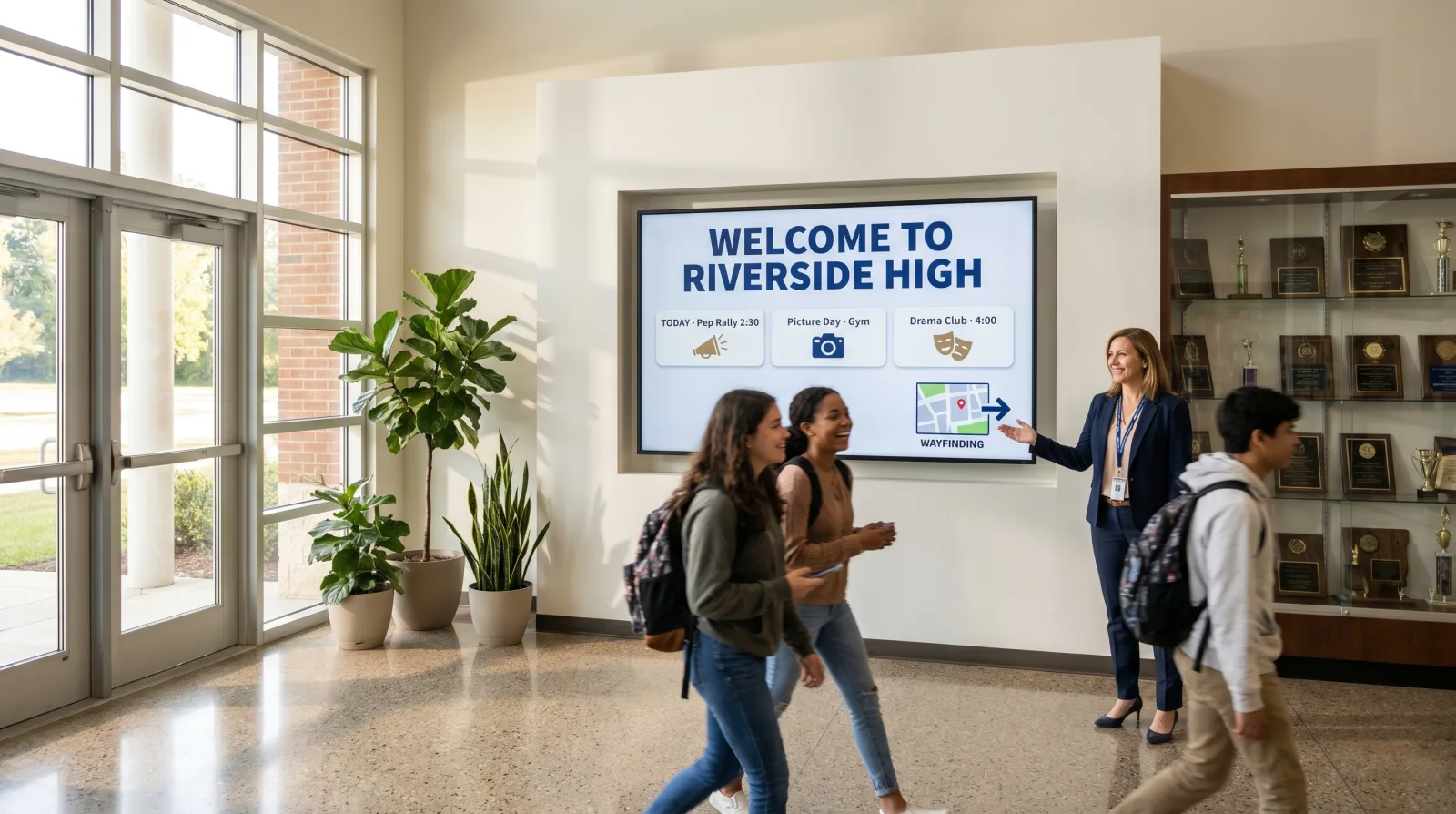
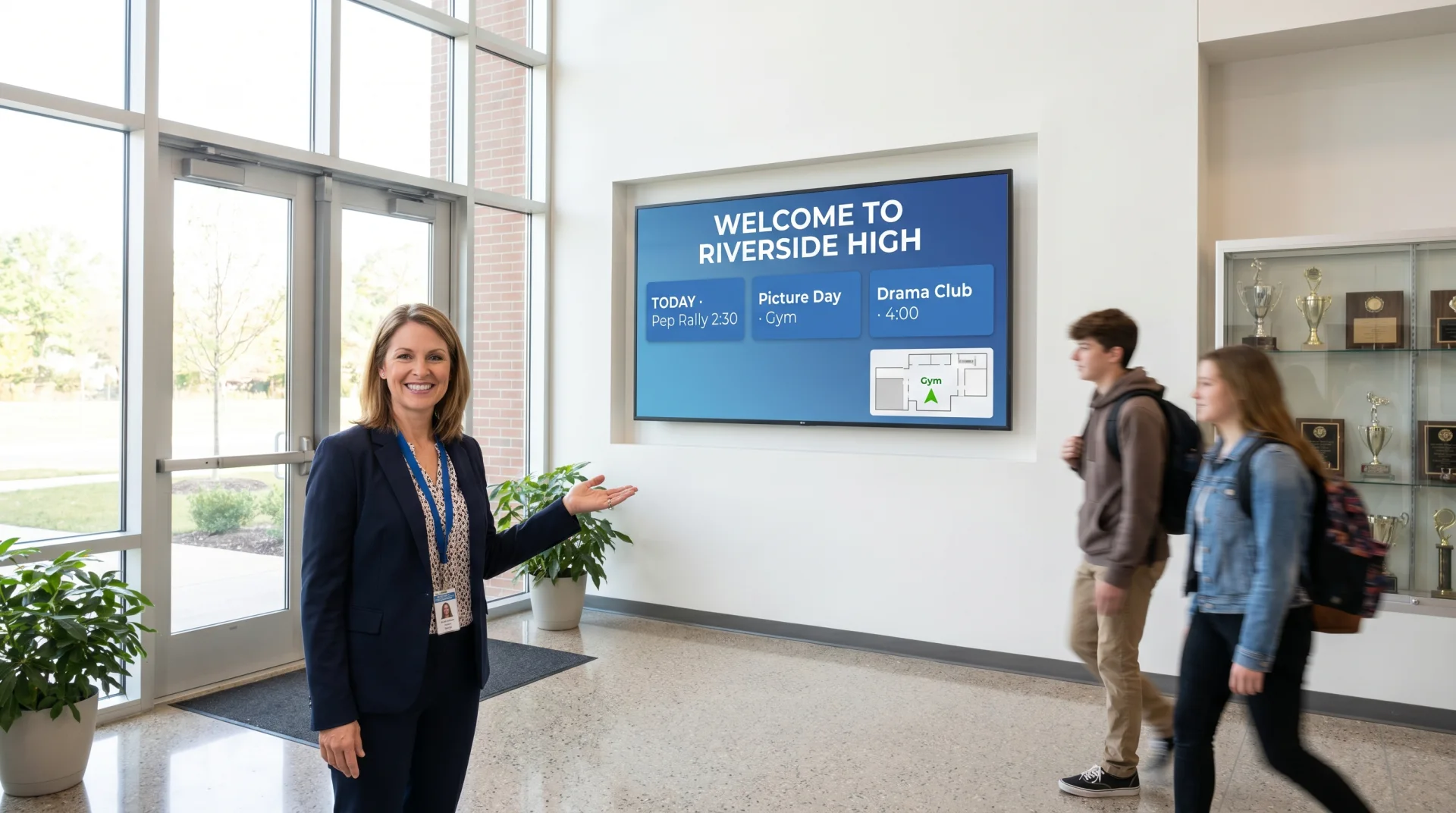
One 55″ landscape commercial display in the front office or main entrance. Visitor name (pulled from the visitor management system if one exists), school branding, scrolling community messages.
2. Visitor sign-in instructions
Next to the front desk, a small portrait screen with sign-in steps, the badge color code, and where to wait. Reduces friction at the desk.
3. Building map
Touch-enabled portrait kiosk near the entrance for visitors who need to find a specific room. Useful at larger schools.
Hallways and common areas
4. Daily schedule and room changes
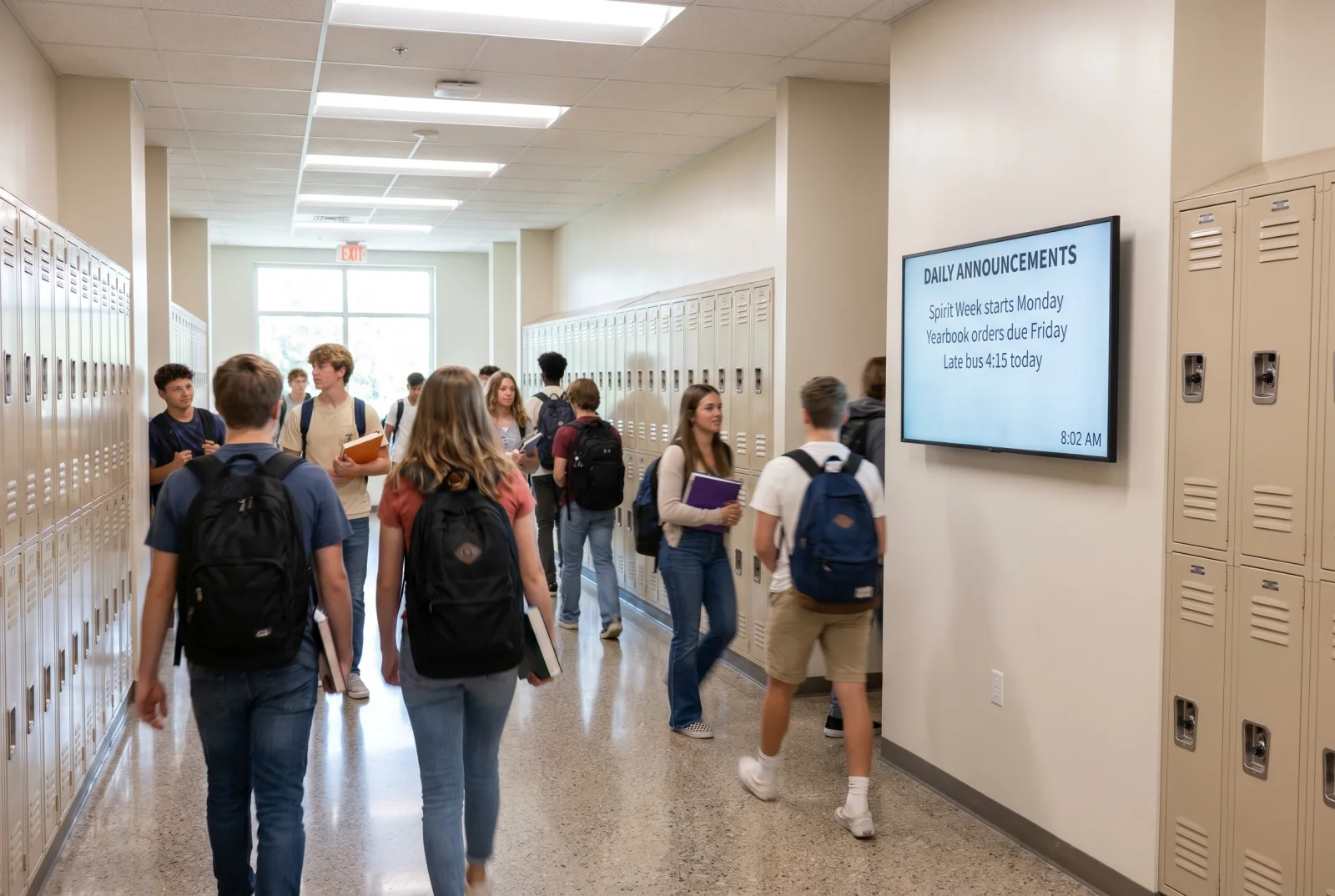
Landscape 55″ displays in main hallways pulling schedule data from the master schedule system. Real-time room changes, substitute notices, schedule shifts due to weather or assemblies.
5. Hallway announcements
The same hallway screens rotate club meetings, athletic results, fundraiser deadlines, and event reminders.
6. Student of the month / recognition
Featured student photo, achievement, and a short blurb. Rotates weekly. Builds school culture more than any printed flyer.
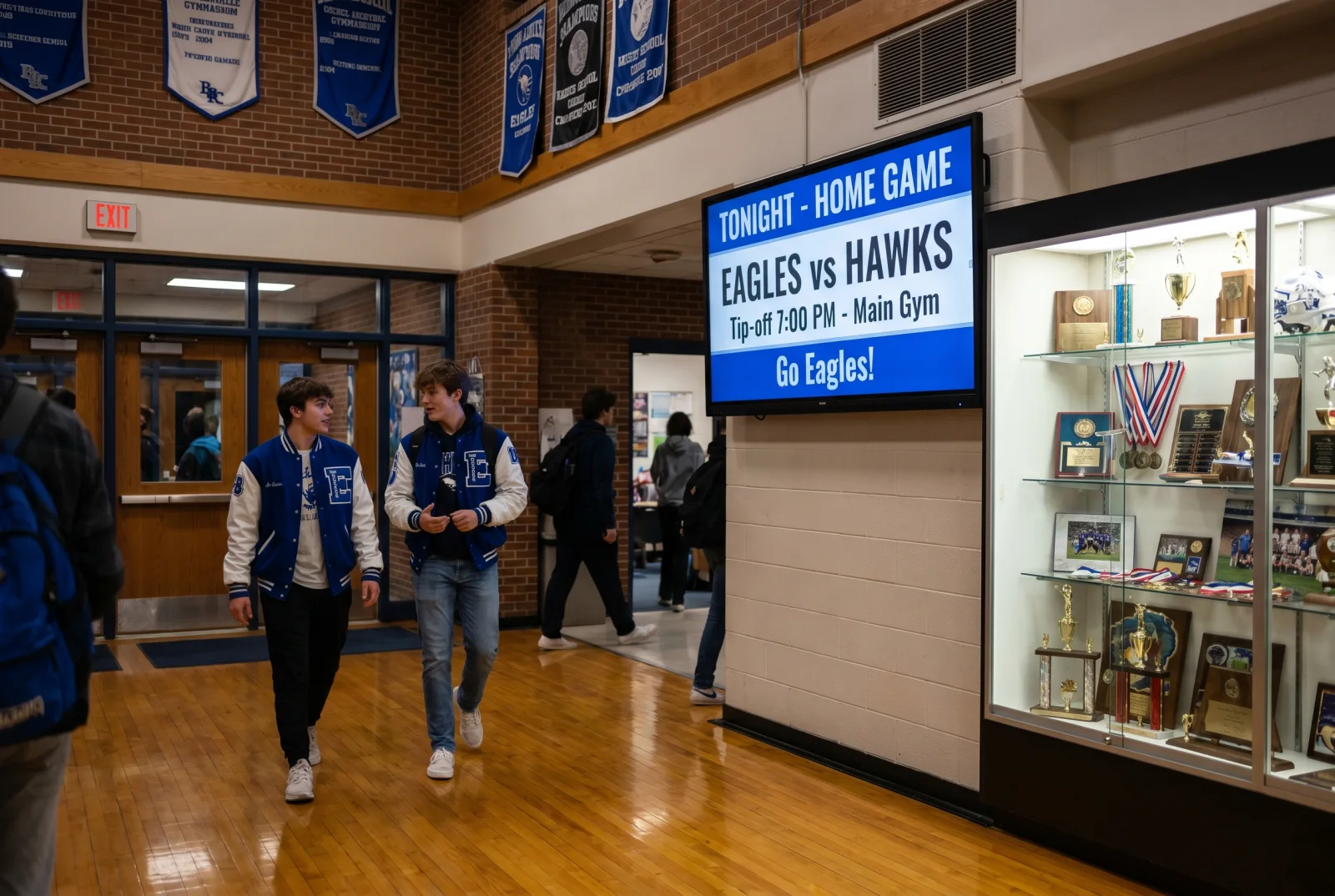
7. Athletic results and game schedules
Live game scores, upcoming game schedules, and standings — pulled from the athletics department's calendar.
8. College acceptance / senior spotlights
For high schools, a dedicated rotation in spring showing senior college acceptances, scholarship awards, and graduation milestones.
Cafeteria
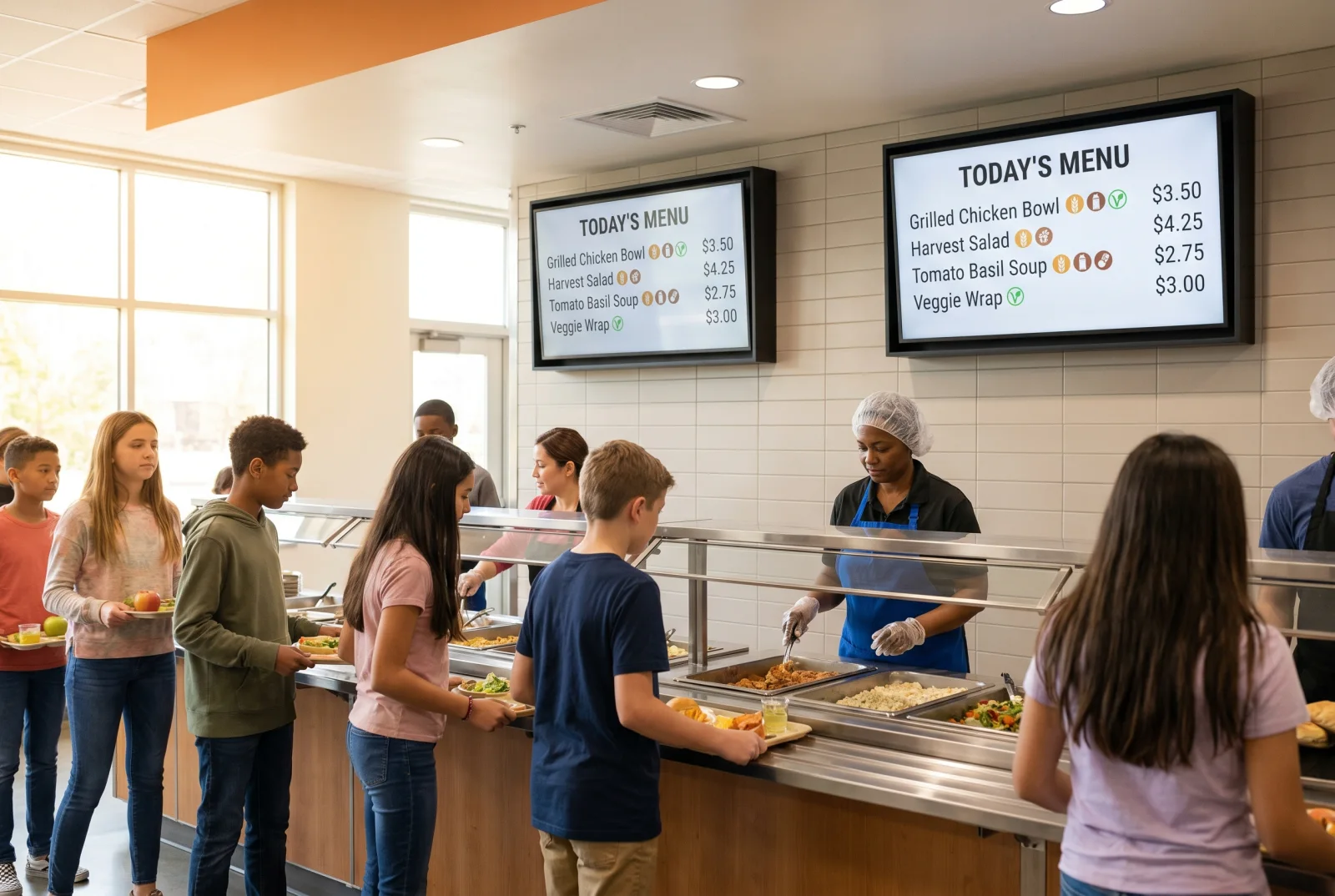
9. Daily menu
Portrait or landscape menu boards above the lunch line, daypart-driven (breakfast vs lunch). Photos of the actual food items, allergen icons, and price.
10. Nutrition information
Calorie counts, macro breakdowns, and allergen warnings — required in many districts and easier to keep current digitally than on printed cards.
11. Special events and theme days
"Pasta day Friday," book fair lunch specials, holiday-themed menus.
Library and media center
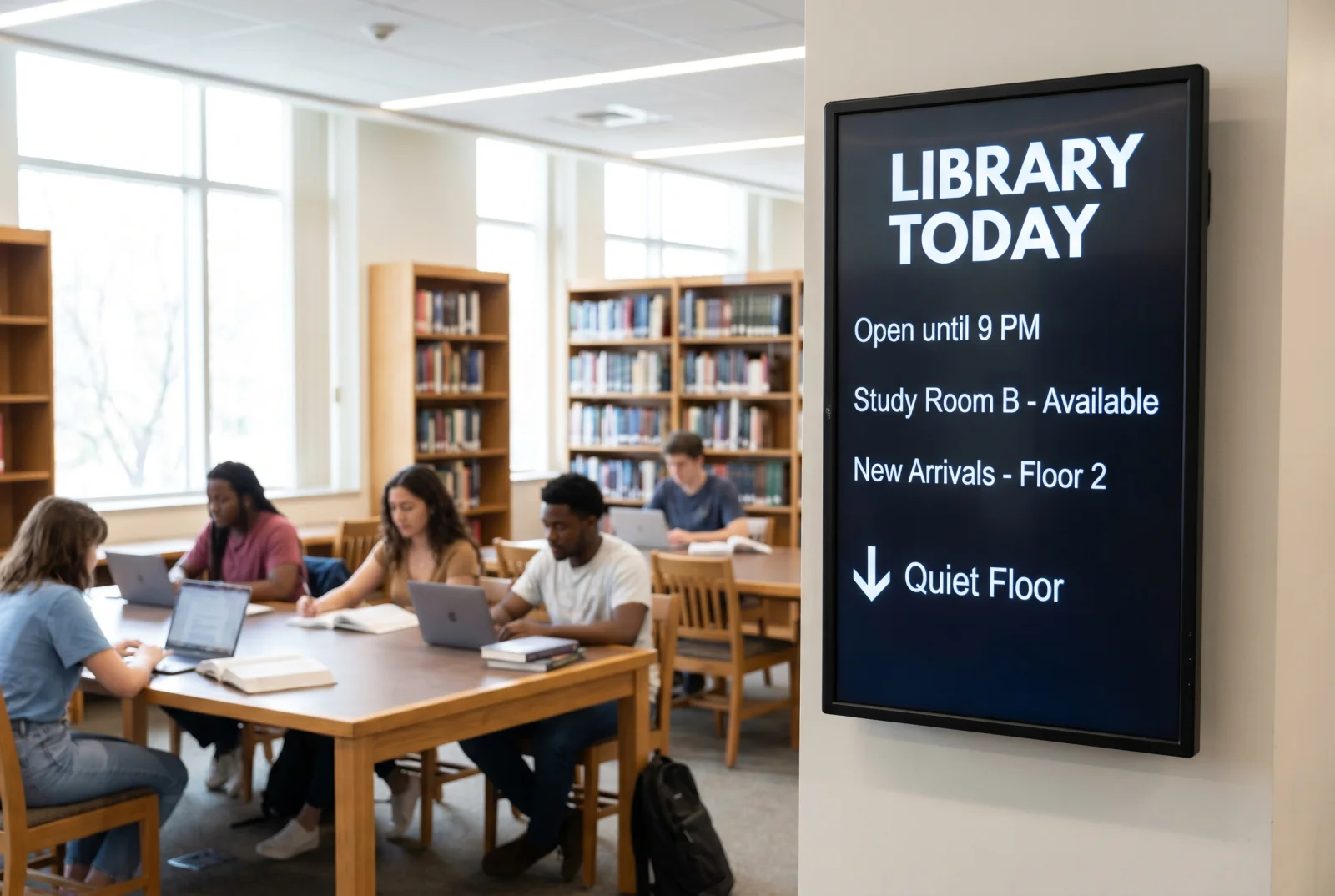
12. Hours and current programs
Single screen at the entry showing hours, after-school programs, and book club meetings.
13. Featured books / new arrivals
Rotating slides of new arrivals with the call number and a one-line description.
Athletic facilities
14. Locker room safety
Quiet ambient screens in locker rooms running team announcements and safety reminders.
15. Gymnasium scoreboard / event display
Larger-format display in the gym for game day — scores, period clock, sponsor recognition.
Classroom adjacent
16. Outside-classroom displays
Small portrait displays outside selected classrooms — current lesson topic, teacher's class roster, "do not disturb" status during testing.
17. Computer lab availability
One display showing which lab stations are open, scheduled classes, and reservation slots.
Administrative and staff
18. Teachers' lounge updates
Staff-only screen with PD reminders, district announcements, sub coverage requests, payroll deadlines.
19. Parent / community engagement
Slides showing PTO meeting times, fundraiser progress, school board agenda links, volunteer opportunities — visible from the front office and main hallways.
Safety and emergency
20. Emergency alerts (full takeover)
Already covered above. Every screen overrides instantly. Test it monthly.
21. Weather / closure notice
Snow days, early dismissal, delayed opening — pushed across all screens and synced with the auto-call / SMS system.
What to look for in school digital signage software
The hardware gets the attention, but the software is what separates a working school deployment from a wall of screens nobody trusts. When schools and districts ask us what the best digital signage software for schools looks like, the answer is the same every time — it's the platform that nails these five things:
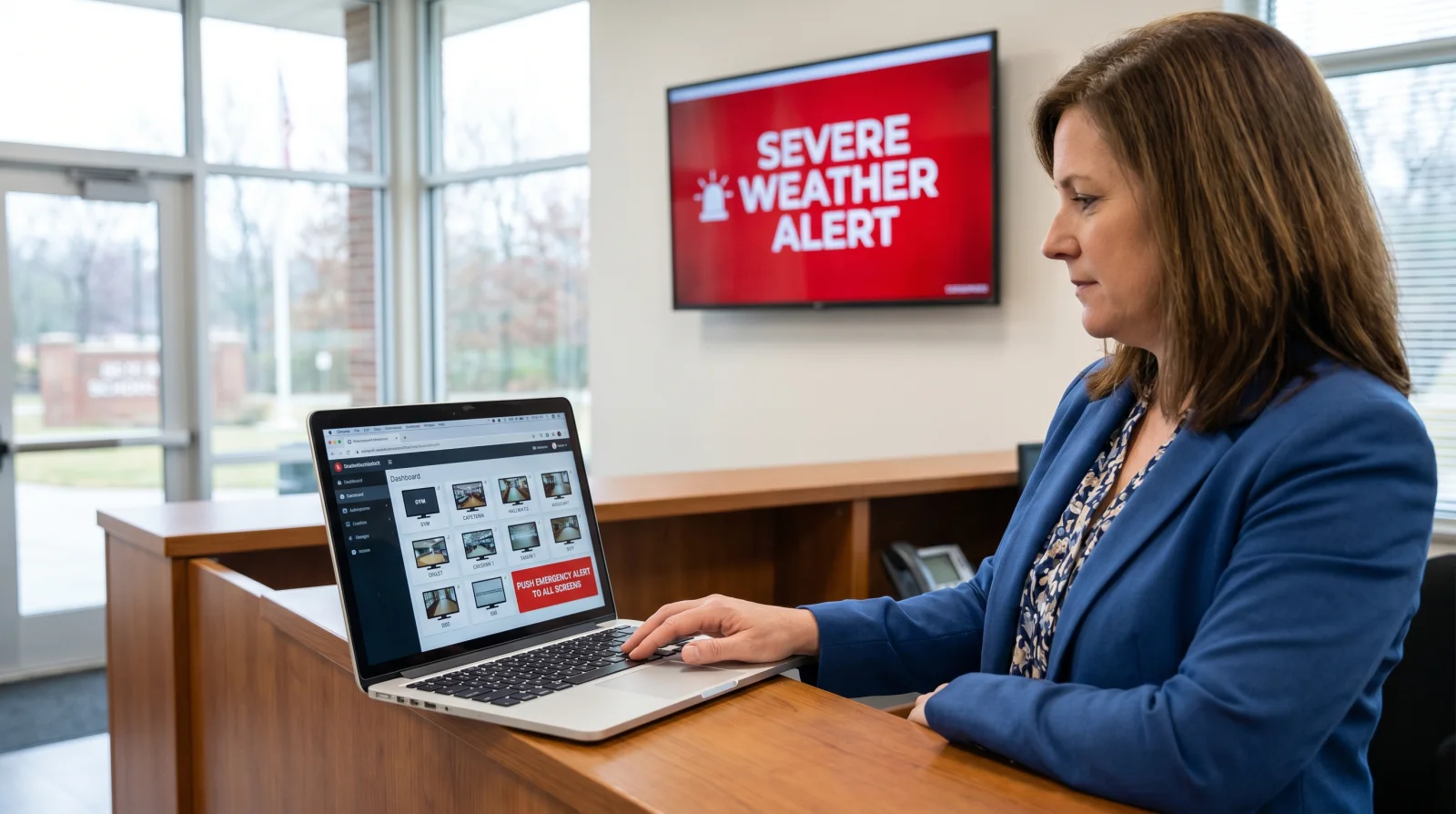
- Emergency override as a first-class feature. Not a workaround, not a separate paid module — a clearly labeled alert button an administrator can hit in seconds.
- Role-based access and approval workflows. Cafeteria, athletics, library, and front office each publish to their own screens without stepping on each other.
- Live integrations. Master schedule, lunch-menu vendor, and athletics calendar feed the screens automatically so content never goes stale.
- Offline resilience. Content cached on the media player keeps screens — and alerts — running through an internet outage.
- Flat, district-friendly pricing. At K-12 scale, per-screen-per-month pricing punishes you for every screen you add. Insist on flat per-district pricing.
For a deeper platform comparison, see Best Digital Signage Software and our breakdown of Digital Signage Software in 2025.
What hardware do schools need for digital signage?
Schools standardize on commercial-grade 4K panels for hallways, cafeterias, and lobbies. CrownTV deploys commercial displays only — the Samsung QMC series for indoor screens, the OM series for high-brightness window-facing placements, the OH series for outdoor, and video walls for large-format installs — with a touch overlay turning a QMC panel into a wayfinding kiosk. Commercial panels are rated for all-day operation, the reason CrownTV doesn't spec consumer TVs into schools (more on that below). Every screen runs through a CMS like the CrownTV Dashboard with role-based access and one-click emergency lockdown, and a dedicated media player drives each display for reliability across the network.
CrownTV school signage packages and pricing
Most schools don't want to source a screen, a mount, a media player, an installer, and a software contract from five different vendors and hope they fit together. CrownTV pricing is all-in and one-time, per screen — commercial display, mount, media player, professional installation, and the first year of content software in a single number:
| Screen size | All-in price (per screen) | Typical placement |
|---|---|---|
| 32″ | $3,250 | Front office, outside classrooms |
| 43″ | $3,450 | Offices, library, smaller corridors |
| 50″ | $3,650 | Hallways and corridors |
| 55″ | $3,850 | Main lobby, cafeteria, main hallways |
| 65″ | $4,450 | Cafeteria, large lobbies |
| 75″ | $5,200 | Gymnasium, auditorium lobby |
Every package includes:
- Commercial-grade display — 4K UHD, anti-glare, rated for 24/7 operation
- Commercial wall mount
- Media player
- Professional installation by licensed, insured technicians
- Setup, configuration, and testing
- First year of content software (self-update dashboard with emergency override)
Standard installation runs 7–10 business days from approval. A working power outlet needs to be available at each screen location — CrownTV handles the clean cable connection but does not perform high-voltage electrical work.
Indoor pricing only. The prices above are for indoor placements (500-nit QMC panels — the right brightness for lobbies, hallways, offices, and cafeterias). A screen that faces out a window or sits in a glass-walled entrance hit by direct sun needs a high-brightness panel (Samsung OM series) or, fully outdoors, a sealed OH-series display — both quoted separately, never at the indoor rate. Ask for a custom quote for any window-, storefront-, or outdoor-facing display.
What the specs mean in a school
The spec that matters most is "commercial," not the screen size. Here's why each part of the package is specified the way it is:
- Commercial panel, not a consumer TV. Built to run all day, every day (24/7-rated) without burnout. A home TV run continuously voids its warranty and typically fails in 18–30 months — the cheap panel ends up the expensive one.
- 4K UHD resolution. Crisp text legibility from a distance, so schedules and announcements stay readable across a hallway, cafeteria, or gym.
- Anti-glare coating. Stays readable under bright fluorescent lighting and skylight-heavy lobbies.
- 500-nit brightness. The correct brightness for typical indoor school areas (the QMC class). Window- or sun-facing screens step up to the high-brightness OM series or the outdoor OH series — see the note above.
- 3-year commercial manufacturer warranty. Versus roughly one year on a consumer TV.
- Slim profile, secure flush mount. A clean look and tamper-resistant placement in student areas.
For deeper hardware comparisons, see Best TVs for Digital Signage in 2026.
What a full school deployment costs
Multiply the per-screen package by your screen count for a working estimate. A typical single school running 8–12 screens (a mix of 43–55″ in hallways and the cafeteria, plus a 65–75″ in the gym) lands around:
| Deployment | Estimated all-in (year 1) |
|---|---|
| Single school (8–12 screens) | $28,000–$50,000 |
| Small district (3–5 schools, 30–60 screens) | $105,000–$230,000 |
| Mid-size district (8–15 schools, 100–200 screens) | $350,000–$770,000 |
Districts buying at volume get custom pricing below the per-screen rate — send us your screen count and buildings for an exact figure. Year one of content software is included in every package; after that, budget for software renewal and extended warranty service. See Digital Signage Cost for full breakdowns.
What to ask any school signage vendor
Before you sign with anyone — us included — take this checklist into the conversation. The answers separate a vendor who has actually deployed in schools from one selling you a generic screen package:
- Show me the emergency override. Ask for a live demo of pushing a full-screen alert to every screen and clearing it. If it's a roadmap item, walk away.
- How does role-based access work? Can the cafeteria, athletics, and front office each publish to their own screens without an IT ticket?
- What integrates with our master schedule and lunch vendor? Manual content is content that goes stale.
- What happens during an internet outage? Does cached content — including alerts — keep running on the player?
- Is pricing flat per district or per screen per month? Model the five-year cost at full screen count, not the pilot.
- Who installs and services it? One contract for hardware, software, install, and warranty beats coordinating three vendors.
- What's the panel rating? Confirm commercial-grade panels (Samsung QMC, OM, or OH class) rated for continuous daily operation — not repurposed consumer TVs.
Common deployment mistakes
- Choosing a CMS without emergency override. Wastes the deployment.
- Letting every department have publishing access without governance. The screen turns into a free-for-all, conflicting messages, and outdated content.
- Using consumer TVs in 24/7 facilities. Schools that run extended hours (community use, evening sports) burn out consumer TVs in 18–30 months.
- No live data feeds. A schedule pulled manually goes stale within a week. Integrate with the master schedule, the lunch menu vendor, and the athletics calendar.
- Skipping the digital wayfinding investment. Touch kiosks earn their cost back in reduced front-office workload during open houses, parent-teacher nights, and election days.
Buying as a Public School (NYC DOE and Beyond)
Public schools buy differently, and we see it weekly — principals and office staff from NYC public schools asking for one screen per floor for calendars, fliers, and daily announcements. What matters in that procurement: purchase-order billing (not card-on-file), vendor onboarding with the district's systems, all-in per-screen pricing that fits a discretionary budget line, and installation crews who are insured for school premises and scheduled around class hours. A 2–5 screen deployment — main office, cafeteria, and a floor or two — is the most common public-school starting point, and it fits inside the per-screen package pricing above without a capital project. Send us a PO request through the quote form and mention your district; we handle DOE-style vendor paperwork routinely. NYC DOE schools get their own page with per-screen pricing, a build-your-school estimator, and the M/WBE purchase-order path: digital signage for NYC public schools.
One more procurement advantage: CrownTV is a certified Women-Owned Business Enterprise (WBE) — certified by both New York State (File ID 75148) and New York City SBS (cert. MWCERT2026-549). In short: NYS and NYC agencies, including school districts, carry MWBE participation goals on their spending, and purchasing from a certified WBE counts directly toward those targets — often making vendor approval and discretionary purchases simpler. If your district tracks MWBE utilization, your signage project can help meet the goal instead of sitting outside it.
How CrownTV Helps
One contract for hardware + software + install + service:
- Samsung Authorized Reseller — QMC (indoor), OM (high-brightness), OH (outdoor) commercial displays and video walls at commercial-grade pricing
- All-in per-screen packages — display, mount, media player, install, and first-year software — with a 3-year commercial warranty; typical install 7–10 business days
- CrownTV Dashboard CMS with emergency override, role-based access, and master-schedule integration
- Site survey, mounting, cabling, commissioning, and warranty service in all 50 states
- 13+ years of operating experience across education, retail, corporate, and healthcare — including L'Occitane, Herman Miller, and 1,800+ other operators
Get a school digital signage quote in two business hours →
Frequently asked questions
How much does digital signage for schools cost?
CrownTV school signage is priced all-in and one-time per screen: $3,250 for a 32″, $3,850 for a 55″, and $5,200 for a 75″ — each price includes the commercial display, wall mount, media player, professional installation, and the first year of content software. A typical single school running 8–12 screens lands around $28,000–$50,000; districts buying at volume get custom pricing below the per-screen rate. Window- or storefront-facing screens use high-brightness panels and are quoted separately.
What is the best digital signage software for schools?
The best digital signage software for schools is whichever platform has emergency alert override as a first-class feature, role-based access so multiple staff can publish without overwriting each other, and integration with your master schedule and lunch-menu vendor. For districts, insist on flat per-district pricing rather than per-screen-per-month. If a platform can't push a full-screen lockdown or weather alert to every display in seconds, it isn't built for schools.
How do schools use digital signage for emergencies?
Every screen is configured to receive an immediate full-screen takeover — lockdown, severe weather, evacuation. An administrator (not just IT) triggers a predefined alert from the dashboard, it overrides whatever is playing on every display in seconds, then clears back to normal when the event ends. Best practice is to sync these alerts with the auto-call and SMS systems and to test the override monthly.
Can teachers and staff update school digital signage?
Yes — with role-based access in place. Good school signage software lets you grant per-screen or per-group permissions so cafeteria staff update the menu boards, athletics updates game scores, and the front office controls the welcome display, all without anyone overwriting the principal's message. Look for approval workflows and an audit log that shows who changed what and when.
What hardware do schools need for digital signage?
Schools deploy commercial-grade 4K panels for high-traffic hallways, cafeterias, and lobbies. CrownTV standardizes on the Samsung QMC series for indoor displays, the OM series for high-brightness window-facing screens, the OH series for outdoor placements, and video walls for large-format athletic or lobby installs; a touch overlay turns a QMC panel into a wayfinding kiosk. Every screen runs through a content management system with role-based access and emergency override, driven by a dedicated commercial media player rather than built-in smart-TV apps.
Do schools need commercial displays or can they use regular TVs?
CrownTV deploys commercial panels only — never consumer TVs. Commercial displays (the Samsung QMC, OM, and OH series) are built to run all day, every day and carry a 3-year warranty; a consumer TV run continuously voids its warranty and typically burns out in 18–30 months, so the cheaper panel ends up the expensive one once you factor in replacement and re-installation. For a school running extended hours — evening sports, community use — commercial is the only durable choice.
Read Next
Keep reading
More guides like this
Operator-grade playbooks, weekly.
Proof, not pitches
See real installs
Live deployments across hospitality, retail, and offices.
Ready to deploy?
Get a quote in 2 business hours
Reply within two business hours. No call required.