

In this guide, we explore everything you need to know about best digital signage hardware for retail stores and how it can transform your business communications.
Your competitor down the street just installed digital signage. Three months later, they’re dealing with frozen screens, stuttering videos, and a support ticket that’s been “escalated” for two weeks. You don’t want to be that store.
The gap between smart hardware decisions and costly mistakes isn’t just about money; it’s about whether your digital signage actually works when customers walk through your door. Pick the wrong media player, and you’re troubleshooting instead of selling. Choose screens without understanding brightness requirements, and your window displays vanish in daylight.
Here’s the thing: retail digital signage hardware isn’t one-size-fits-all. A boutique clothing store needs different specs than a big-box retailer. Your mounting requirements differ from the shop next door. And what works for indoor promotions fails miserably in a storefront window.
This guide cuts through the spec sheets and marketing jargon to show you exactly what hardware matters (and what doesn’t). We’ll break down each component, explain how to choose the right option for your specific retail environment, and reveal what separates reliable systems from expensive paperweights.
Best Digital Signage Hardware for Retail Stores: The Media Player
The media player is the engine that runs your entire digital signage setup. Think of it as the computer tucked behind your screen; it processes content, manages playback schedules, and determines whether your displays run smoothly or stutter like a buffering YouTube video.
Most retailers make one of two mistakes here. They either go too cheap and buy underpowered boxes that struggle with basic video playback, or they overspend on enterprise-grade hardware their store will never need. Both paths lead to frustration.
Here’s what actually matters when choosing the right digital signage media player for retail.
Processing Power That Matches Your Content
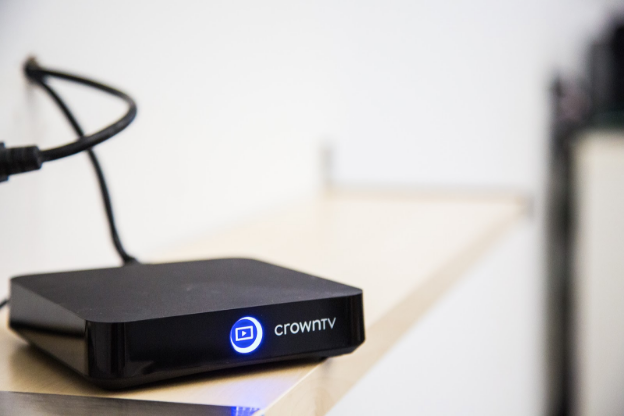
Your media player needs enough horsepower to handle whatever you’re throwing at it. A static image slideshow? Almost anything works. High-resolution video with animated overlays and live data feeds? You’ll need serious processing capability.
Match your player to your content type:
- Static images and simple slideshows: Basic players with 2GB RAM handle this without breaking a sweat
- Full HD video (1080p): Mid-range players with 4GB RAM and decent graphics processing
- 4K video or multiple content zones: High-performance players with 8GB+ RAM and dedicated graphics
- Interactive displays with real-time data: Premium players with fast processors and ample storage
The CrownTV media player sits in that sweet spot for most retail environments. At $150 per device, it delivers reliable performance for Full HD content without the enterprise price tag. One device connects to one TV, keeping your setup clean and your costs predictable.
Storage: How Much Content Can You Queue?
Storage determines how much content your player can hold locally before needing to stream or download more. This matters when you’re running promotional campaigns with dozens of videos or when your internet connection isn’t bulletproof.
Retail stores running rotating campaigns typically need 32GB minimum. That gives you room for a week’s worth of varied content without constant uploads. If you’re managing seasonal campaigns with hundreds of assets, look at 64GB or higher.
Cloud-based systems change this equation. When your player pulls content from the cloud as needed, local storage becomes less critical. You’re trading storage space for bandwidth requirements.
Connectivity Options You’ll Actually Use
Your media player needs to talk to your network and your screen. The connection methods determine how flexible your setup can be. Most commercial displays work with external media players that connect via HDMI, giving you the flexibility to upgrade your processing power without replacing the entire display.
Standard connectivity features:
- WiFi (5GHz preferred): Wireless freedom, but can be unreliable in buildings with thick walls or interference
- Ethernet port: Wired connections beat WiFi for stability every single time
- HDMI output: Universal standard for connecting to displays (also carries control signals for screen brightness adjustment on compatible displays)
- USB ports: Useful for quick content updates or troubleshooting
Wired Ethernet beats WiFi in retail settings. You want your promotional content to play without dropouts during peak shopping hours. WiFi works fine for low-traffic locations or temporary setups, but permanent installations deserve the stability of a cable.
Operating System
Media players run on different operating systems, and this choice affects everything from available apps to how easily you can update content.
- Android-based players dominate the retail space for good reason. They’re affordable, support tons of apps, and most digital signage software plays nice with them. The learning curve is gentle if you’ve ever used an Android phone. Unlike consumer media players designed for home streaming, commercial Android players are built for reliability and always-on operation.
- Windows-based players cost more but offer familiarity for IT teams and compatibility with legacy software. They’re overkill for most retail applications unless you’re running custom enterprise software.
- Linux-based systems live in the middle ground, stable, secure, and capable, but require more technical knowledge to manage.
Reliability Features That Prevent Downtime
Your media player should boot up automatically after power outages and resume playback without human intervention. You don’t want to send someone to manually restart displays every time the power flickers.
Look for players with watchdog timers that automatically reboot if the system freezes. This single feature saves more service calls than any other. Auto-recovery from network disconnections is another must-have; your player should reconnect and resume when internet service returns.
Temperature tolerance matters if you’re mounting players in tight spaces or near heat sources. Commercial-grade players handle warmer environments better than consumer devices that throttle performance or shut down when things heat up. This becomes especially important in custom installations where players might be mounted in enclosed cabinets or behind displays with limited ventilation.
How to Choose: A Decision Framework
Start with your content requirements and work backward. What resolution are you displaying? How complex are your graphics? How often does content change?
A small boutique running simple product photos needs different and right digital signage hardware than a flagship store with interactive video walls. Your answer to “what content am I running?” determines 80% of your media player requirements.
Budget your media player as 10-15% of your total digital signage display cost. Spend less, and you’re setting up for performance issues. Spend more, and you’re probably overbuying for retail needs. Test compatibility with your content management system before buying. The most powerful media player is worthless if it doesn’t work with your preferred software platform. Most vendors offer trial periods or demo units; use them.
Commercial Displays
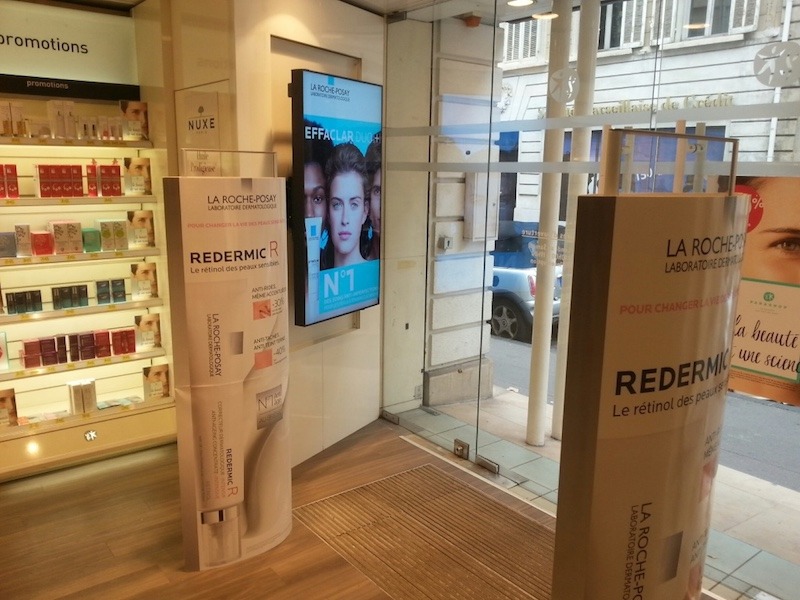
Walk into any big-box electronics store, and you’ll see consumer TVs with jaw-dropping specs at tempting prices. A 55-inch 4K TV for $400? Sounds perfect for your retail signage project.
It’s not.
Consumer TVs are built for living rooms, 8 hours of use per day, climate-controlled environments, and someone nearby to fix problems. Commercial-grade displays are engineered for retail punishment. They run 16+ hours daily, handle temperature swings, and keep working when consumer panels would have died months ago.
The price gap exists for a reason. You’re paying for reliability, not getting ripped off.
Why Consumer Displays Fail in Retail Environments
Consumer TVs burn out fast under retail conditions. The panels aren’t rated for continuous operation, and the components overheat when running all day. You’ll get 12-18 months of life if you’re lucky, then you’re buying replacements.
A smart TV might work fine at home, but it lacks the key features needed to survive in a commercial setting.
What breaks first in consumer displays:
- Backlights: Consumer LED backlights dim significantly after 20,000 hours (about 3 years at 8 hours/day, or 18 months at retail hours)
- Power supplies: Not designed for always-on operation, they fail under sustained load
- Image retention: Static content (like your logo) burns into the screen permanently
- Thermal protection: Consumer panels throttle brightness or shut down in warm retail environments
- Warranty coverage: Voided the moment you use the TV commercially
Commercial displays handle these challenges with industrial-grade components, better cooling systems, and warranties that cover business use. The upfront cost stings less than replacing consumer TVs every 18 months.
Display Types for Different Retail Applications
Not all commercial displays serve the same purpose. Your storefront window needs different capabilities than your checkout counter screen. Understanding the different types helps you align hardware choices with your digital signage strategy.
Common retail display categories:
- Standard commercial displays: General-purpose indoor displays for typical retail use (300-500 nits brightness)
- High-brightness displays: Window displays and bright retail spaces (1,500-5,000 nits)
- Outdoor-rated displays: Weather-sealed outdoor displays with extreme brightness for exterior installations (2,500-5,000+ nits)
- Video walls: Multiple screens tiled together for large-format displays in multi-screen setups
- Interactive touchscreens: Customer-facing interactive kiosks and product browsers
- Shelf-edge displays: Small screens integrated into retail fixtures
Your location determines your right digital signage display type. Indoor promotional screens work fine with standard commercial panels. Storefront windows demand high-brightness displays that fight sunlight. Outdoor digital signage requires weatherproof enclosures rated for temperature extremes and demanding environments.
Brightness Levels That Actually Work
Brightness is measured in nits, and this spec determines whether customers can actually see your content. Too dim, and your message disappears. Too bright costs money you didn’t need to spend.
Brightness requirements by location:
| Location Type | Minimum Nits | Recommended Range | Why |
| Back-of-house displays | 250-300 | 300-400 | Low ambient light, staff viewing only |
| Indoor sales floor | 400-500 | 500-700 | Moderate lighting, customer attention |
| Near windows (indirect sun) | 700-1,000 | 1,000-1,500 | Competing with natural light |
| Window displays (direct sun) | 1,500-2,500 | 2,500-4,000 | Fighting direct sunlight |
| Outdoor installations | 2,500-5,000 | 5,000+ | Full daylight visibility |
Standard office spaces sit around 300-500 lux of ambient light. Retail stores often hit 750-1,000 lux. Storefront windows with southern exposure can exceed 10,000 lux when the sun is direct. Your display brightness needs to overpower these conditions, or your content becomes invisible.
CrownTV’s dashboard lets you schedule brightness levels throughout the day. Crank up the brightness when sunlight hits your windows, then dial it back in the evening to save power and extend panel life.
Screen Resolution and Viewing Distance
Resolution matters, but not the way most people think. A 4K display doesn’t automatically look better than 1080p; it depends on how far away your customers stand.
Resolution sweet spots by viewing distance:
- 2-4 feet: 4K resolution prevents visible pixels in close-up product displays
- 4-8 feet: 1080p works perfectly for most in-store signage
- 8-15 feet: 1080p is fine, 4K is overkill unless the screen is massive
- 15+ feet: 720p can work for basic messaging, 1080p looks crisp
Calculate your viewing distance, then pick a resolution accordingly. That 4K display costs more to buy, requires more bandwidth to feed content, and taxes your media player harder, all for details your customers can’t even see from 10 feet away.
Panel Technology and Lifespan
Commercial displays use different panel technologies, and each comes with tradeoffs around image quality, viewing angles, and longevity.
- LCD/LED panels dominate retail for good reason: bright, affordable, and reliable. LCD displays use LED backlighting with LCD panels to create the image. Expect 50,000-100,000 hours of life in commercial-grade models. That’s 5-10 years of retail operation before brightness drops noticeably.
- OLED panels deliver incredible contrast and color accuracy, but cost significantly more. They’re prone to burn-in with static content (like logos or price tags). Skip OLED for retail signage unless you’re running pure video content with no static elements.
- Direct-view LED walls (not LED-backlit LCD) offer modular, scalable LED displays with extreme brightness. They’re expensive but make sense for large-format installations where video walls would require bezels.
Orientation Capabilities
Some retail displays need to run in portrait mode for vertical content or product showcases. Not all commercial displays handle this well.
Portrait-mode considerations:
- Official support: Panel must be rated for portrait operation (not all are)
- Heat management: Portrait mounting changes airflow, affecting cooling
- Mounting hardware: VESA brackets need to support rotated weight distribution
- Content management: Your software needs to handle portrait content properly
Consumer displays almost never support portrait mode officially. The heat sinks and ventilation are designed for landscape orientation. Rotate them anyway, and you’ll accelerate component failure.
Durability Features Worth Paying For
Commercial displays built for retail include features that consumer panels skip to hit lower price points. These matter when your displays run 12-16 hours daily.
Durability features that extend display life:
- Tempered glass front: Protects the panel from impacts and scratches
- Sealed enclosures: Keep dust and moisture out of internal components
- Enhanced cooling systems: Larger heat sinks and better ventilation prevent thermal damage
- Anti-glare coatings: Reduce reflections in bright retail environments
- Commercial-grade power supplies: Handle sustained operation without early failure
Tempered glass protection costs an extra $50-150 per display but prevents the single most common retail damage, customers or staff bumping into screens. One crack in an unprotected panel means replacement. The glass pays for itself the first time it saves a screen.
Warranty and Support Considerations
Consumer TV warranties are 1 year, parts, and labor. They’re worthless for commercial applications. Commercial display warranties run 3-5 years and cover business use.
What commercial warranties typically include:
- 3-5 year parts and labor: vs. 1 year consumer coverage
- Advanced replacement: New display ships before you return the broken one
- On-site service: Technician comes to you (often available for larger installations)
- 24/7 support: Phone support when you need it, not just business hours
- Commercial use coverage: Your warranty stays valid for business applications
Read the fine print on warranty coverage. Some manufacturers require professional installation to validate the warranty. Others void coverage if you don’t use their approved mounting hardware. Know what you’re getting before problems arise.
Choosing the Right Size for Your Space
Display size seems straightforward until you start measuring retail spaces. Too small, and your message gets lost. Too large, and you’ve wasted money on screen real estate that customers can’t comfortably view.
Determining how many screens you need and the correct screen size for each location starts with understanding viewing distances.
Size selection based on primary viewing distance:
- 32-43 inches: Point-of-sale displays, checkout counters (3-6 feet)
- 49-55 inches: In-aisle promotions, department sections (6-10 feet)
- 65-75 inches: Feature walls, entrance displays (10-15 feet)
- 86+ inches or video walls: Large open spaces, anchor displays (15+ feet)
Your ceiling height affects perceived size. A 65-inch display feels massive in a boutique with 8-foot ceilings but looks small in a warehouse-style store with 20-foot ceilings. Larger screens make sense in high-ceiling environments where you need visibility from greater distances. Visit your space with a tape measure before ordering displays.
Technical Specifications That Support Your Setup
Beyond size and brightness, several technical specs determine how well displays seamlessly integrate with your overall system and support customer engagement goals.
- Multiple HDMI ports give you flexibility for connecting media devices and backup sources. Look for displays with at least two HDMI inputs so you can switch between sources without unplugging cables.
- Processing power matters for touchscreen displays and interactive applications. The built-in graphics processing unit handles on-screen rendering, especially important when running complex interactive content or high-resolution video.
- Connectivity features enable remote device management across digital signage deployments. Look for displays with Ethernet ports, RS-232 control, and compatibility with professional management platforms for cost-effective maintenance across locations.
- A user-friendly interface for display settings makes initial setup and ongoing adjustments easier for non-technical staff. Complex menus buried in obscure submenus slow down deployments and increase training requirements.
How to Choose Your Commercial Display
Start with your installation location. Is this indoor, near a window, or fully outdoor? That single answer eliminates 80% of your options and points you toward the right brightness range. Consider your broader digital signage goals before selecting specific models.
Decision framework:
- Determine location: Indoor, window, or outdoor placement
- Calculate viewing distance: Measure where customers will stand
- Select brightness range: Match to ambient light conditions
- Choose resolution: Based on viewing distance (don’t overbuy)
- Verify orientation support: If running portrait mode
- Check warranty terms: Minimum 3 years for commercial use
- Budget 2-3x consumer TV prices: For comparable size and specs
- Evaluate mounting compatibility: Ensure mounting solutions’ wall mounts work with your chosen displays
Test displays before committing to large orders. Most commercial display vendors offer demo units or showroom viewing. See the actual brightness levels in person. Photos and specs don’t tell the whole story when you’re comparing 500 nits to 2,500 nits.
Recommended Commercial Displays by Use Case
Choosing the right display means matching specific models to your installation environment. Here’s how proven commercial displays perform in different retail scenarios.
For Outdoor and Window Installations
Outdoor and window-facing displays need extreme brightness and weather protection to remain visible in direct sunlight and survive environmental exposure.
The Samsung OM55B delivers 4,000 nits of brightness in a 55-inch format, making it visible even in direct sunlight. The IP56 rating protects against dust and water, while the built-in temperature management handles outdoor temperature swings. This display works for storefront windows that receive direct sun exposure throughout the day.
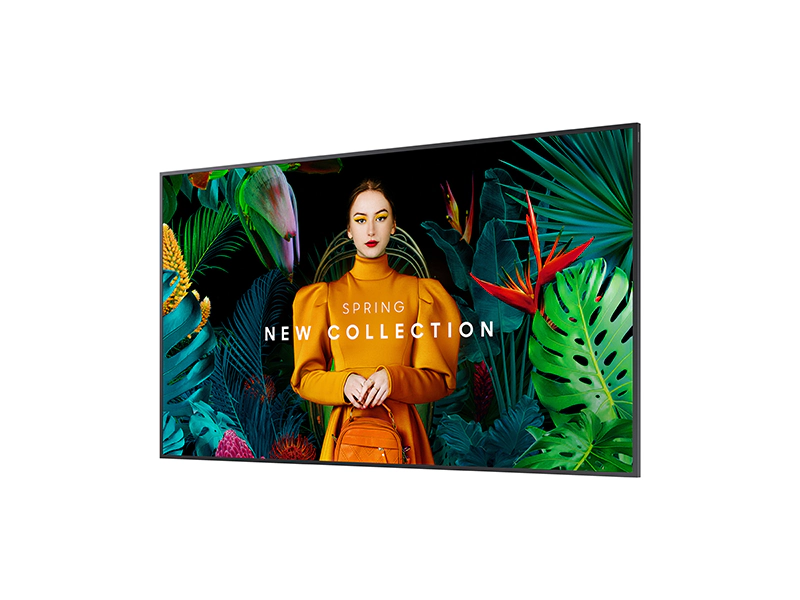
For larger outdoor installations, the Samsung OM75B scales up to 75 inches while maintaining the same 4,000-nit brightness and weather protection. The 4K UHD resolution stays sharp even at close viewing distances, and the anti-glare coating reduces reflections from surrounding light sources.
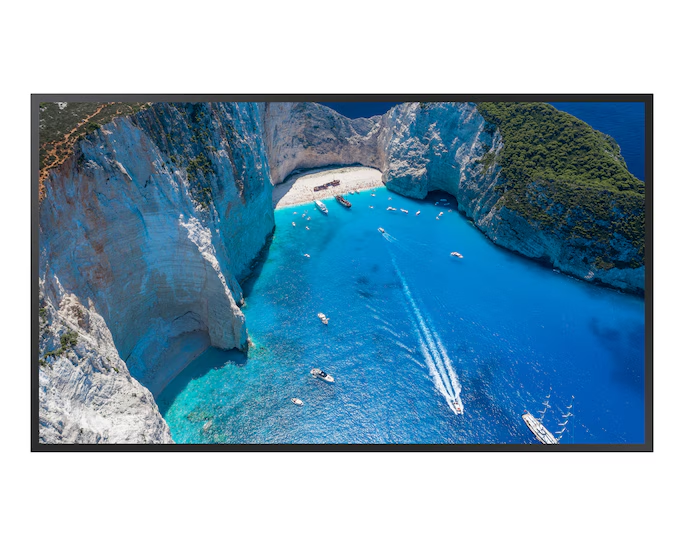
Outdoor/window display setup considerations:
- Install in locations with proper ventilation; despite sealed enclosures, these displays generate significant heat at peak brightness
- Plan for higher power consumption (200-400 watts, depending on brightness settings)
- Use commercial-grade mounting hardware rated for outdoor weight and wind load
- Schedule brightness adjustments through your CMS to save power during evening hours
- Budget for professional installation of outdoor displays requires proper sealing and cable management
For Indoor Sales Floor and General Retail Use
Indoor commercial displays prioritize reliability and image quality over extreme brightness. These displays handle the 12-16-hour daily operation retail demands without the environmental protection overhead.
The Samsung QM Series covers the full range of retail display sizes with consistent performance specs:
- Samsung QM43C (43-inch): Point-of-sale displays, checkout counters, and small department sections
- Samsung QM50C (50-inch): Compact retail spaces and mid-range promotional displays
- Samsung QM55C (55-inch): Standard in-aisle promotions and feature walls
- Samsung QM65C (65-inch): Department anchors and entrance displays
- Samsung QM75C (75-inch): Large open spaces and focal point installations
All QM Series displays feature 500 nits brightness (suitable for indoor retail lighting), 4K UHD resolution, and 16/7 operation ratings. The built-in speakers handle basic audio needs, though most retail installations benefit from external audio systems. These displays support portrait and landscape orientation officially, making them flexible for vertical promotional content.
Indoor display setup considerations:
- VESA mounting patterns vary by size—verify your mounting hardware matches before ordering
- Plan cable runs for both HDMI and power—these displays don’t support wireless HDMI natively
- Use the built-in USB media player for simple installations or connect external media players for advanced content management
- Enable automatic brightness dimming during off-peak hours to extend backlight life
- Keep displays at least 3 inches from walls for proper ventilation
Matching Displays to Your Specific Retail Environment
Your store layout and customer patterns determine which display sizes are most suitable. Walk your retail floor with a tape measure and note viewing distances from typical customer positions.
- Small boutiques and specialty stores (under 2,000 sq ft) work well with 43-55 inch displays. The Samsung QM43C or QM50C provides enough screen real estate without overwhelming intimate spaces. Position these at eye level (60-65 inches from the floor to the center) for optimal viewing.
- Mid-size retail (2,000-5,000 sq ft) benefits from 55-65 inch displays strategically placed throughout the space. Mix Samsung QM55C displays in departments with QM65C units at the entrance for maximum impact.
- Large format stores (5,000+ sq ft) need 65-75 inch displays or video wall configurations. The Samsung QM75C works for anchor positions visible from across the store. High ceilings demand larger screens—a 65-inch display looks small when mounted 12 feet up.
- Storefront windows require the brightness capabilities of outdoor-rated displays regardless of interior size. Even a small boutique benefits from the Samsung OM55B when fighting southern-exposure sunlight.
Test displays before committing to large orders. Most commercial display vendors offer demo units or showroom viewing. See the actual brightness levels in person. Photos and specs don’t tell the whole story when you’re comparing 500 nits to 2,500 nits. Run your actual content on demo displays. A static product photo looks different from an animated video with text overlays. Test at different times of day to see how ambient light affects visibility.
Verify your media player compatibility with demo units. Connect your actual hardware and confirm playback performance, network connectivity, and CMS integration work as expected.
Integration With Your Complete System
Proper digital signage systems require displays that match your entire infrastructure. Consider how displays will work with your chosen media players, content management software, and network setup during digital signage deployments.
System integration checklist:
- Confirm display resolution matches your media player output capabilities
- Verify network connectivity options (wired Ethernet preferred over WiFi)
- Test CMS compatibility with display control features (power scheduling, brightness adjustment)
- Check HDMI-CEC support for automatic power management
- Validate mounting hardware supports the display weight and the VESA pattern
- Plan power requirements—outdoor displays need dedicated circuits
CrownTV brings you the best-priced screens perfectly suited to your retail needs, delivered to your door. We source hardware that matches your specific requirements without the markup you’d pay going direct to manufacturers.
Whether you need the extreme brightness of outdoor displays or the reliable performance of indoor commercial panels, we handle the sourcing, compatibility verification, and delivery logistics.
Mounting Hardware That Keeps Displays Secure
The mount you choose determines whether your display stays on the wall or ends up on the floor. Retail environments throw challenges at mounting hardware that residential installations never face, such as high foot traffic, accidental bumps, temperature fluctuations, and the constant vibration from HVAC systems and foot traffic.
Cheap mounts fail spectacularly. Professional-grade mounting hardware costs more but prevents the liability nightmare of a falling display.
Mount Types for Retail Applications
Different retail spaces demand different mounting solutions. Your display location and flexibility requirements narrow down your options fast.
Common retail mounting options:
- Fixed wall mounts: Flush against the wall, zero movement, cleanest look
- Tilting mounts: Angle the display up or down to reduce glare or optimize viewing angles
- Full-motion articulating mounts: Swivel and extend the display (rarely needed in retail)
- Ceiling mounts: Suspend displays from above in open-ceiling environments
- Floor stands: Portable or permanent displays without wall installation
- Pole mounts: Single-pole support for freestanding displays
Fixed mounts work for 90% of retail installations. They hold displays tight to the wall, look professional, and cost less than articulating options you’ll never use. Save the fancy mounts for specific use cases where you actually need movement.
Weight Capacity and VESA Standards
Every mount lists a maximum weight capacity. Your display needs to fall well below that limit. Mount a 50-pound display on a 50-pound-rated mount, and you’re gambling with physics.
Weight capacity best practices:
- Use mounts rated for 1.5-2x your display weight minimum
- Factor in additional weight from cables and media players
- Verify your wall can support the total load (drywall alone can’t)
- Check stud spacing matches your VESA pattern
VESA (Video Electronics Standards Association) defines the mounting hole patterns on displays. Common retail sizes use 200x200mm or 400x400mm patterns. Your mount must match your display’s VESA pattern exactly. No match means no installation.
Installation Requirements and Hidden Costs
Wall composition matters more than mount quality. Mounting to solid concrete or studs gives you a rock-solid installation. Drywall-only mounting risks catastrophic failure.
What you need for proper installation:
- Stud finder: Locate solid wood or metal studs behind drywall
- Toggle bolts or concrete anchors: When studs aren’t where you need them
- Level: Crooked displays look unprofessional instantly
- Cable management components: Raceways, conduits, or in-wall routing
- Professional installation: For displays over 55 inches or complex setups
CrownTV offers plug-and-play flexibility, move your hardware between locations without reinstallation headaches. If you’d rather skip the DIY route, our technicians handle the entire installation from mount to final cable management.
Safety and Compliance Considerations
Retail environments face stricter safety requirements than residential spaces. Your mounting installation needs to meet local building codes and withstand ADA compliance checks.
Anti-theft mounting hardware uses security screws that require special tools to remove. This matters in high-traffic retail areas where opportunistic theft happens. The extra $20 for security hardware beats replacing a stolen $1,200 display.
Seismic zones require additional mounting reinforcement. California retailers need mounts rated for earthquake zones. Check your local requirements before installation.
Connectivity Equipment That Prevents “No Signal” Nightmares
Your displays and media players mean nothing if the network connecting them crashes every Tuesday. Connectivity infrastructure is the invisible foundation that keeps retail digital signage running when you’re not watching.
Consumer-grade routers and cables work fine at home. They collapse under the demands of always-on commercial displays running synchronized content across multiple screens.
Network Equipment Built for Reliability
Your digital signage network needs dedicated equipment separate from your guest WiFi and POS systems. Mixing signage traffic with customer WiFi creates bottlenecks that cause content stuttering and playback failures.
Core network components:
- Commercial routers: Handle more simultaneous connections without choking
- Managed switches: Control traffic flow and isolate signage networks
- WiFi access points: Provide reliable wireless coverage (avoid if possible)
- Network cables (Cat6 or better): Future-proof bandwidth for 4K content
- Power over Ethernet (PoE) switches: Deliver both data and power through one cable
Wired connections beat wireless every time for permanent installations. WiFi adds convenience but introduces variables you can’t control interference from other networks, physical obstacles blocking signals, and bandwidth sharing with other digital signage devices.
Cable Selection and Management
HDMI cables aren’t all equal. Cheap cables work fine for short runs under 10 feet. Longer distances need active HDMI cables or fiber optic HDMI to maintain signal quality without degradation.
Cable requirements by distance:
- Under 10 feet: Standard HDMI 2.0 cables work fine
- 10-25 feet: Active HDMI cables maintain signal strength
- 25-50 feet: Fiber optic HDMI prevents signal loss
- Over 50 feet: HDBaseT extenders send HDMI over a Cat6 cable
Ethernet cables should be Cat6-rated minimum. Cat5e technically supports gigabit speeds but lacks the shielding and future-proofing of Cat6. The cost difference is negligible compared to rewiring later.
Bandwidth Planning and Network Capacity
Multiple displays streaming content simultaneously create serious bandwidth demands. A single 4K video stream uses 25-50 Mbps, depending on compression. Ten displays running 4K content need 250-500 Mbps minimum, plus overhead for other network traffic.
Network capacity planning:
- Calculate bandwidth per display (10-50 Mbps depending on content)
- Add 30-40% overhead for network protocol traffic
- Separate signage traffic from business-critical systems
- Plan for peak usage when all displays update content simultaneously
Cloud-based content management systems ease bandwidth requirements by caching content locally on media players. Players download content during off-peak hours, then play from local storage. This prevents bandwidth spikes during business hours.
Backup Systems and Redundancy
Single points of failure kill retail digital signage networks. Your primary router fails, and every digital signage screen goes dark. Build redundancy into connectivity infrastructure from day one.
Backup internet connections through different providers prevent total outages. LTE failover systems switch to cellular data when the primary internet drops. This costs extra but keeps displays running when your main connection fails.
Uninterruptible Power Supply (UPS) units bridge power outages and prevent hard shutdowns that corrupt media players. Size your UPS to run displays for 15-30 minutes, enough time for power to return or for a graceful shutdown.
Content Management Systems Are Hardware-Adjacent
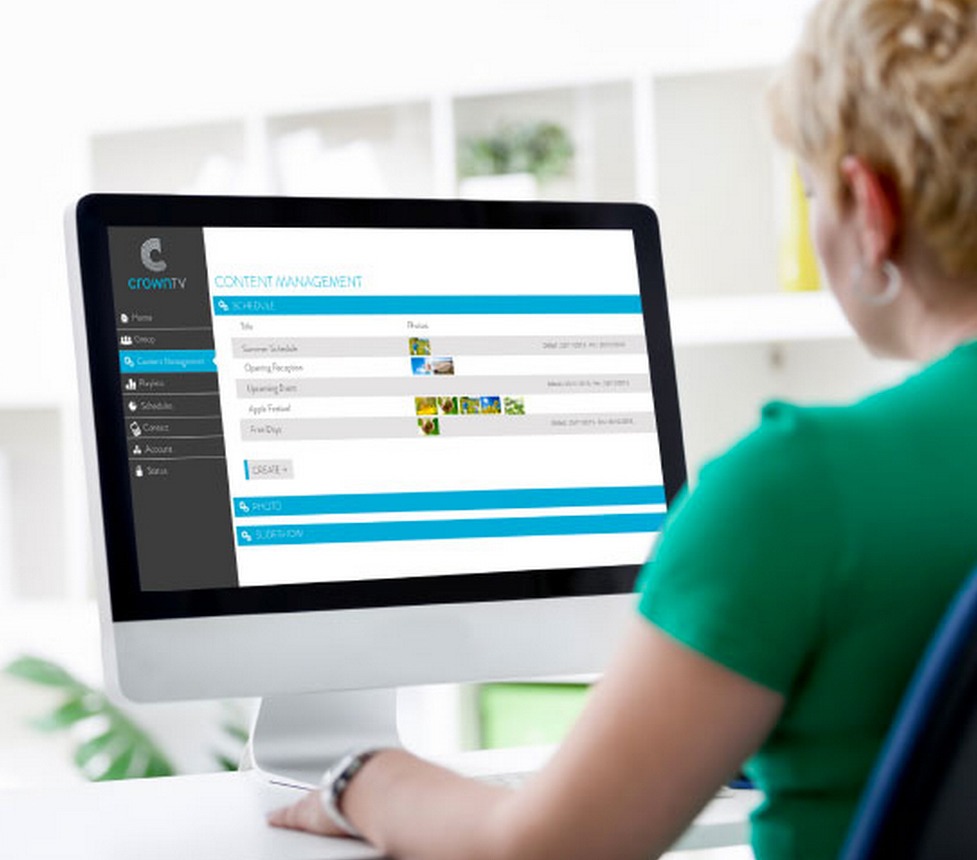
The software controlling your displays sits right between hardware and content. Pick the wrong content management system (CMS), and your expensive displays become digital paperweights. Your CMS needs to work seamlessly with your media players, support your hardware specifications, and scale as you add locations.
Most retailers treat CMS selection as an afterthought. They buy displays and media players first, then discover their preferred software doesn’t support their hardware choices. That’s backward.
Cloud-Based vs. Local Server Systems
Your CMS architecture determines how content flows to displays and where control lives. Cloud-based systems let you manage screens from anywhere with internet access. Local server systems keep everything on-premises but require dedicated hardware and IT management.
Cloud-based CMS advantages:
- Manage displays from any location or device with remote content management
- Automatic software updates without manual intervention
- No server hardware to maintain or replace
- Built-in content backup and disaster recovery
- Easy scaling as you add displays or locations
- More energy efficient than running dedicated on-premise servers 24/7
Local server considerations:
- Complete control over data and content storage
- Works during internet outages (once content is cached)
- No monthly subscription fees after initial purchase (lower total cost over time for some retailers)
- Requires IT staff to manage and maintain
- Complex setup for multi-location management
Cloud-based systems win for most retail applications. You gain flexibility and reduce IT overhead. Local servers make sense for retailers with strict data control requirements or unreliable internet connections.
Features That Matter in Retail Environments
Your CMS needs specific capabilities for retail operations. Generic digital signage software built for corporate lobbies lacks the scheduling flexibility and content variety retail demands.
Critical CMS features for retail:
- Scheduling by time/date: Different content for morning rushes vs. evening shoppers
- Playlist management: Rotate promotions without manual updates
- Multi-location control: Manage displays across stores from one dashboard
- Real-time updates: Push urgent content changes instantly
- Content templates: Create consistent branded displays quickly
- User permissions: Control who can change content at each location
- Performance monitoring: Track display uptime and content playback
- Remote control: Adjust settings, restart displays, and troubleshoot without physical access
CrownTV’s software delivers sophisticated control through a secure, user-friendly dashboard. You can schedule content based on time, date, or custom triggers while managing screens globally without compromising security. The platform includes unlimited app integrations, letting you pull in social media feeds, weather data, or live inventory without custom development.
Integration Capabilities and App Ecosystem
Your CMS should connect with the tools you already use. Social media feeds, inventory systems, weather APIs, and news tickers all enhance retail displays when integrated properly.
Look for platforms with pre-built integrations rather than custom development requirements. Building custom connections costs thousands and takes months. Pre-built apps work immediately.
Common retail integrations:
- Social media (Instagram, Facebook, Twitter feeds)
- Weather and local information
- Product inventory and pricing systems
- Event calendars and promotional schedules
- Queue management and wait time displays
- Emergency alert systems
CrownTV offers hundreds of integration possibilities free from the app store. Connect your existing systems without writing code or hiring developers. Unlike consumer platforms like the Google Play Store that require individual app purchases and management, professional digital signage app stores provide business-focused integrations designed for commercial use.
Compatibility With Your Hardware Choices
Your CMS must support your media players and displays. Some software works only with proprietary hardware. Others support any Android-based player. Verify compatibility before committing to either hardware or software.
Understanding which device category your media player falls into helps determine CMS compatibility. Commercial-grade Android players differ significantly from consumer streaming devices. While something like an Amazon Fire TV Stick might seem like a budget-friendly option, these consumer devices lack the reliability, management features, and high-quality playback consistency needed for commercial retail environments.
Check these compatibility factors before buying:
- Operating system requirements (Android, Windows, Linux)
- Minimum hardware specifications (RAM, processor, storage)
- Display resolution support (1080p, 4K, custom sizes)
- Network requirements (bandwidth, ports, protocols)
- Browser requirements for remote management
- Support for portable screens if you need flexible or temporary display setups
Test your CMS with your actual hardware during trial periods. What works in demos sometimes fails in real-world retail conditions.
Power and Surge Protection Prevent Expensive Failures
Electrical issues kill more digital signage hardware than any other factor. Power surges from lightning, grid fluctuations, and HVAC systems starting up send voltage spikes that fry displays and media players instantly.
Consumer power strips don’t protect commercial equipment. You need surge protection rated for the power draw and replacement value of your hardware.
Surge Protection That Actually Works
Surge protectors are rated in joules, the amount of energy they can absorb before failing. Consumer-grade strips offer 500-1,000 joules. Commercial equipment needs 2,000-3,000 joules minimum.
Surge protection specifications:
- Joule rating: 2,000+ for single displays, 3,000+ for multiple devices
- Clamping voltage: 400V or lower (how much voltage passes through)
- Response time: Under 1 nanosecond for fast protection
- Connected equipment warranty: Manufacturer covers damaged devices
- Indicator lights: Show when protection is active vs. depleted
Surge protectors wear out over time. Each surge they absorb depletes their capacity. The indicator light tells you when protection has failed, and the unit needs replacement. Without that light, you’re running unprotected equipment without knowing it.
Replace surge protectors every 3-5 years, even if they haven’t blown. The components degrade with age and lose effectiveness.
UPS Systems for Clean Power and Backup
Uninterruptible Power Supply (UPS) units do more than provide battery backup. They condition incoming power, smoothing out voltage fluctuations that damage electronics over time.
UPS benefits beyond backup power:
- Voltage regulation prevents brownout damage
- Battery backup allows a graceful shutdown during outages
- Line conditioning removes electrical noise
- Prevents hard crashes that corrupt digital signage media players
- Protects against data loss during content updates
Size your UPS based on total power draw plus 25% headroom. A 55-inch display pulls 150-200 watts. Add another 30-50 watts for the media player. A 500VA UPS handles one display comfortably. Multiple displays need proportionally larger units.
Runtime matters less than protection. You need 10-15 minutes of backup power for a graceful shutdown, not hours of operation. Focus the budget on better voltage regulation rather than extended runtime.
Electrical Installation Best Practices
Dedicated circuits for digital signage prevent other equipment from affecting your displays. Sharing circuits with high-draw devices like refrigeration units or coffee makers introduces voltage fluctuations.
Power installation requirements:
- Dedicated 15-20 amp circuits for signage equipment
- Grounded outlets (three-prong minimum)
- Circuit breakers are appropriately sized for the load
- Cable runs within electrical code limits
- Professional electrician for permanent installations
Ground loops create interference that shows up as horizontal lines or flickering on displays. Proper grounding eliminates these issues. If displays show interference, check ground connections before blaming the hardware.
Protecting Against Environmental Hazards
Retail spaces expose equipment to environmental risks beyond electrical issues. Humidity, temperature extremes, and physical damage all threaten hardware longevity.
Keep displays and media players away from HVAC vents where temperature swings and moisture accumulate. Extreme cold makes LCD panels sluggish. Heat accelerates component failure. Aim for consistent temperatures between 60-80°F.
Ventilation prevents heat buildup around media players and display electronics. Wall-mounted displays need 2-3 inches of clearance behind them for airflow. Enclosed installations require active cooling fans.
Physical barriers protect displays from accidental impacts in high-traffic areas. Corner installations are particularly vulnerable to shopping carts and foot traffic. Protective screens or strategic placement prevent damage.
Real-World Selection Criteria for Your Retail Store

Theory meets reality when you’re standing in your retail space with a budget and a deadline. The perfect hardware setup on paper might not work in your actual store layout, with your specific customer flow, and within your financial constraints.
Here’s how to translate technical specifications into practical decisions that work for your business.
Budget Allocation Across Hardware Components
Your total digital signage budget needs to cover every component, not just displays. Retailers often budget for screens and forget about mounting, cables, surge protection, and installation labor.
Realistic budget distribution:
| Component | Percentage of Total Budget | Notes |
| Commercial displays | 40-50% | Largest single expense |
| Media players | 10-15% | $150 per display with CrownTV |
| Mounting hardware | 8-12% | More for complex installations |
| Connectivity equipment | 10-15% | Network infrastructure costs |
| CMS subscription | 5-10% | Annual or monthly fees |
| Installation labor | 10-15% | Professional install recommended |
| Surge/power protection | 3-5% | Often overlooked, never skip |
A $10,000 digital signage project breaks down to roughly $4,500 in displays, $1,200 in media players, $1,000 in mounting, $1,200 in network equipment, $800 in CMS costs, $1,200 for installation, and $100 for power protection. Adjust based on your specific needs, but this framework prevents surprise expenses.
Store Size and Display Quantity Decisions
Square footage doesn’t directly determine display count. Customer flow patterns, dwell time, and sight lines matter more than raw space.
Display quantity guidelines by retail type:
- Small boutiques (under 1,000 sq ft): 1-2 displays maximum, focus on entrance or checkout
- Mid-size retail (1,000-5,000 sq ft): 3-5 displays covering main departments
- Large format stores (5,000-15,000 sq ft): 6-12 displays, including department-specific screens
- Big-box retail (15,000+ sq ft): 12+ displays with zone-specific content
More displays don’t automatically mean better results. Three well-placed displays with targeted content outperform ten random screens showing generic promotions. Map customer paths through your store first, then position displays where people naturally look.
Content Complexity and Hardware Requirements
Your content ambitions determine hardware specifications. Retailers often buy hardware first, then discover it can’t handle the content they want to run.
Match hardware to content plans:
- Static images and simple slideshows: Basic media players, standard displays, minimal bandwidth
- HD video promotional content: Mid-range players, commercial displays, moderate network capacity
- Interactive touchscreen experiences: High-performance players, interactive displays, robust networking
- Real-time data integration: Premium players, API support, dedicated network infrastructure
- Multi-zone layouts: Powerful players, large displays, advanced CMS features
Start with your content strategy, then select hardware that supports it. Buying underpowered hardware to save money upfront means replacing everything when your content needs evolve.
Scalability Planning for Future Growth
Your first installation teaches you what works. Your second installation should be easier. Plan hardware choices that scale as you open locations or expand within existing stores.
Scalability considerations:
- Choose CMS platforms that handle unlimited locations without exponential cost increases
- Standardize on one digital signage player model for simplified inventory and support
- Select displays from manufacturers with consistent product lines
- Document installation procedures for repeatable deployments
- Build network infrastructure with excess capacity for future displays
CrownTV supports scalable solutions for businesses of all sizes. Our platform grows with you, add displays across multiple locations, adapt content in real-time, and manage everything from one software without per-location setup headaches.
Maintenance and Support Requirements
Hardware fails. Software glitches. Networks go down. Your hardware selection should include a realistic assessment of ongoing maintenance needs and available support.
Maintenance planning factors:
- In-house IT capability vs. outsourced support needs
- Warranty terms and response times for hardware failures
- Software update schedules and testing requirements
- Cleaning and physical maintenance for displays
- Content update frequency and staff training needs
Retailers without dedicated IT staff need hardware with excellent manufacturer support and user-friendly management tools. Technical complexity that works for enterprise deployments becomes a liability when your store manager needs to troubleshoot during a Saturday rush.
Making the Final Decision
Compile your requirements into a decision matrix. Rate each hardware option against your priorities: budget, reliability, ease of use, scalability, and support quality.
Decision-making framework:
- Define your primary use case: What problem are you solving with digital signage?
- Set your total budget: Include all components, not just displays
- Map installation locations: Exact placement affects hardware choices
- List your content requirements: Resolution, format, complexity, update frequency
- Assess internal capabilities: What can you manage vs. what needs support?
- Research vendor support: Read reviews, test customer service, verify warranties
- Test before full deployment: Pilot with 1-2 displays before ordering dozens
Don’t rush hardware decisions to hit arbitrary deadlines. Bad hardware choices haunt you for years. The month you spend researching and testing saves years of frustration.
Get demos of actual hardware running in conditions similar to your store. Conference room demos under controlled lighting don’t reflect retail reality. See displays performing in bright showrooms with real customer noise and movement.
Talk to other retailers using the same hardware. Ask about problems they’ve encountered, support responsiveness, and what they’d change about their setup. Real-world experience beats marketing materials every time.
Your hardware investment should serve your business for 5-7 years minimum. Choose based on long-term reliability and support, not just the lowest upfront cost. The cheapest option usually becomes the most expensive when you factor in replacements, downtime, and lost opportunities.