
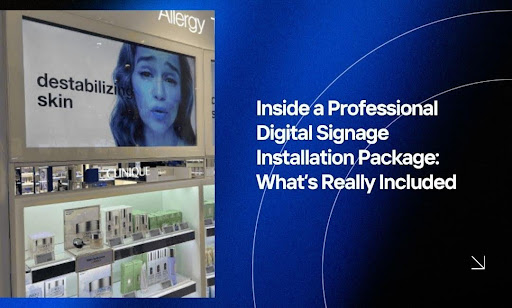
In this guide, we explore everything you need to know about digital signage installation package: what's included and how it can transform your business communications.
You’ve got the budget approved. The screens are picked out. Your digital signage project is finally happening. But when you crack open that installation proposal, the line items look like alphabet soup. “Site assessment.” “System integration.” “Commissioning.” What does any of that actually mean, and why are you paying for it?
Here’s the uncomfortable truth: most businesses sign off on installation packages without understanding what they’re buying. They assume “installation” means someone shows up, mounts a screen, and leaves. Then reality hits when the displays go live, and nothing works the way it should.
A professional digital signage installation package includes far more than mounting hardware on walls. The difference between a $500 handyman special and a $5,000 professional setup isn’t the screen. It’s everything that happens before, during, and after that screen goes up.
We’ll break the mystery down and show you exactly what you’re paying for:
- Site survey and assessment to map out your space
- Hardware and software procurement with delivery coordination
- Physical installation and mounting with proper cable management
- System configuration and network integration
- Testing and commissioning to catch problems early
- Documentation, permits, and compliance paperwork
- User training so your team can actually use the system
- Post-installation support and optimization
- Warranty registration and ongoing maintenance options
The companies that skip these steps don’t advertise it upfront. You find out later when your screens freeze, your content won’t upload, or your mounting brackets start sagging. By then, fixing the problems costs more than doing it right the first time would have.
Digital Signage Installation Package: What's Included: Why Walking Your Space Matters Before Any Screen Goes Up
You can’t mount a 75-inch display on drywall and call it a day. A professional site survey prevents the expensive mistakes that amateur installers discover after the fact.
The survey team shows up before you’ve bought a single piece of hardware. They measure wall strength, test power outlets, check network access points, and map out sightlines. This isn’t busywork. It’s the difference between displays that stay mounted for years and ones that need emergency repairs three months in.
What Gets Evaluated During a Site Survey
A proper assessment covers both the physical space and the technical infrastructure you’ll need. Your installer should document these factors:
- Wall construction and load capacity – Can the surface support your display’s weight, or does it need reinforcement?
- Electrical access and capacity – Are outlets placed where you need them, and can your circuit handle the additional load?
- Network connectivity options – Will you run Ethernet cables, use existing WiFi, or need new access points?
- Ambient lighting conditions – How much glare hits the screen at different times of day?
- Viewing angles and distances – Where will people actually see your content from?
- Environmental factors – Does temperature, humidity, or dust exposure require special enclosures?
The survey report becomes your blueprint. It tells you which screens fit which locations, where you’ll need mounting upgrades, and what surprises might blow your budget. Installers who skip this step are guessing. The ones who spend two hours measuring your space upfront save you from two weeks of problems later.
Some installation teams charge separately for site surveys. Others roll the cost into the full package. Either way, you want proof they’ve walked your space before they start drilling holes in your walls.
Sourcing the Right Equipment Without the Procurement Headaches
Buying digital signage hardware sounds simple until you start comparing spec sheets. A professional installation package takes this burden off your plate and gets you commercial-grade equipment at better prices than you’d find on your own.
Your installer acts as the procurement manager. They source digital displays, digital signage players, mounting hardware, cables, and software licenses based on the site survey results. This means you’re not stuck figuring out which bracket fits which screen or whether your media player can handle 4K digital signage content across six displays.
What Professional Procurement Actually Covers
The procurement phase handles everything between “we need equipment” and “equipment arrives ready to install.” A full-service package includes these components:
- Display selection and specifications matched to your environment and content needs
- Media player compatibility confirmed before purchase
- Mounting brackets and hardware engineered for your wall types and display weights
- Cable management systems, including conduit, covers, and routing tools
- Digital Signage software licensing for your content management platform
- Networking components if your existing infrastructure can’t support the displays
- Spare parts and backup units for business-critical installations
The real value shows up in delivery coordination. Your installer schedules shipments so everything arrives when needed, not two weeks early or three days late. They track orders, manage backorders, and handle returns if something arrives damaged.
Why Letting Professionals Handle Purchasing Saves Money
You might assume buying direct saves money. It rarely does. Professional installers purchase equipment in volume and maintain relationships with manufacturers. They negotiate pricing that you can’t access as a one-time buyer.
They also know which models actually work in commercial settings. That consumer-grade TV might cost half the price, but it won’t survive 16-hour daily operation. The commercial display with a three-year warranty and higher brightness rating costs more upfront and lasts five years instead of 18 months.
Coordination prevents the nightmare scenario where your digital signage displays arrive, but the mounting brackets don’t. Or the brackets arrive, but they’re the wrong VESA pattern for your digital screens. Professional procurement means compatible components showing up together, ready for installation.
The Mounting Process That Separates Pros from Amateurs
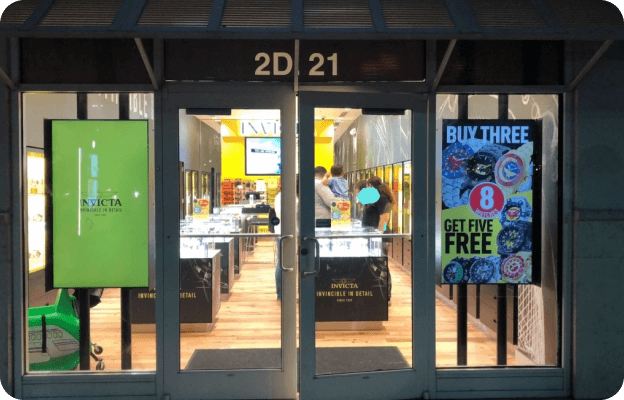
Anyone with a drill can put a hole in your wall. The question is what happens when that 80-pound display has been hanging there for three years. Professional installation means precision measurements, structural reinforcement where needed, and mounting systems built to last.
The installer checks stud locations, verifies weight tolerances, and uses commercial-grade brackets rated for loads far exceeding your display weight. They’re not eyeballing it or hoping the drywall anchors hold.
What Professional Mounting Includes
A complete mounting service goes beyond attaching brackets to walls. Your installation team handles the full mechanical setup:
- Structural assessment to confirm that the walls can support the display weight
- Mounting hardware installation using appropriate anchors for your wall type
- Display attachment with anti-theft locks and security fasteners
- Level and alignment verification across multiple displays
- Tilt and height adjustments optimized for viewing angles
- Safety compliance meeting local building codes and regulations
The difference shows in the details. Consumer brackets use four screws into studs and call it done. Commercial installations may add backing plates, distribute load across multiple studs, or reinforce drywall with plywood backing. Your installer makes these calls based on what the survey revealed about your walls.
Cable Management Makes or Breaks the Final Look
Exposed cables dangling down your wall scream “amateur installation.” Professional cable management hides every wire and creates a clean, finished appearance. Your installer runs power and data cables through walls, conduit, or cable raceways. They group cables together, secure them properly, and leave enough slack for future adjustments without creating visible loops. The result looks built-in, not bolted on.
Proper cable routing does more than improve aesthetics. It prevents tripping hazards, reduces wear on connectors, and makes troubleshooting easier when you need to trace a problem. Installers who skip this step leave you with a rats’ nest of cables that nobody wants to touch six months later.
Getting Your Displays to Actually Talk to Each Other
Mounting screens is the easy part. Making them function as a coordinated system requires network expertise and software configuration that most IT teams don’t have the bandwidth to handle.
System configuration transforms individual displays into a managed network. Your installer sets up the content management software, connects displays to your network, and configures everything to work together. This phase determines how easily you’ll update content, manage schedules, and troubleshoot issues after the installation team leaves.
Network Integration and Connectivity Setup
Your digital signage needs network access to receive content updates and stay synchronized. Professional installers handle the technical setup that makes this connection reliable:
- IP address assignment for each display and media player
- VLAN configuration to separate signage traffic from other network activity
- Bandwidth allocation to prevent content updates from slowing your primary network
- Firewall rules allow necessary connections while blocking security threats
- WiFi or Ethernet setup based on your infrastructure and display locations
- Network redundancy for mission-critical displays that can’t afford downtime
The installer tests network connectivity from each display location and documents any dead zones or weak signal areas. They’ll recommend solutions like adding access points or running dedicated Ethernet lines where wireless coverage falls short.
Content Management Platform Configuration
The software that controls your displays needs proper setup before you can push your first piece of content. Configuration includes creating your organizational structure, setting permissions, and establishing workflows.
Your installer builds out user accounts with appropriate access levels. Marketing gets content creation rights. IT gets system administration access. Location managers get playlist control for their specific displays. This prevents someone from accidentally pushing content to the wrong screen or deleting system-critical files.
Platforms like CrownTV’s digital signage software let you manage displays across multiple locations from one dashboard. Your installer configures the interface so you can update content, monitor display status, and schedule playlists without needing technical expertise after they’re gone.
| Configuration Element | What Gets Set Up | Why It Matters |
| Display Groups | Organizing screens by location or purpose | Updates multiple displays at once |
| Content Zones | Defining areas within each screen layout | Controls where different content appears |
| Scheduling Rules | Setting when specific content plays | Automates content rotation without manual updates |
| Fallback Content | Default media when the network drops | Prevents blank screens during connectivity issues |
| Update Protocols | How and when displays check for new content | Balances freshness with network efficiency |
Media Player and Display Settings
Each media player needs configuration to work with your specific displays and content types. The installer sets resolution, orientation, and output settings that match your hardware capabilities.
They configure playback settings like loop behavior, transition effects, and content caching. If you’re running video content, they optimize buffering to prevent stuttering or loading delays. For interactive displays with touch capability, they calibrate touch response and set up any connected peripherals.
Professional-grade hardware like CrownTV’s media players comes pre-configured to work with commercial displays, but your installer still needs to customize settings for your specific network environment and content requirements. This includes setting up automatic updates, configuring local storage for content caching, and establishing connection protocols that keep your displays running even when network issues pop up.
Integration With Existing Business Systems
Your digital signage doesn’t exist in isolation. Professional configuration connects your displays to other systems you already use. Common integrations include pulling data from point-of-sale systems for menu boards, connecting to calendar systems for room booking displays, or feeding social media content into lobby screens. Your installer sets up these data connections, configures refresh rates, and tests the information flow to confirm accuracy.
API connections and data feeds require authentication, proper formatting, and error handling. The configuration team sets these parameters and documents how your systems communicate so you can troubleshoot later if something breaks.
Testing and Commissioning to Catch Problems Early

Your displays are mounted, configured, and connected. Now comes the phase that separates completed installations from functional ones. Professional commissioning means running every display through a battery of tests before the installer packs up their tools.
They’re looking for problems you’d discover during your first big presentation or product launch. Finding them now, while the team is still on-site, costs nothing. Finding them later costs service calls and downtime.
What Gets Tested During Commissioning
A thorough commissioning process covers both individual display performance and system-wide functionality. Your installation team should verify these critical elements:
- Display output quality, including brightness uniformity, color accuracy, and dead pixel checks
- Content playback across all supported formats and resolutions
- Network connectivity under normal and peak load conditions
- Scheduled content transitions to confirm timing accuracy
- Audio output if your displays include sound
- Remote management access from the locations where your team will control content
- Failover behavior when network connections drop, or content files are corrupted
- Power cycle recovery to confirm displays restart properly after outages
The team runs content for extended periods to catch intermittent issues. A display that works fine for 10 minutes might freeze after two hours of continuous operation. Commissioning finds these problems before they embarrass you in front of customers.
Stress Testing Your System Under Load
Testing one display is simple. Testing 50 displays updating simultaneously reveals bandwidth bottlenecks, server capacity issues, and synchronization problems that won’t show up in small-scale tests.
Professional installers push your system harder than you’ll typically use it. They queue up large video files, trigger simultaneous updates across all displays, and simulate the worst-case scenarios your network might face. If the system handles commissioning stress tests, it’ll handle your normal operations without breaking a sweat.
Sign-Off and Performance Validation
Commissioning ends with documented proof that everything works as specified. Your installer provides a checklist showing which tests passed, which displays are operating within tolerance, and confirmation that the system meets the performance criteria outlined in your contract.
This documentation protects both parties. You have proof that the system was working when installed. The installer has proof that they delivered a functional system. If problems appear later, the commissioning report establishes a baseline for troubleshooting.
Documentation, Permits, and Compliance Paperwork
The paper trail might seem tedious, but it becomes your lifeline when you need warranty service, plan an expansion, or sell the building. Professional installations generate documentation that maps your entire system. This isn’t optional, nice-to-have information.
It’s the difference between fixing a problem in 20 minutes and spending three hours tracing cables to find which display connects where.
Installation Documentation You Should Receive
Your installer should hand over a complete record of what they built and how they built it. This package typically includes:
- As-built drawings showing exact display locations and cable routes
- Equipment lists with model numbers, serial numbers, and warranty information
- Network diagrams documenting IP addresses, VLANs, and connection topology
- Configuration files or screenshots of software settings
- Login credentials for all administrative accounts
- Mounting specifications, including wall anchors used and weight ratings
- Electrical documentation showing circuit loads and power connections
The documentation should be detailed enough that a different technician could walk in cold and understand your system. Installers who hand you a one-page summary aren’t doing you any favors.
Permits and Building Code Compliance
Most commercial installations require permits for electrical work, structural modifications, or both. Your installer pulls these permits, coordinates inspections, and provides you with approved documentation. Professional installers handle the full compliance process to keep your installation legal and insurable:
- Electrical permits for new circuits, outlet installations, or power modifications
- Building permits are required when structural changes or wall penetrations exceed local thresholds
- Fire marshal approvals for installations in public spaces or egress routes
- ADA compliance verification for accessible mounting heights and interactive displays
- Inspection scheduling and coordination with local building departments
- Certificate of occupancy updates when required for commercial space modifications
Skipping permits creates liability exposure. If an unpermitted installation causes property damage or injury, your insurance might refuse the claim. Building sales or refinancing can stall when buyers discover unpermitted work. Professional installers get the paperwork right because they know the consequences of cutting corners.
Property managers, especially in NYC, can track any violations that pop up during or after installation using tools like ViolationWatch, which monitors building code infractions across city agencies. Staying on top of compliance issues prevents small installation oversights from turning into expensive violations down the line.
Warranty Registration and Service Records
Your equipment comes with manufacturer warranties, but those warranties aren’t active until someone registers them. Professional installation packages include warranty registration for all hardware components.
The installer documents and organizes warranty information so you can access it when problems develop:
- Warranty registration confirmations with proof of coverage activation
- Coverage terms and exclusions for each component type
- Manufacturer contact information for warranty claims and technical support
- Serial number tracking linking each display and media player to its warranty
- Extended warranty options with cost-benefit analysis for your specific deployment
- Service level agreements detailing response times and coverage hours
Service records start at installation. Your documentation should include the installation date, initial firmware versions, and baseline performance metrics. When problems develop later, these records help technicians identify what changed between “working perfectly” and “the screen won’t turn on.”
User Training So Your Team Can Actually Use the System
The fanciest digital signage system in the world is worthless if your staff can’t figure out how to update content without calling tech support every time.
Professional installation packages include training sessions that turn your team into confident system operators. This isn’t a 10-minute walkthrough while the installer is packing up. It’s structured instruction covering everything from basic content updates to troubleshooting common issues.
What Effective Training Should Cover
Training needs vary based on who’s using the system and what they need to accomplish. Your installer should provide role-specific instruction that covers the core features each team member will use daily. Quality training separates professional installations from the few providers who mount screens and disappear.
For Content Managers:
- Uploading and organizing media files
- Creating content using built-in templates and design tools
- Creating playlists and schedules
- Setting content expiration dates
- Previewing content before publishing
- Managing content zones and layouts
- Configuring emergency alerts that override regular programming
- Display content optimization for different screen sizes and orientations
Content teams learn how digital displays offer flexibility impossible with traditional signs. They can update messaging instantly across all locations instead of coordinating print and installation schedules.
For IT Staff:
- Network troubleshooting procedures
- Display connectivity diagnostics
- Software update processes
- User account management
- Backup and recovery procedures
- System monitoring for optimal performance
- Screen lifespan management through firmware updates and preventive maintenance
- Integration setup with existing business systems
The training matches each group’s technical skill level. Marketing teams get interface walkthroughs with lots of visual examples. IT teams get documentation about system architecture and API access.
For Location Managers:
- Switching between pre-approved playlists
- Checking display status
- Reporting technical issues
- Basic power cycling and restarts
- Activating emergency alerts during urgent situations
- Adjusting display content schedules for local events or promotions
Location managers at retail shops or multi-site deployments need simplified controls that let them customize content without accessing system-wide settings. Training ensures they can make local adjustments while maintaining brand consistency across the network.
Hands-On Practice With Your Actual Content
Watching an installer demonstrate the system teaches you less than doing it yourself with their guidance. Effective training sessions have you log in, upload your content, build a playlist, and push it to displays while the trainer watches and corrects mistakes.
You learn the software by using it on your actual business content, not generic placeholder images. This reveals workflow questions and edge cases that wouldn’t come up with demo content. Your team discovers what happens when file names have special characters, or how the system handles videos with different aspect ratios.
Documentation and Quick Reference Guides
Training sessions end, but questions don’t. Professional installers provide written guides and video tutorials that your team can reference later. Your training documentation package should include multiple formats and detail levels to support different learning needs:
- Quick reference cards with step-by-step instructions for the most common tasks
- Full user manuals documenting every feature, setting, and configuration option
- Video tutorials showing procedures in action with screen recordings
- Troubleshooting flowcharts to diagnose and fix common issues independently
- FAQ documents addressing questions that come up during typical system use
- Contact escalation guides showing when to handle issues internally versus calling support
This multi-format documentation accommodates different learning styles and serves as a refresher when someone hasn’t updated content in three months. Your team can choose between watching a two-minute video or reading a detailed procedure based on how they learn best.
Post-Training Support Window
Learning continues after the formal training session ends. Good installation packages include a support window where your team can ask questions as they start using the system independently.
This might be 30 days of email support, scheduled check-in calls, or access to a support portal. The goal is to catch confusion early before small misunderstandings turn into bigger problems. Your team learns faster when they can ask “how do I do this?” and get answers from someone who knows your specific setup.
Post-Installation Support and Optimization
The installer drives away, and your displays are running. Now the real test begins. Post-installation support bridges the gap between “system works” and “team confidently operates the system.” Professional packages include a support period where the installation company remains available to fix bugs, answer questions, and optimize performance based on how you’re actually using the display devices across your deployment.
The Critical First 30-90 Days
Most issues surface within the first few months of operation. Your installer should check in during this shakedown period, reviewing system logs, monitoring performance metrics, and addressing problems you’re experiencing. These aren’t courtesy calls. They are opportunities to fix issues before they become permanent frustrations.
Common problems that emerge during the shakedown period include:
- High-resolution video content that stutters during playback after testing appeared flawless
- Exterior displays washing out in direct sunlight during afternoon hours
- Network bandwidth maxes out when updating all screens simultaneously
- Video walls showing synchronization drift across panels
- Interactive kiosks are experiencing touch calibration issues under heavy use
- Temperature-related performance problems in un-climate-controlled areas
For complex deployments spanning multiple sites, the installation team monitors how different locations perform under varying conditions. This early optimization phase proves critical to long-term success and helps refine your signage strategy based on real-world performance data.
Remote Monitoring and Proactive Problem Detection
Advanced support packages include remote monitoring that catches problems before you notice them. The support team tracks performance across multiple screens and identifies patterns that indicate developing issues.
What Professional Monitoring Systems Track:
- Display uptime and availability across all locations
- Content playback errors and failed updates
- Network connectivity drops and bandwidth utilization
- Hardware health indicators, including temperature and component status
- Touch screens and interactive kiosks’ interaction response times
- System resource usage that might impact performance
You get alerts when displays go offline or when content fails to update. The monitoring system logs error patterns that point to developing issues. A display that crashes once might be a fluke. The same display crashing every Tuesday at 2 PM indicates a specific problem the support team can diagnose and fix.
This proactive approach protects your signage strategy from disruptions that hurt customer retention and damage your visual communication effectiveness.
Performance Optimization Based on Usage Patterns
Your initial configuration was based on assumptions about how you’d use the system. Real-world usage reveals optimization opportunities that weren’t obvious during installation. The support team analyzes your actual content update patterns, network traffic, and viewing conditions to refine your visual communication effectiveness.
They might recommend:
- Content scheduling adjustments to reduce network congestion during business hours
- Caching strategy changes to improve playback reliability
- Display brightness modifications based on ambient light measurements for outdoor advertising and TV screens
- Playlist length optimization to balance freshness with system load
- Resolution or bitrate adjustments to match your network capacity
- Network settings refinements for deployments spanning corporate offices or retail locations
These tweaks improve system performance without hardware changes. Your displays become more responsive, content updates faster, and reliability increases. Support teams also verify that your compatible software and operating systems stay current with security patches and feature updates.
Software and Interface Optimization
Beyond hardware performance, support teams optimize how your staff interacts with the system. They refine the user-friendly interface based on feedback from your team, streamlining workflows and removing unnecessary complexity.
Interface Improvements During Support Period:
- Workflow simplification based on how your team actually uses the system
- Permission structure refinement to match organizational roles
- Dashboard customization showing the metrics your team values most
- Shortcut creation for frequently performed tasks
- Template development for common content types
For businesses using digital directories, touch screens, or other advanced technologies, the support period includes calibration adjustments and sensitivity tuning. The goal is to give your team complete control over content without requiring technical expertise. This optimization often reveals essential features that weren’t configured during initial setup but would benefit your specific use case.
The support team also evaluates your overall deployment against your business goals. Are you reaching your target audience effectively? Could your content strategy improve? They compare your digital approach against traditional printing costs to quantify ROI and identify opportunities where digital displays deliver better value. Understanding these key components of performance helps you refine your approach over time.
On-Site Follow-Up Visits
Some issues can’t be diagnosed remotely. Professional support packages include on-site visits when problems require hands-on troubleshooting.
What Technicians Bring to Follow-Up Visits:
- Diagnostic tools specific to your hardware and software configuration
- Replacement parts for common failure points
- Access to original installation documentation
- Knowledge of your exact system configuration and customizations
- Testing equipment to verify network settings and connectivity
The technician doesn’t start from scratch, trying to understand your system. They know exactly how everything was configured during installation. This cuts diagnostic time from hours to minutes and gets your display devices back online faster. For corporate offices managing displays across multiple sites, coordinated on-site support ensures consistent system performance regardless of location.
Ongoing Maintenance Options Beyond Initial Warranty
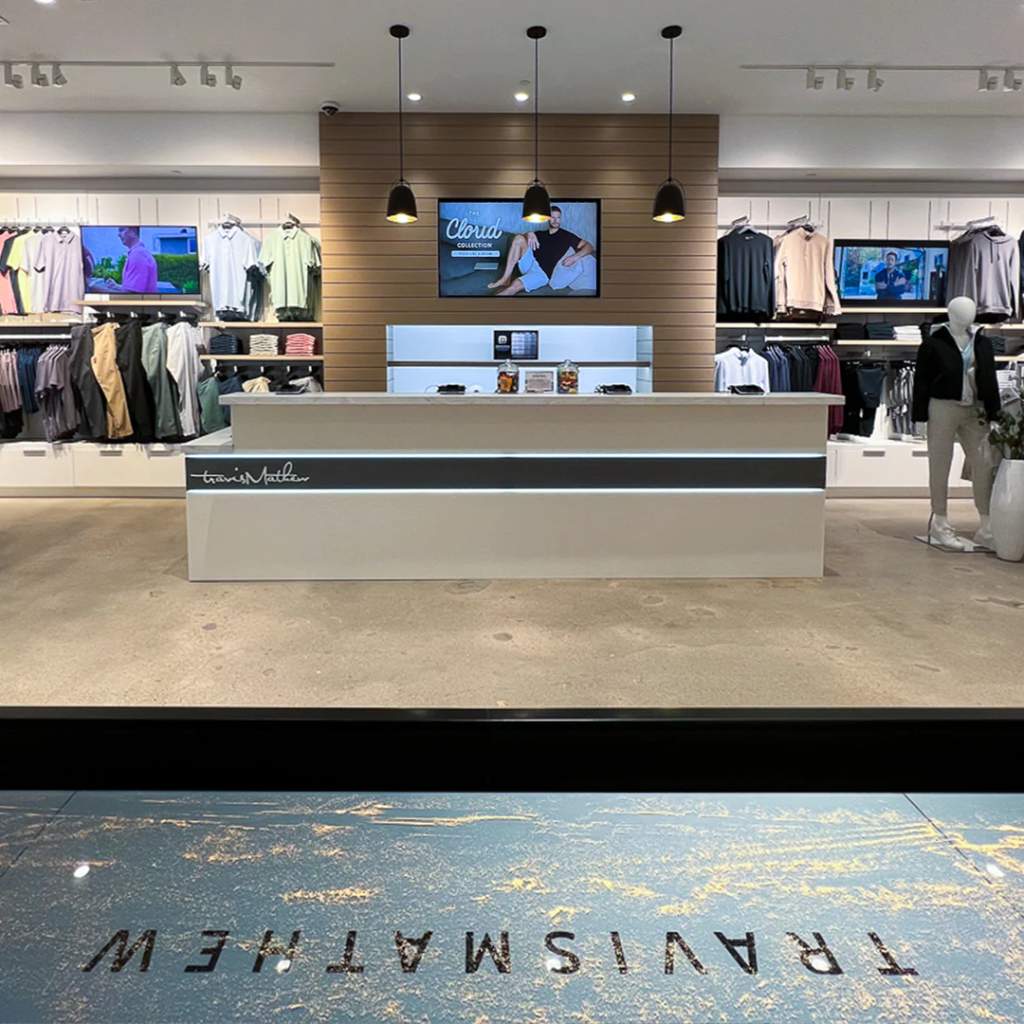
Your manufacturer’s warranty covers defects, but it doesn’t cover the routine maintenance that keeps dynamic displays running reliably for years. Maintenance contracts extend professional support beyond the installation phase and protect your digital signage investment long after the initial setup. You’re paying for expertise on demand, preventive care that reduces failures, and priority response when something breaks.
What Maintenance Contracts Typically Include
Service agreements vary widely in scope and cost. Understanding what’s covered helps you pick the right level of support for your deployment and ensures your digital signage network stays operational across all locations.
Basic Maintenance Plans:
- Remote technical support during business hours
- Software updates and security patches
- Annual performance reviews
- Priority response for critical issues
- Discounted rates on repair services
Comprehensive Maintenance Plans:
- 24/7 technical support with guaranteed response times
- Scheduled preventive maintenance visits
- Hardware replacement for failed components
- Firmware updates and system optimization
- Content management system consulting to optimize workflows
- Emergency on-site response within specified timeframes
The difference shows up when problems hit. Basic plans get you phone support and maybe a technician visit within a few days. Comprehensive plans get someone on-site within hours if your digital signs go down during a critical event. For retail stores that depend on displays for customer engagement, comprehensive coverage often pays for itself with a single prevented outage.
Preventive Maintenance That Prevents Expensive Failures
Screens don’t fail suddenly without warning. They give signals that trained technicians recognize and address before complete failure occurs.
Scheduled maintenance visits catch these early warning signs:
- Display calibration drift that degrades color accuracy over time
- Cooling fan degradation that leads to overheating and shortened lifespan
- Connection loosening from thermal expansion and contraction cycles, affecting power and data lines
- Firmware bugs fixed in manufacturer updates you haven’t installed
- Dust accumulation blocking ventilation and causing temperature issues
- Power supply stress showing up as intermittent shutdowns
Fixing these issues during planned maintenance costs a fraction of emergency repairs after complete failure. You’re also avoiding the revenue loss and embarrassment of dark displays in customer-facing areas. For businesses using digital signage solutions to drive sales or improve internal communication, downtime directly impacts the bottom line.
Hardware Refresh and Technology Upgrade Paths
Display technology improves every year. Brightness increases, power consumption drops, and features expand. Your maintenance provider should advise you on when upgrading makes financial sense based on changes in the digital signage market and evolving advanced features that could benefit your digital signage business.
A good maintenance relationship includes technology roadmap planning. Your provider tracks manufacturer product lifecycles, notes when replacement parts become scarce, and recommends refresh timing before your displays become obsolete. They stay current on innovations like cloud-based digital signage platforms and interactive features that might enhance your deployment.
They can phase upgrades over multiple budget cycles instead of forcing complete replacement when your entire deployment reaches end-of-life simultaneously. This spreads costs and lets you pilot new technology in select locations before rolling it out system-wide. The lessons learned from installing digital signage at scale inform smarter upgrade strategies.
Service Level Agreements and Response Time Guarantees
Maintenance contracts should specify exactly what “support” means. Vague promises of “timely response” become “we’ll get to it when we can” when you need help. Clear SLAs protect your digital signage budget from unexpected repair costs.
| Service Level | Response Time | Resolution Target | Coverage Hours | Best For |
| Bronze | 24-48 hours | 5 business days | Business hours | Back-office displays with minimal impact |
| Silver | 4-8 hours | 24 hours | Extended hours | Customer-facing displays in non-critical areas |
| Gold | 1-2 hours | 4 hours | 24/7/365 | Revenue-critical displays like menu boards |
| Platinum | 30 minutes | 2 hours | 24/7/365 with on-site | Mission-critical deployments requiring near-zero downtime |
Match your service level to the business impact of downtime. Lobby displays that show company news can wait a day for repairs. Digital menu boards generating thousands in hourly revenue need an immediate response to keep your digital signage work generating results.
Budgeting for Long-Term Ownership Costs
The installation price is only the beginning. Total cost of ownership includes ongoing support, maintenance, content creation through your content management system (CMS), and eventual hardware replacement. Professional maintenance providers give you visibility into these costs upfront, helping you plan your digital signage journey from initial deployment through multiple refresh cycles.
You can budget accurately instead of getting surprised by expensive emergency repairs or discovering your displays need replacement sooner than expected. Annual maintenance typically runs 10-20% of the initial installation cost. That might seem steep until you compare it to the cost of one failed display during peak business hours, or the IT staff time spent troubleshooting instead of working on core business systems.
Professional Installation Packages Deliver What DIY Never Could
You’ve seen what separates a professional installation from a weekend mounting project. The difference isn’t one thing. It’s the dozen details that amateur installers skip because they don’t know better or don’t want to bill for the extra hours. Getting these components right from day one means your digital signage actually delivers the results you’re after:
- Your displays stay mounted securely for years instead of requiring emergency repairs when brackets fail under load.
- Content updates happen smoothly across all locations because the network was configured properly from the start.
- Your team manages displays confidently without calling IT every time they need to change a playlist.
- Problems get caught and fixed during commissioning instead of surfacing during your busiest sales period.
- You have documentation that turns a three-hour troubleshooting nightmare into a 15-minute fix.
- Maintenance prevents expensive failures rather than scrambling for emergency repairs when displays go dark.
CrownTV’s White Glove Installation service handles every piece we’ve covered here. The site survey, hardware procurement, professional mounting, network configuration, testing, documentation, training, and ongoing support all come together in one package. You’re not coordinating multiple vendors or hoping your IT team can figure out commercial display deployment between their other projects.
You get expert guidance from initial planning through long-term maintenance, backed by a team that’s deployed over thousands of displays across the United States. The system works from day one because professionals built it right the first time. Contact for further inquiries at +1 (347) 410-6890.