In this guide, we explore everything you need to know about canva for digital signage: when it works & when crowntv wins and how it can transform your business communications.
You’ve already got a Canva subscription. The interface feels familiar. Creating a quick promotional graphic takes minutes, not hours.
So why wouldn’t you use it for your digital signage?
Here’s the thing: Canva can work for digital signage, but calling it a “digital signage solution” is like calling a Swiss Army knife a construction toolkit. It’ll get some jobs done. For others, you’ll wish you had brought the proper equipment.
The real question isn’t “Can you use Canva?” It’s “Should you use Canva for your specific setup?”
That depends on your screens, your update frequency, your team’s technical comfort level, and how much time you’re willing to spend on workarounds. Some businesses run their entire digital signage operation through Canva exports and manual uploads. Others tried it for a week and switched to dedicated platforms after realizing they were spending 10 hours monthly on tasks that should take 10 minutes.
Here’s what we’ll cover:
- The technical reality of using Canva for digital signage (file formats, resolution limits, and display compatibility)
- When Canva works well enough (small setups, static content, and budget constraints)
- When you need a dedicated digital signage platform like CrownTV
By the end, you’ll know exactly which tool fits your situation and, more importantly, which one will save you from pulling your hair out three months from now.
Canva for Digital Signage: When It Works & When CrownTV Wins: What Canva Actually Lets You Do for Digital Signage
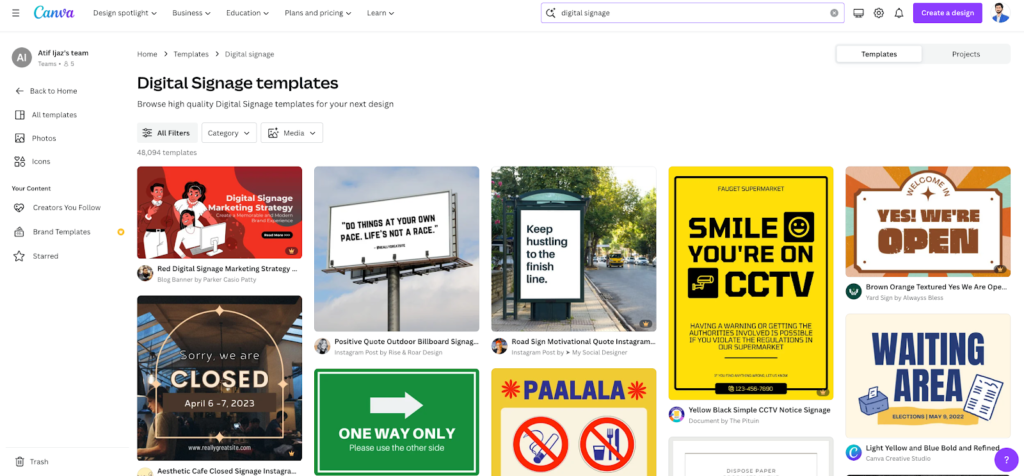
Canva wasn’t built for digital signage. It was built for social media posts, presentations, and printable materials. But that doesn’t mean you can’t make it work; you’ll simply need to understand its technical boundaries before you commit.
File Format Export Options
Canva gives you several export formats, but only a few make sense for screen displays. The cost-effectiveness of using Canva depends largely on choosing the right export format for your needs.
Available export formats:
- PNG – Best for static images with transparent backgrounds. File sizes can bloat quickly with high-resolution exports.
- JPG – Smaller file sizes, no transparency support. Works fine for full-screen graphics without overlays. The JPG format is particularly useful for high-traffic areas where quick loading times matter.
- MP4 – For animated designs and video content. Limited to 30 seconds per export in free plans, longer in paid plans.
- PDF – Not practical for digital signage unless you’re converting to another format first.
- GIF – Supports animation but with significant quality loss and file size issues.
The MP4 export gets the most attention for digital signage because it handles both static and animated content. You can set a design to display for 10 seconds as a video file, then upload that file to your media player or screen. Teams using Canva Teams can collaborate on these exports and maintain consistent branding across all content.
Resolution and Display Compatibility
Canva lets you set custom dimensions, which sounds perfect until you start matching them to actual screen specifications. The platform’s edit photo button and design tools work well for creating graphics, but translating them to digital signage requires careful planning.
Most digital signage runs on 1080p (1920×1080) or 4K (3840×2160) displays. You can create designs at these exact dimensions in Canva Pro. Free users get access to preset sizes, but custom dimensions require a paid subscription.
Here’s where it gets tricky. A design that looks sharp on your laptop might appear pixelated on a 55-inch screen six feet away. Canva’s export quality maxes out at 300 DPI for print, but screen displays measure differently. You’re working with pixel dimensions, not print resolution.
Screen size considerations:
- Small screens (32″ or less) – 1080p exports look acceptable
- Medium screens (43″-55″) – 1080p works but 4K is noticeably sharper
- Large screens (65″+) – 4K becomes necessary for a professional appearance
- Video walls – Custom ultra-wide dimensions that Canva can technically create, but becomes cumbersome to manage
The Manual Upload Reality
This is where Canva’s limitations become obvious. You design your content, export the file, and then manually upload it to whatever system runs your screen. While Canva remains cost-effective for small setups, the manual process adds time costs that grow with scale.
That system could be a USB stick plugged into your TV, an Amazon Fire TV Stick, a Raspberry Pi running digital signage software, a Chrome browser in kiosk mode, or a dedicated media player. Canva doesn’t connect to any of these directly. Platforms like Rise Vision offer more direct screen management, but they require moving away from Canva’s familiar interface.
Every content update follows the same workflow: open Canva, make your changes, export the file, transfer it to your display system, replace the old file, and verify it’s showing correctly. For one screen with weekly updates, this takes maybe 15 minutes. For five screens across two locations with daily updates, you’re looking at hours of repetitive work each week. This becomes particularly challenging for time-sensitive event announcements that need immediate deployment.
What About Canva’s Presentation Mode
Some users try to skip the export step entirely by running Canva’s presentation mode directly on their screens. This requires a browser, a constant internet connection, and someone to manually advance slides or set up auto-play. Getting Canva content to display consistently through this method requires careful configuration.
Requirements for presentation mode:
- Computer or smart TV with browser capabilities connected to your screen
- Stable internet connection at all times
- Manual setup to prevent browser notifications and pop-ups
- Auto-play configuration that may break after browser updates
Common presentation mode issues:
- Browser crashes – No automatic recovery, screen goes blank until someone manually restarts
- Connection drops – Content stops displaying until the internet is restored
- Update interruptions – Browser or OS updates can override your display settings
- Limited timing control – You’re stuck with Canva’s preset slide durations, no custom scheduling
You’re also stuck with Canva’s presentation timing options, which don’t give you granular control over how long each slide displays or when specific content should appear throughout the day.
File Management Across Multiple Screens
Single-screen setups keep file management simple. You update one file, put it on one device, and done. Multiple screens multiply the complexity exponentially.
Scaling challenges:
- File transfers – Five screens mean five separate upload sessions
- Content variations – Different locations need different promotions, all tracked manually
- Version control – Which file is the current one? Which screens got updated?
- Seasonal rotations – Archive old content, deploy new content, verify all locations updated
Manual process breakdown:
- Create or update the design in Canva
- Export file with correct naming convention
- Log into screen 1’s system, upload the file
- Repeat for screens 2, 3, 4, 5
- Verify each screen displays correctly
- Document which content is where
- Set calendar reminder for next update
You can build the folders out. You can create naming conventions. You can set reminders for content updates. But you’re still moving files around manually, and that manual process creates opportunities for mistakes. The wrong file on the wrong screen. Outdated content is still running because someone forgot to update location three. A typo that went live because there’s no approval workflow.
Browser-Based Workarounds and Their Costs
Some businesses load Canva designs through web browsers or apps that cycle through URLs. You create your designs in Canva, publish them as web links, then use a browser extension or app to rotate through those links on your screen.
What this setup requires:
- Stable internet connection for continuous streaming
- Browser or app that auto-rotates through multiple URLs
- Published Canva links for each design (requires Pro subscription)
- Device that stays powered on with browser running 24/7
Points of failure to monitor:
- Internet outages – Content stops displaying immediately
- Browser crashes – No automatic recovery without remote access
- Broken links – One bad URL disrupts your entire rotation sequence
- Server delays – Slow-loading designs create awkward gaps between content
- Bandwidth consumption – Each screen constantly pulls data from Canva’s servers
This works, technically. But you’re adding multiple points of failure. For businesses with limited internet or multiple screens across different networks, the bandwidth adds up fast. You’re also dependent on Canva’s server uptime if their service goes down, so does your signage.
Where Canva Gets the Job Done Without the Headaches
Canva isn’t a lost cause for digital signage. For certain setups and business models, it delivers exactly what you need without unnecessary complexity or monthly software fees.
The key is matching your requirements to what Canva handles well. If your needs align with its strengths, you’ll save money and avoid learning a new platform. If they don’t, you’ll spend more time fighting the tool than using it.
Single-Screen Operations with Infrequent Updates
One screen. One location. Content that changes weekly or monthly, not daily.
This is Canva’s sweet spot.
Why this setup works:
- Minimal time investment – 20 minutes per update, including design, export, and upload
- No synchronization needs – You’re updating one device, not coordinating across multiple locations
- Simple troubleshooting – If something breaks, you’re standing right there to fix it
- Low stakes – Mistakes affect one screen, not your entire network
Ideal businesses for this approach:
- Coffee shops are rotating monthly specials boards
- Boutique retail stores with seasonal promotions
- Small professional offices displaying welcome messages
- Fitness studios showing class schedules that change weekly
- Salons promoting current product lines
You create the design in Canva, export it as an MP4 or high-resolution image, load it onto your USB drive or media player, and you’re done. Updates happen on your schedule, not on a complex calendar with multiple stakeholders.
Static Content That Rarely Changes
Some digital signage exists to display information that stays consistent for months. Menu boards. Service offerings. Pricing displays. Company mission statements.
Canva excels here because you’re not constantly updating content or scheduling rotations.
Best use cases for static displays:
| Display Type | Update Frequency | Canva Suitability |
| Restaurant menu boards | Quarterly | Excellent |
| Pricing displays | Monthly | Excellent |
| Wayfinding signage | Annually | Excellent |
| Company branding | Rarely | Excellent |
| Service menus | Bi-monthly | Good |
| Product catalogs | Weekly | Poor |
You design it once, export a high-quality file, and display it indefinitely. The lack of scheduling features doesn’t matter because you’re not scheduling anything. The manual update process doesn’t matter because you update twice a year.
Budget-Constrained Startups Testing Digital Signage
You want to try digital signage before committing to monthly software subscriptions. You’ve got a TV, a Chromecast or Fire Stick, and a Canva Pro account you already pay for.
Starting with Canva lets you test the concept without additional expenses.
Financial comparison for testing phase:
- Canva Pro – $13/month (you already have this)
- Basic media player – $30-50 one-time cost
- Dedicated digital signage software – $10-30/month per screen
What you can validate before upgrading:
- Does digital signage actually increase customer engagement at your location?
- How often do you realistically need to update content?
- What content types perform best with your audience?
- Do you need multiple content zones or full-screen displays?
Run Canva for three to six months. Track your content update frequency. Note when the manual process becomes annoying. If you’re updating content twice weekly and managing three screens, you’ll know it’s time to switch. If you’re updating monthly on one screen, you’ll know Canva works fine.
Content Teams Already Living in Canva
Your marketing team already creates all your graphics in Canva. They know the interface. They’ve built brand templates. Switching to a different design tool means retraining and recreating templates.
Staying in Canva eliminates the learning curve and keeps your workflow consistent.
Workflow advantages:
- No template migration – Your brand assets, fonts, and color schemes are already loaded
- Zero training time – Team already knows how to create and export content
- Consistent design language – Same tool for social media, print, and digital signage
- Shared team access – Multiple people can edit and approve designs without new software
When this makes sense:
- Small marketing teams (1-3 people) handling all visual content
- Businesses prioritizing brand consistency across all channels
- Teams updating signage content less than twice weekly
- Organizations with limited IT support for new software implementation
You’re trading platform-specific features for team efficiency. If your team can pump out designs in Canva but would struggle with new software, the productivity gain outweighs the feature limitations.
Simple Promotional Displays Without Scheduling Needs
Your content doesn’t need to change throughout the day. You’re not running breakfast menus that switch to lunch menus at 11 AM. You’re not scheduling corporate messages for the morning and customer promotions for the afternoon.
You need one message displayed all day, every day, until you manually change it.
Scenarios where scheduling doesn’t matter:
- Weekly sale announcements that run Monday through Sunday
- Event promotions are displayed until the event date
- New product launches are promoted for the entire month
- Seasonal campaigns that change four times per year
- Holiday hours displayed for two weeks
What you avoid by skipping scheduling:
- Learning scheduling interfaces and timezone settings
- Setting up content playlists with precise timing
- Troubleshooting why the content didn’t switch at the scheduled time
- Managing dayparting rules for different times of day
The flip side is obvious. If you need lunch specials to appear at 11 AM and disappear at 3 PM, Canva won’t help. But if your promotion runs all day for a week, the lack of scheduling becomes irrelevant.
Personal Projects and Non-Commercial Displays
Home gyms. Garage workshops. Personal studios. Hobby spaces.
You’re not running a business. You don’t need enterprise features. You want motivational quotes, workout routines, or project instructions on a screen without spending money on professional software.
Perfect applications for personal use:
- Home gym displaying workout routines
- Workshop showing project plans and measurements
- Art studio with inspiration boards and reference images
- Gaming room with tournament brackets or leaderboards
- Home office with daily goals and schedule reminders
Canva Free might even work here. You’re not worried about brand consistency or multi-location management. You create something, put it on your screen, and change it when you feel like it. No pressure, no deadlines, no stakeholders.
When Manual Uploads Stop Making Sense
You’ve hit the ceiling with Canva. The manual file transfers eat up hours each week. Your team needs content scheduled by time of day. You’re opening a second location, and the thought of doubling your workload makes you want to quit.
This is when dedicated digital signage systems stop being a luxury and become a necessity. Platforms like CrownTV represent the best digital signage software built specifically for problems Canva can’t solve: multi-location control, automated scheduling, and instant network-wide updates. Instead of relying on basic content creation tools, you get a user-friendly platform designed specifically to create digital signage content at scale.
Managing Multiple Locations From One Dashboard
Three retail stores. Five restaurant locations. Ten office buildings. Each one needs different content, but you need to control everything from your laptop.
CrownTV’s cloud-based dashboard gives you centralized control over every digital display in your network, no matter where they’re physically located. This remote management capability transforms how businesses utilize digital signage displays across multiple sites.
What centralized management actually means:
- Single login – Access all locations from one interface, no switching between accounts
- Group controls – Update all digital screens at once or target specific locations
- Screen status monitoring – See which displays are online, offline, or need attention through actual data
- User permissions – Give location managers access to their screens only, not the entire screen network
- Content libraries – Store all your media files in cloud storage, and deploy them anywhere
Comparison of management approaches:
| Task | Canva Method | CrownTV Method |
| Update 5 locations | 5 separate file transfers (60+ min) | One upload, push to all screens (5 min) |
| Change content at location 3 | Drive there or call the manager | Select location 3, upload new content |
| See what’s currently playing | Call each location | View live screen status in the dashboard |
| Give the regional manager access | Share files via email/drive | Set user permissions for their region |
| Roll back to the previous content | Find old files, re-upload everywhere | Restore from content history |
You’re not saving a few minutes. You’re reclaiming hours every week and eliminating the coordination headaches that come with manual processes. This integrated solution approach means your digital signage media player connects seamlessly with the software, eliminating compatibility issues.
Content Scheduling That Actually Works
Your breakfast menu needs to appear at 6 AM. Lunch specials go live at 11 AM. Happy hour promotions start at 4 PM. Corporate messaging plays overnight when the store is closed.
Canva can’t schedule anything. CrownTV’s software handles time-based content rotation automatically, making it simple to manage digital menu boards and menu displays that change throughout the day.
Scheduling capabilities you get:
- Dayparting – Different dynamic content for different times of day
- Weekly schedules – Monday specials, Friday promotions, weekend events
- Seasonal campaigns – Set start and end dates months in advance, promote upcoming events automatically
- Holiday overrides – Special content for specific dates
- Emergency takeovers – Push urgent messages that override scheduled content
How scheduling transforms daily operations:
Before scheduling automation, someone needs to manually change content multiple times per day. With CrownTV, you set up your schedule once, and the system handles all transitions automatically. Your breakfast menu disappears at 11 AM without anyone touching a button; no graphic designer needed to manually swap files.
Real scheduling scenario breakdown:
- Upload all content variations – Breakfast menu, lunch menu, dinner menu, closing message, using customizable templates
- Set time rules – Breakfast 6-11 AM, lunch 11 AM-4 PM, dinner 4-10 PM, closing 10 PM-6 AM
- Apply to relevant screens – All restaurant locations get the schedule
- Content rotates automatically – Every day, every location, no manual intervention
You can schedule content months in advance. Set up your entire holiday campaign in October with appealing visuals, and it’ll run perfectly through December without you lifting a finger. This approach to effective digital signage reduces printing costs since you’re updating digital content instead of reprinting physical materials.
Instant Network-Wide Updates
You spot a pricing error. You need it fixed on all 15 digital signs across 8 locations right now, not after someone drives to each location with a USB stick.
CrownTV pushes updates to your entire network instantly. You upload new content once, select which screens need it, and within seconds, every display shows the corrected information.
Update speed comparison:
- Canva approach – Hours to days, depending on location accessibility
- CrownTV approach – 30 seconds from upload to live display
Critical update scenarios:
- Price changes that need immediate implementation
- Emergency announcements (weather closures, safety alerts)
- Time-sensitive promotions (flash sales, limited inventory)
- Brand updates across all locations simultaneously to maintain brand identity
- Compliance content that requires instant deployment
Network update workflow:
- Step 1: Upload corrected content to the CrownTV dashboard
- Step 2: Select target screens (individual, groups, or all)
- Step 3: Push update
- Step 4: All selected screens display new content within 30 seconds
No coordination with location managers. No waiting for someone to physically access each screen. No risk that location 7 still shows outdated information because someone forgot to update it.
Industry-Specific Content Templates and Strategies
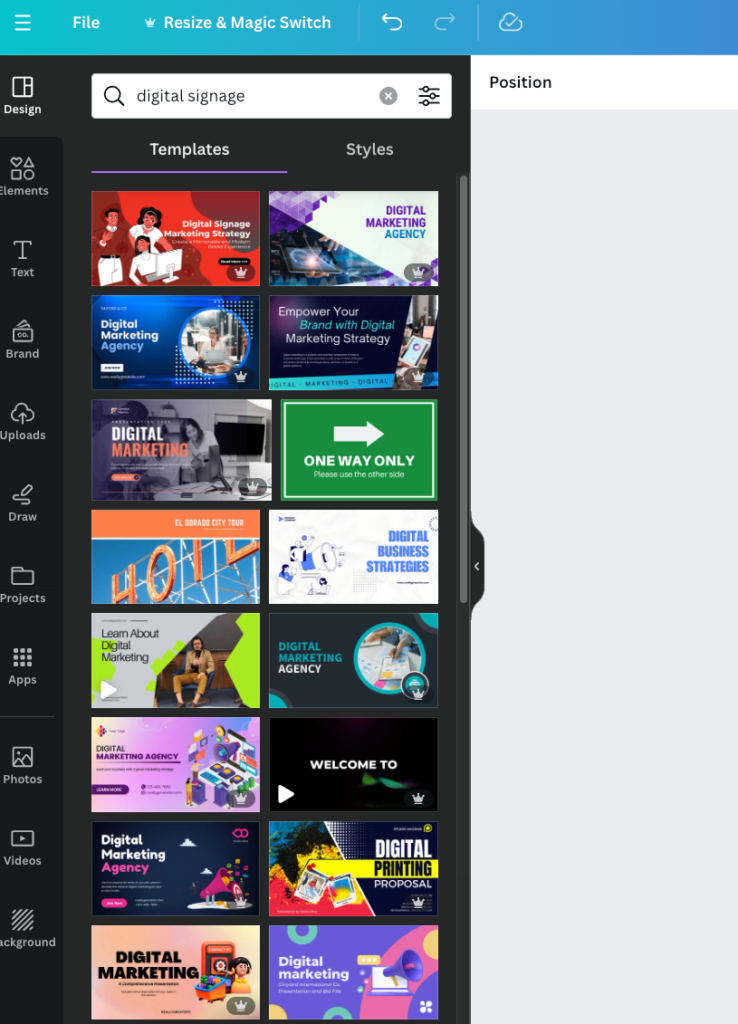
Generic digital signage software treats every industry the same. CrownTV provides templates and content strategies tailored to how different industries actually use their screens, with digital signage designs optimized for specific business needs.
Retail-specific features:
- Product showcase templates with pricing zones on commercial-grade displays
- Sale announcement layouts optimized for visibility
- Queue management interactive content that reduces perceived wait times
- Seasonal campaign templates for holidays and shopping events
- Integration with inventory systems to show available products and track foot traffic patterns
Restaurant and hospitality applications:
- Menu board templates with nutritional information zones
- Daily specials that update automatically from your POS
- Wait time displays that sync with your reservation system
- Promotional content for loyalty programs and catering services
- Multi-zone layouts for combo meals, sides, and beverages
Healthcare and medical office solutions:
- Patient education content with easy-to-read layouts
- Appointment reminders and check-in instructions
- Health tips and preventive care information
- HIPAA-compliant content management
- Emergency alert systems for facility-wide notifications
Educational institution features:
- Campus event calendars with automatic updates
- Emergency notification systems
- Wayfinding content for buildings and departments
- Student achievement recognition displays
- Classroom schedules and room availability
The difference isn’t just templates. It’s understanding that a restaurant needs to switch content six times per day, while a medical office might update weekly. CrownTV’s software accommodates both approaches without forcing you into a one-size-fits-all workflow. The key benefits extend beyond just displaying content; you’re actively improving customer satisfaction through timely, relevant information.
Professional Deployment Without the Technical Headaches
Setting up digital signage properly involves screen placement, network configuration, media player installation, and content optimization. Most businesses don’t have in-house expertise for this, and Canva integration doesn’t solve these hardware challenges.
CrownTV’s white glove deployment service handles the entire setup process, from selecting interactive digital signage screens to configuring your HDMI input connections.
What deployment service includes:
- Site assessment – Evaluate your space and recommend optimal screen placement
- Hardware sourcing – Get the right screens and media players for your needs
- Professional installation – Mount screens, run cables, configure network connections
- System configuration – Set up your dashboard, user accounts, and content schedules, and adjust brightness for optimal viewing
- Staff training – Teach your team how to manage content and troubleshoot basic issues
- Ongoing support – Access to technicians when you need help
Setup complexity comparison:
| Setup Element | DIY with Canva | CrownTV Deployment |
| Screen selection | Research specs yourself | Expert recommendations |
| Media player setup | Figure out compatibility | Pre-configured, tested hardware |
| Network configuration | Troubleshoot connectivity issues | Professional network setup |
| Content optimization | Trial and error with resolutions | Optimized for your specific screens |
| Initial training | YouTube tutorials | Hands-on training session |
| Ongoing support | Community forums | Direct access to technicians |
You’re not paying for installation labor. You’re paying to avoid the three weeks of frustration that come from buying incompatible hardware, fighting with network settings, and discovering your content looks terrible on actual screens.
Integration With Business Systems You Already Use
Your digital signage shouldn’t exist in isolation. It should pull data from your existing business systems and display it automatically through various digital signage applications.
CrownTV integrates with hundreds of apps and services through its app marketplace, letting you display live data without manual updates. This includes multiple applications beyond basic Google Slides presentations.
Common integration examples:
- Social media feeds – Display Instagram posts, X feeds, or Facebook reviews automatically
- Weather services – Show current conditions and forecasts relevant to your location
- Calendar systems – Pull meeting room schedules from Google Calendar or Outlook
- Analytics platforms – Display performance metrics, sales dashboards, or KPI tracking
- RSS feeds – Show industry news, company announcements, or blog updates
- E-commerce platforms – Feature top-selling products or current inventory levels
How integrations eliminate manual work:
Without integrations, you manually create graphics for each piece of content. New Instagram post? Design it in Canva, export it, and upload it. Weather changes? Create a new weather graphic. Meeting schedule updates? Recreate the schedule display.
With CrownTV’s integrations, you connect your accounts once, and content updates automatically. Your Instagram feed refreshes hourly. Weather updates every 15 minutes. Meeting schedules sync from your calendar system. These design elements update dynamically without manual intervention.
Business impact of automated content:
- Marketing teams stop recreating the same content types repeatedly
- Screens always show current information without human intervention
- Staff focus on strategy instead of repetitive design tasks
- Customers see accurate, up-to-date information every time
The app marketplace means you’re not limited to built-in features. If there’s a service you use and it has an API or RSS feed, you can probably display it on your screens.
Scalability Without Complexity Multiplication
Adding screen number two with Canva means doubling your workload. Adding screen twenty means managing twenty separate update processes.
CrownTV’s architecture scales linearly. Twenty screens take approximately the same effort as two screens because you’re managing them from one interface, not individually.
How scaling works differently:
- Content creation – Design once, deploy to any number of screens
- Updates – Upload once, push to all relevant locations
- Monitoring – One dashboard shows the status of all screens
- User management – Add team members with appropriate access levels
- Costs – Predictable per-screen pricing, no surprise complexity charges
Growth path comparison:
| Growth Stage | Canva Effort | CrownTV Effort |
| 1 screen | Baseline (1x) | Baseline (1x) |
| 5 screens | 5x the work | 1.2x the work |
| 20 screens | 20x the work | 1.5x the work |
| 50 screens | Unmanageable | 2x the work |
The difference becomes obvious when you open your third location. With Canva, you’re now spending six hours weekly on content updates. With CrownTV, you’re spending maybe seven hours total, barely more than you spent managing one location.
Stop Wrestling With Workarounds When You Could Be Managing From One Dashboard
You now know exactly where Canva fits in the digital signage landscape and where it falls short. More importantly, you can calculate what manual file management actually costs your business in time, coordination headaches, and missed update windows.
Here’s what you can do with this information:
- Match your current setup to the right tool – If you’re running one screen with monthly updates, Canva saves you money. If you’re managing multiple locations with daily content changes, you’re burning hours on manual processes that dedicated software handles automatically.
- Calculate your breaking point before you hit it – Track how much time you spend on content updates weekly. When that number crosses two hours, the time cost of manual management exceeds the monthly cost of proper digital signage software.
- Avoid the expensive restart – Businesses that start with Canva and outgrow it spend months rebuilding workflows, recreating templates, and retraining teams. Skip the migration pain by choosing the right platform when you know you’ll scale beyond single-screen operations.
- Test features that eliminate repetitive tasks – Content scheduling, instant network updates, and system integrations aren’t luxury features. There’s a difference between spending 10 hours weekly on signage management versus 30 minutes.
If you’re already spending more time managing files than creating content, CrownTV’s digital signage software gives you back those hours. No file transfers. No manual scheduling. No wondering if location three got the updated menu. You upload content once, schedule it however you need it, and push it to every screen in your network from one dashboard. Request a demo or call at +347.410.6890 to see how the platform handles your specific setup.