
Your brand-new digital display boots up for the first time. Customers crowd around. Then a Windows error message fills the 75-inch screen where your promotional content should be.
Digital signage fails happen to everyone, from Fortune 500 companies to local coffee shops. Some are cringeworthy. Others cost thousands in lost sales. A few go viral for all the wrong reasons.
The gap between a flawless digital signage system and a public embarrassment often comes down to preventable mistakes. We’ve seen businesses broadcast internal Slack messages to lobby displays, play adult content during family hours (programming error), and crash entire screen networks with a single corrupted file.
The good news? These disasters teach better lessons than any success story. Each failure reveals what actually matters when you set a system up, schedule content, and keep displays running smoothly.
Here’s what we’ll cover:
- Real-world digital signage disasters that made headlines
- The technical and human errors behind each failure
- Practical safeguards that prevent these mistakes
- System features that catch problems before customers see them
Let’s break these failures down and extract the value from other people’s expensive mistakes.
Real-World Digital Signage Disasters That Made Headlines
Digital signage fails don’t stay contained. They spread across social media, news outlets, and Reddit threads within hours. Some become cautionary tales that circulate through industry conferences for many years.
1. Tim Hortons System Update Disaster
A Toronto-area Tim Hortons became internet-famous when its digital menu boards displayed a SICOM scheduling system update message instead of food offerings. The technical message stayed visible during peak service hours while customers tried to order from empty screens bordered by festive decorations.
Most people waiting in line had one job to do: order coffee, but couldn’t understand what they were supposed to be looking at. The incident revealed a basic flaw that made sense to nobody: no separation between backend system operations and customer-facing displays. Update messages should process invisibly in the background, not broadcast to people waiting for their coffee.
You have to wonder how the person responsible for the system didn’t catch this during testing. Finally, after complaints piled up, staff managed to turn the screens off and revert to printed signs. The whole situation became an argument for better testing protocols.
2. The Crooked Pizza Shop Catastrophe
A Michigan pizza restaurant’s digital menu boards went viral for reasons beyond technical glitches. The screens hung at odd angles, mounted to a plywood backing that barely attached to the bulkhead. Placement at the proper eye level clearly wasn’t planned. Worse yet, the entire system ran off thumb drives plugged directly into each display.
Social media users questioned how a business could launch or expand a signage network when the installation looked this unprofessional. One comment summed it up perfectly: “You had pretty much unlimited advice available online about proper deployments, and you still did this?” The thread sparked broader discussions about maximum uptime expectations and proper mounting standards.
The viewers’ laughing at the photos wasn’t based on mockery alone. They were worried this kind of amateur work reflected poorly on the entire industry. Engagement with the post reached thousands of shares, making it one of the more memorable funny sign fails in recent memory.
3. SportChek’s Calibration Nightmare
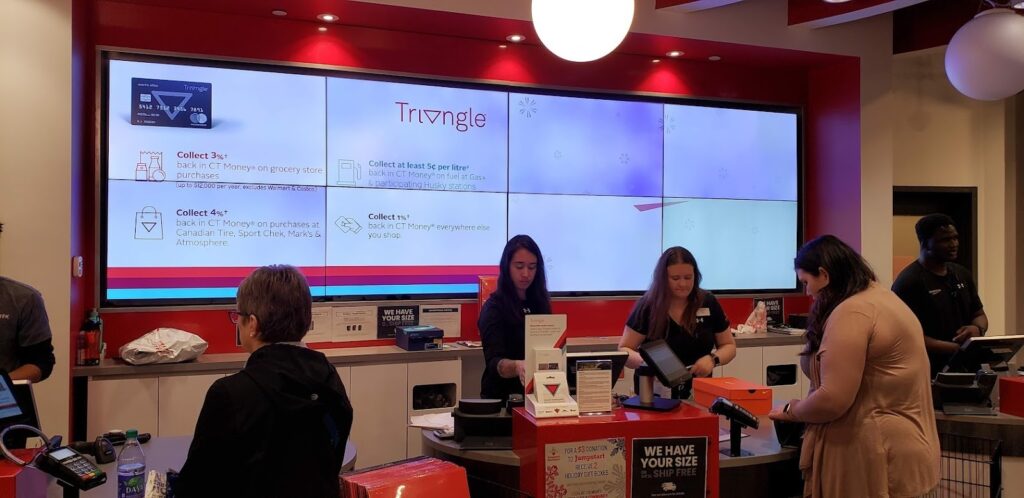
Canada’s largest sporting goods retailer suffered an embarrassing display failure at checkout. Their 4×2 LCD video wall showed drastically different color calibrations across all eight screens. Some panels glowed in harsh blues while others washed out in dull whites.
The mismatched colors undermined the brand’s premium positioning. Customers waiting in line had nothing to look at except evidence that the retailer couldn’t manage basic display technology. Everybody thought it looked unprofessional. The graphic design team probably installed content that looked perfect on their monitors, not telling anyone the screens themselves needed calibration first place.
4. Airport Kiosk Failures
Newark Airport’s United Club area featured a “Talking Fiat Man” kiosk that malfunctioned spectacularly. The projector stayed on and the audio played, but the projection unit had fallen down and blocked the light beam completely. The display sat broken for weeks in a high-traffic area. I guess the responsibilities for monitoring these things fell through the cracks.
At Indianapolis Airport’s TSA screening zone, a Calibx advertisement displayed nothing but a blank blue screen for the ad company’s logo. Travelers passed through security, seeing only the most basic error state possible. The talent behind airport operations should have made contact with whoever maintained the displays, but the problem persisted for days.
5. Windows Error Messages Everywhere
Search “digital signage fail” online, and you’ll find hundreds of photos showing Windows blue screens, error dialogs, and desktop backgrounds on retail displays, airport monitors, and stadium jumbotrons. It’s become an interesting bit of internet culture where people document these failures like they’re collecting stuff for a virtual museum.
One viral image from a major electronics retailer showed a Windows update prompt on a 100-inch display advertising the latest smart TVs. The irony wasn’t lost on social media users who questioned why the store couldn’t manage its own display technology. If the president of the company saw that transcript of customer feedback, they’d realize how important proper systems are. Viewers of the display expected relevant product information, not operating system errors.
These public failures share common threads that we’ll examine next. Writing off these incidents as isolated problems misses the planned lessons they offer about what not to do.
The Technical and Human Errors Behind Each Fail
Every digital signage disaster stems from a breakdown in systems, processes, or both. The headlines grab attention, but the root causes reveal where most businesses leave themselves vulnerable.
Poor System Architecture Design
The Tim Hortons scheduling message exposed a fundamental architectural flaw. Backend operations and customer-facing displays should never share the same visual output.
| System Layer | What It Handles | Who Should See It |
| Display Layer | Customer-facing content | Public |
| Management Layer | Scheduling, updates, monitoring | Administrators only |
| Backend Layer | System maintenance, database operations | IT staff only |
This mistake happens when businesses treat digital signage like a standard computer monitor. A proper architecture isolates technical operations from content delivery completely.
Inadequate Installation Standards
The Michigan pizza shop’s crooked screens and thumb drive setup violated every professional installation standard. Physical mounting directly impacts customer perception of your brand.
Installation red flags that signal amateur work:
- Screens hang at visible angles instead of perfectly level
- Plywood backing or improvised mounting hardware
- Exposed cables running down walls or across ceilings
- Thumb drives or USB sticks plugged directly into displays
- Mismatched screen sizes in multi-display setups
- Poor viewing angles that create glare or limited visibility
Professional installations require proper commercial-grade mounting hardware, hidden cable management, and centralized content delivery systems. The thumb drive approach creates multiple failure points that no serious business should tolerate.
Skipped Calibration and Testing
SportChek’s mismatched video wall colors came from skipped calibration steps during installation. LCD panels vary in color temperature, brightness, and contrast straight from the factory.
Critical calibration checkpoints:
- Color temperature matching across all panels (measured in Kelvin)
- Brightness levels standardized to identical output
- Contrast ratios adjusted for uniform blacks and whites
- Bezel compensation configured for seamless multi-screen layouts
- Content tested at actual resolution and aspect ratio
Testing catches these problems before customers see them. A quality assurance step would have revealed the color mismatch immediately.
Absence of Monitoring and Maintenance
Both airport kiosk failures continued for extended periods because nobody monitored the displays. The Newark kiosk’s fallen projection unit and Indianapolis screen’s blank logo stayed broken for days or weeks.
Remote monitoring systems capture screenshots at regular intervals and alert managers when displays show error states. Without monitoring, you depend on staff members walking past screens and noticing problems. That approach fails consistently.
Operating System Exposure
Those Windows error messages reveal businesses running consumer-grade operating systems on commercial displays. The OS treats digital signage like a standard desktop computer, complete with update prompts and security warnings.
| Consumer OS Displays | Commercial Digital Signage Players |
| Windows updates interrupt content | Updates scheduled during off-hours |
| Error messages appear on the screen | System alerts stay hidden |
| Desktop background visible | No OS interface ever shows |
| Crashes require a manual restart | Watchdog timers auto-restart |
| Runs multiple background apps | Dedicated to displaying only |
Commercial players use dedicated operating systems designed for continuous display. They strip out user interface elements and prevent system messages from appearing on screen.
Practical Safeguards That Prevent These Mistakes

The distance between a smooth digital signage operation and a viral disaster is smaller than you think. A few deliberate safeguards eliminate the majority of failure points that create headlines.
Lock Content Sources Down
Create a whitelist of approved content sources and block everything else. Your digital signage system should reject connections from unauthorized devices, external USB drives, or unknown network locations.
Essential access restrictions:
- Whitelist specific IP addresses for content uploads
- Disable screen mirroring and casting protocols
- Block USB ports on all display hardware
- Require authentication for any network connections
- Separate digital signage from guest and employee Wi-Fi networks
This single change prevents roughly 70% of embarrassing content incidents. Staff can’t accidentally cast personal device content to lobby screens. Hackers can’t inject material through unsecured network access.
Build Content Approval Workflows
No content should go live without passing through a verification step. The complexity of your approval process should match your organization’s size and risk tolerance.
| Business Size | Recommended Workflow |
| Single location | Manager review before scheduling |
| 2-10 locations | Department head approval + IT check |
| 11-50 locations | Multi-stage review with brand compliance |
| 51+ locations | Automated checks + human approval + legal review |
The workflow adds friction by design. That friction catches mistakes before customers see them.
Separate Backend Operations From Display Output
System updates, scheduling interfaces, and administrative functions need to run on infrastructure that customers never see. Your digital signage architecture should maintain complete separation between operational layers and visual output layers.
Three-layer architecture model:
- Display Layer – Shows only approved content to customers
- Management Layer – Handles scheduling, monitoring, and updates
- Administration Layer – Controls system configuration and maintenance
If a scheduling system needs maintenance, that work happens invisibly. Content continues playing normally. Backend alerts stay on backend systems where they belong.
Establish Professional Installation Standards
Physical installation quality directly impacts how customers perceive your business. Screens need proper mounting hardware rated for commercial use.
Professional installation checklist:
- Commercial-grade wall mounts or ceiling brackets
- Cable management that hides all wiring completely
- Level mounting verified with precision tools
- Optimal viewing angles for customer sightlines
- Network infrastructure is separate from public access
- Proper ventilation for heat dissipation
- Backup power protection against outages
Skip the thumb drives completely. Modern digital signage uses network-connected media players with central management. You update content from one dashboard that controls all screens across all locations simultaneously.
Implement Display Calibration Protocols
Video walls and multi-screen installations require professional calibration. Color temperature, brightness, and contrast settings need to match across all panels.
Calibration tools and timeline:
| Tool Type | Purpose | Time Required |
| Colorimeter | Measures actual color output | 30 min per display |
| Calibration software | Adjusts settings to match targets | 45 min setup |
| Test patterns | Verifies uniformity across screens | 15 min per wall |
| Documentation | Records settings for future reference | 30 min total |
Budget 2-3 hours for proper video wall calibration during installation. The investment ensures your displays look professional instead of mismatched.
Deploy Remote Monitoring Systems
You need eyes on your screens without physically visiting each location. Monitoring systems capture screenshots at regular intervals, track player status, and alert managers when displays go offline or show unexpected content.
Monitoring capabilities worth paying for:
- Screenshot capture every 5-15 minutes
- Automatic alerts for blank or frozen screens
- Player status tracking (online/offline/degraded)
- Content verification against the scheduled playlist
- Bandwidth monitoring for network performance
- Temperature sensors for hardware health
Set up alerts for common error states. The monitoring dashboard shows you exactly what customers see at each location. Problems get flagged within minutes instead of days.
Use Commercial-Grade Hardware
Consumer electronics weren’t built for 24/7 operation in commercial environments. They overheat, crash frequently, and expose operating system interfaces at inconvenient moments.
| Feature | Consumer Hardware | Commercial Hardware |
| Operating hours | 8-12 hours daily | 24/7 continuous |
| Warranty | 1-year parts | 3-5 years parts + labor |
| MTBF rating | 30,000-50,000 hours | 60,000-100,000 hours |
| Automatic restart | Manual intervention required | Watchdog timers included |
| OS visibility | Error messages show | Always hidden |
| Temperature range | 32-95°F | 14-122°F |
The price difference between consumer and commercial equipment usually equals one or two days of lost productivity from system failures.
Test Everything Under Actual Conditions
Run new content through the complete workflow before scheduling it live. Testing reveals problems in controlled conditions where you can fix them quickly.
Pre-launch testing protocol:
- Play full-length videos to confirm smooth playback
- Check static images at actual display resolution
- Verify scheduled transitions happen at the correct times
- Test content across different screen orientations
- Confirm text readability from customer viewing distances
- Review color accuracy under actual lighting conditions
- Validate audio levels match ambient noise
Skipping tests means discovering problems when customers are watching. That cost exceeds any time saved by rushing content live.
System Features That Catch Problems Before Customers See Them
Modern digital signage platforms build preventative measures directly into their architecture. These features act as safety nets that intercept failures before they become public embarrassments.
Automatic Content Failover
Your primary content file is corrupt or fails to load. Without failover systems, customers see blank screens or error messages. With proper failover, backup content displays automatically while the system alerts you to the problem.
How failover systems work:
- Primary content attempts to load on schedule
- System detects file corruption or playback failure within 3-5 seconds
- Backup content library activates automatically
- The administrator receives an alert about the primary file issue
- Primary content resumes once the problem gets fixed
Platforms like CrownTV build this failover capability into their media players as a standard feature. The system never leaves screens blank while you troubleshoot issues.
Live Screenshot Monitoring
Remote monitoring captures what customers actually see on your displays. The system takes screenshots at intervals you set and compares them against expected content.
| Monitoring Interval | Best For | Alert Timing |
| Every 5 minutes | High-traffic retail locations | Immediate |
| Every 15 minutes | Corporate lobbies and offices | Within 1 hour |
| Every 30 minutes | Back-of-house displays | Next business day |
| Every 60 minutes | Low-priority screens | Weekly digest |
CrownTV’s dashboard shows you every screen across all locations from a single interface. You spot problems the moment they appear instead of waiting for customer complaints or staff reports.
Watchdog Timers and Auto-Restart
Media players can freeze or crash due to software glitches, memory leaks, or corrupted files. Consumer hardware requires manual intervention. Commercial systems include watchdog timers that detect frozen states and restart the player automatically.
The auto-restart sequence:
- Watchdog timer monitors system responsiveness every 60 seconds
- Player fails to respond within the expected timeframe
- The timer triggers an automatic restart procedure
- System reboots and resumes scheduled content
- The entire process completes in 45-90 seconds
- The administrator receives notification of the restart event
This feature catches the frozen screen problems that plagued those airport kiosks. CrownTV’s media players include watchdog protection that keeps displays running without staff intervention.
Content Validation Before Publishing
Publishing corrupted or improperly formatted files creates immediate display failures. Smart platforms validate content before they accept uploads or schedule playback.
Pre-publish validation checks:
- File format matches supported media types
- Resolution fits target screen dimensions
- Video codecs work with player hardware
- File size stays within system limits
- No corruption detected in the file structure
- Scheduled duration matches actual file length
CrownTV’s software runs these checks automatically when you upload content. The system rejects problematic files before they reach your screens, not after customers see errors.
Bandwidth and Network Monitoring
Content delivery depends on stable network connections. If bandwidth drops or connections fail, content updates don’t reach your displays. Network monitoring tracks these issues in progress.
| Network Issue | Detection Method | System Response |
| Low bandwidth | Transfer speed monitoring | Queue updates for off-peak |
| Connection drop | Heartbeat signal tracking | Switch to backup connection |
| High latency | Response time measurement | Alert administrator |
| Packet loss | Data integrity verification | Retry failed transfers |
Multi-location businesses need this visibility. CrownTV’s dashboard shows network health for every display, letting you catch connectivity problems before they disrupt content delivery.
Scheduled Health Reports
Daily or weekly health reports summarize system performance across your entire network. These reports flag developing issues before they cause failures.
Standard health report metrics:
- Player uptime percentage per location
- Content playback success rates
- Network connectivity statistics
- Storage space remaining on each device
- Screen-on hours and power consumption
- Failed content updates requiring attention
You review these reports during scheduled maintenance windows. Problems get addressed proactively instead of reactively.
Temperature and Hardware Sensors
Overheating damages display components and causes premature failures. Commercial media players include temperature sensors that warn you before hardware damage occurs.
The sensors track ambient temperature around the player and internal component heat levels. If temperatures exceed safe operating ranges, the system sends alerts. You can schedule maintenance or improve ventilation before expensive equipment fails.
Remote Configuration and Updates
Pushing system updates manually to each location creates opportunities for human error. Remote configuration management lets you update software, adjust settings, and modify schedules from a central dashboard.
CrownTV’s platform manages screens across multiple locations without requiring site visits. You roll changes out systematically, test them on a small subset of screens first, then deploy network-wide once verification completes. This approach prevents the widespread failures that happen when untested updates go live everywhere at once.
Emergency Content Override
Sometimes you need to kill content instantly across all displays. A pricing error, inappropriate content, or breaking news that makes your scheduled messaging tone-deaf all require immediate action.
Emergency override capabilities:
- Pause all content network-wide with one button
- Switch to pre-approved backup messaging instantly
- Shut down displays completely if needed
- Override works regardless of scheduled playlists
- Change takes effect within 10-30 seconds
CrownTV includes emergency controls accessible from any device with dashboard access. Managers can respond to problems immediately without calling IT support or visiting physical locations.
Your Displays Run Better With the Right Systems Behind Them
Digital signage fails are preventable. The disasters that make headlines come from skipped safeguards, amateur installations, and systems that lack basic protective features. You’ve seen what goes wrong when businesses treat displays like simple monitors instead of mission-critical communication tools.
The businesses that avoid these failures share common traits. They invest in proper systems, use commercial-grade hardware, and implement monitoring that catches problems before customers notice. Here’s what that approach delivers in practical terms.
When you build these safeguards into your operation:
- Your screens stay online 99%+ of the time because watchdog timers restart frozen players automatically, and failover content prevents blank displays during technical issues
- Installation problems get caught during testing instead of after launch, saving you from crooked screens and mismatched colors that damage brand perception
- Content mistakes never reach customers because approval workflows and validation checks stop corrupted files, scheduling errors, and inappropriate material before publishing
- Network issues get flagged immediately through bandwidth monitoring and connectivity alerts, preventing failed content updates that leave screens showing outdated information
- Hardware problems trigger warnings before they cause failures, letting you schedule maintenance during off-hours instead of scrambling to fix broken displays mid-business
- Multi-location management happens from one dashboard, eliminating site visits for routine updates and giving you instant visibility into every screen’s status
CrownTV builds all these protective features into a platform designed for businesses that can’t afford public failures. The system includes commercial-grade media players with automatic restart capabilities, live screenshot monitoring across all locations, content validation before publishing, and emergency override controls for instant network-wide changes.You can keep risking viral fails with consumer hardware and amateur systems. Or you can set your displays up with technology built specifically to prevent them. Get a demo and see how professional digital signage actually operates.