
Workplace Digital Signage: How to Build Employee Screens People Actually Read
Workplace digital signage that employees actually read: the content mix, placement map, and per-screen costs that beat another ignored all-staff email.
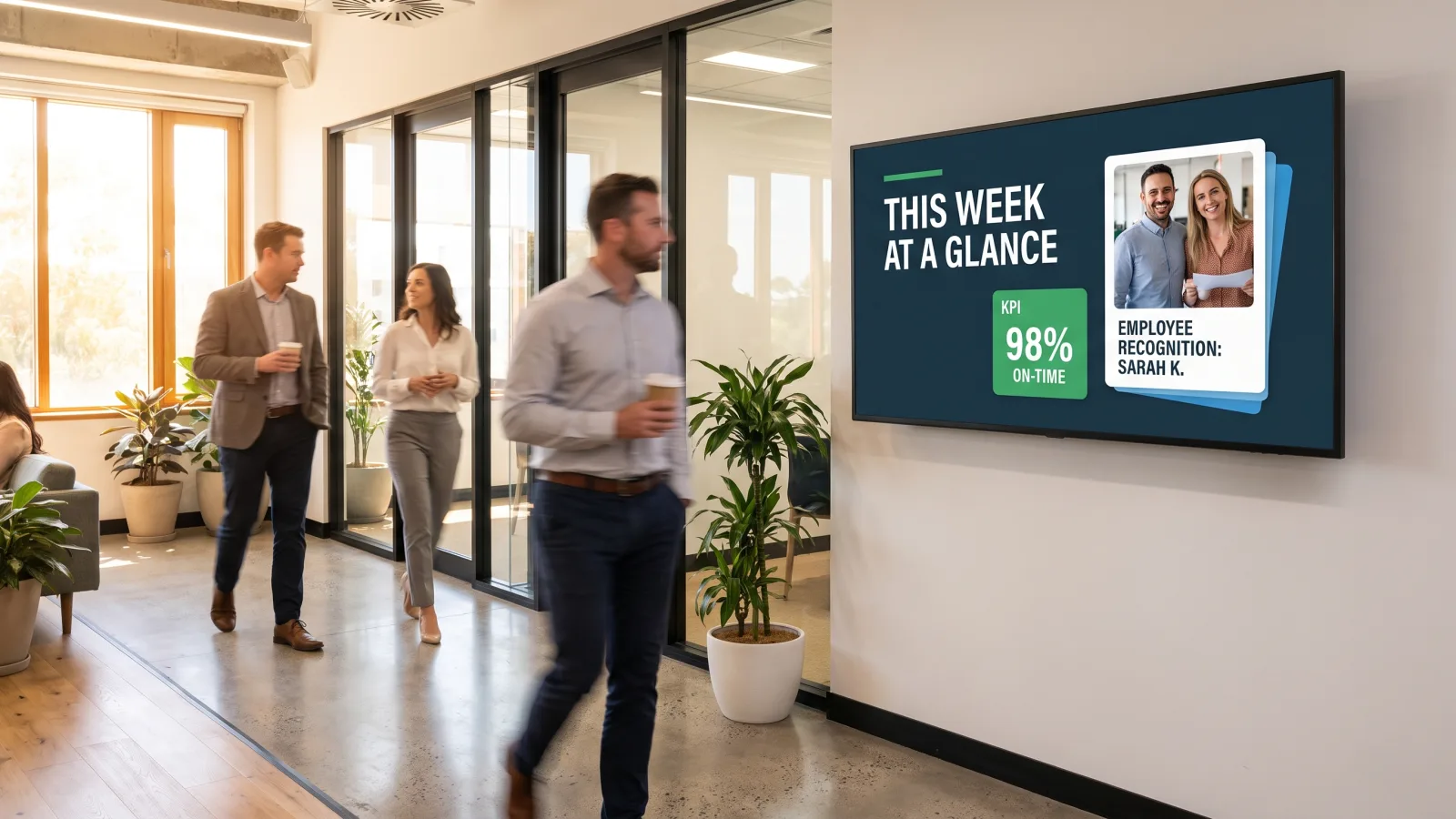
On this page
Workplace digital signage works when you stop treating it as decoration and start treating it as a channel — with an owner, a content mix, and placement along the sightlines employees already use. Most office screens fail for a boring reason: someone mounted a TV, pasted the all-staff memo onto it, and walked away. Six weeks later it's showing a stale slide from March and everyone has learned to ignore it.
This guide is the fix. It covers what to put on the screens (and what to keep off them), exactly where to hang them, who should own publishing, how to measure whether anyone reads them, and what the hardware really costs.
CrownTV has deployed digital signage for 13+ years across 1,800+ businesses, with 16,000+ screens currently live — corporate offices and facilities for clients like Herman Miller alongside retail networks like L'Occitane. Every install below reflects that field experience, including the White Glove service where our technicians handle mounting, cabling, and configuration end to end.
You'll get:
- Why screens reach employees that email and Slack miss
- The five-part content mix that keeps screens worth looking at
- A placement map: lobby, elevator bank, break room, work floor
- Governance roles and a publishing cadence that prevents stale screens
- Honest measurement, a 30-day rollout plan, and all-in per-screen pricing
What is workplace digital signage?
Workplace digital signage is a network of commercial displays in offices, warehouses, and facilities that shows employee-facing content — company updates, KPIs, recognition, safety messaging, menus, and events — all managed from one content platform. Screens reach everyone who walks past, including deskless staff email never reliably reaches, and urgent messages can take over every display at once.
Digital signage for employee communications: why screens beat email and Slack
Every internal comms team fights the same two problems: the inbox is a graveyard and Slack is a firehose. Digital signage for employee communications wins on a different axis — it doesn't ask for attention, it borrows attention employees are already spending. Waiting for the elevator. Heating up lunch. Walking to a meeting. Badging in at the time clock.
That matters most for the people your digital channels reach worst. Warehouse crews, retail floor staff, technicians, drivers between routes — many check email once a day at best, and plenty don't have a company Slack seat at all. A screen at the time clock reaches 100% of a shift without anyone opening anything.
| Channel | Reaches deskless staff? | Attention model | Best carrying |
|---|---|---|---|
| Poorly | Opt-in — reader must open it | Detail, documents, records of receipt | |
| Slack / Teams | Partially | Firehose — easy to mute, fast to scroll past | Team-level coordination, quick questions |
| Intranet | Poorly | Destination — someone has to go there | Reference material, policies, forms |
| Workplace digital signage | Fully | Ambient — seen during existing dwell moments | Awareness, repetition, culture, urgency |
The honest read of that table: screens don't replace email, they cover its blind spot. Email remains the system of record; the screen is the system of awareness. The deployments that disappoint are the ones that paste the memo onto the display and expect it to work like a bigger inbox. It won't — a screen message gets three to ten seconds of glance time, so it has to be built for the glance. For the wider stack, our guide to internal communication tools maps where signage fits next to the channels you already run.
The content mix that works
One kind of content on repeat kills a screen network. Leadership announcements alone read as propaganda; dashboards alone read as surveillance; culture posts alone read as fluff. The screens people keep reading rotate five types — and the practical items are what train the habit.
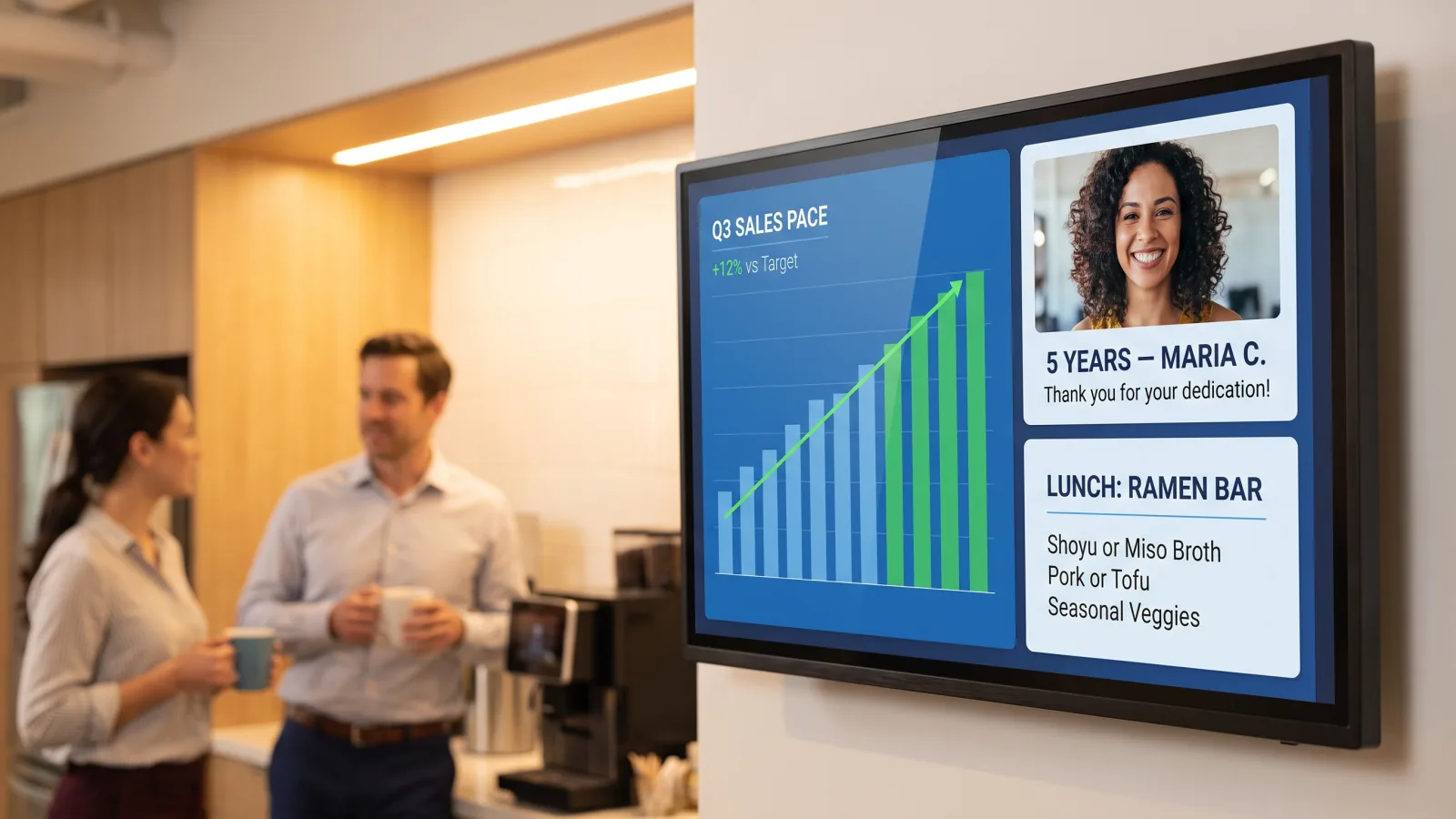
1. KPIs and live dashboards
Sales pace, tickets closed, production counts, NPS, project burn-down — fed live from the source system, never pasted screenshots. Keep each dashboard to one message per slide: a number, its trend, and the goal. If a team's metric needs a legend to decode, it belongs in a meeting, not on a wall.
2. Recognition and people news
New hires with faces and names, work anniversaries, promotions, shout-outs, team wins. This is consistently the content employees say they like most, and it costs almost nothing to produce; the tie between feeling recognized and staying engaged is a recurring theme in Gallup's workplace research. A recognition slide on the wall lands differently than the same line buried in a channel — it's public in the literal sense.
3. Safety and compliance
Days-since-incident counters, seasonal safety reminders, evacuation routes, benefits-enrollment deadlines, required-training countdowns. Screens give compliance messaging the repetition it needs without another nagging email, and an urgent alert — weather closure, building issue — can take over every display in seconds.
4. Practical daily information
Cafeteria menu, shuttle and transit times, weather, visitor schedules, room availability, IT status. Underrated and quietly decisive: nobody checks a screen daily for the CEO's quarterly message, but they will check it for lunch. The menu is the anchor tenant that earns attention for everything else in the loop. We've collected more of these in our creative internal communications ideas roundup.
5. Social and culture walls
A moderated feed of company social posts, event photos, charity-drive progress, or an employee photo challenge. Moderated is the operative word — route it through an approval step, and keep it to one slide in the rotation, not the whole rotation. More patterns in our communication board ideas for business guide.
What to keep off the screens
Full memos and paragraph text. Slides with more than one message. Anything confidential (screens are visible to visitors and vendors). Anything that will embarrass you if it's still up in three weeks — set an expiration date on every slide, no exceptions. A ten-slide loop at 8–12 seconds per slide is the ceiling; past that, people never see the slide they'd care about.
Planning screens for your office or facility?
Send us your floor plan and headcount — we'll scope placements, hardware, software, and install in one number, and walk you through the dashboard live.
Get a workplace signage quote in 2 business hours →Placement map: where office digital signage earns attention
Placement decides more than content does. The rule we use on site surveys: put screens where people wait or pass, at eye line, facing the direction of travel. A screen in a spot with zero dwell time is a screen nobody reads, no matter what's on it.
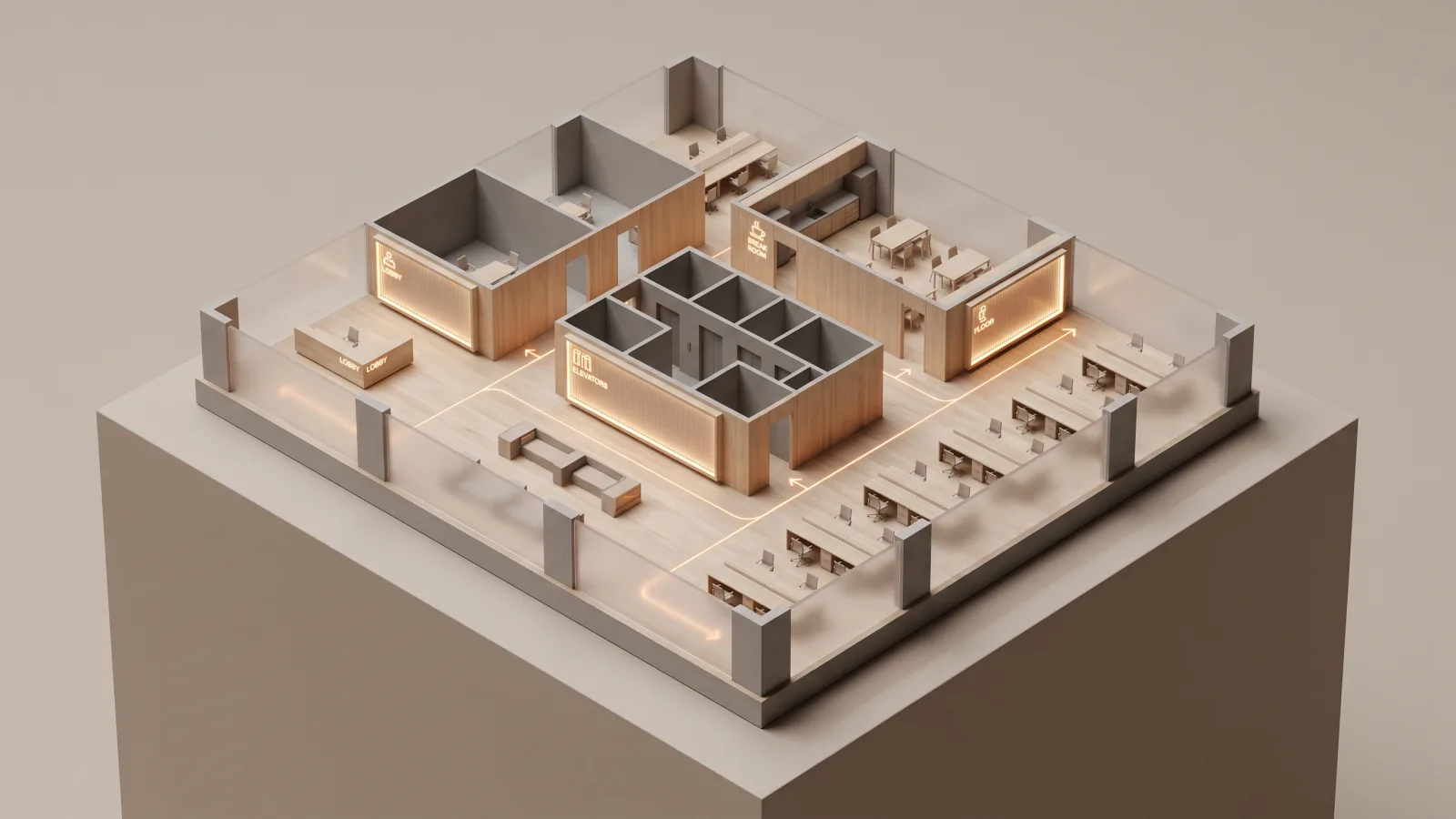
Lobby and reception
Dual audience: visitors and staff. Run brand and welcome content, today's events, and visitor guidance, with a lighter dose of internal messaging. A 55″–65″ landscape panel at seated-visitor eye line is the standard spec. This placement has its own craft — our digital lobby signage guide covers it screen by screen.
Elevator bank and corridors
The highest-frequency, shortest-dwell placement in the building: 30–90 seconds, several times a day, facing the doors. Perfect for one-message slides — recognition, a deadline, one KPI. Keep motion subtle; a strobing loop next to an elevator irritates fast.
Break room and cafeteria
The longest dwell time you'll get — minutes, not seconds — and the one place richer content earns its keep: dashboards with a bit more depth, event photo reels, the social wall, the full menu. This is usually the highest-ROI screen in an office deployment. We wrote up the format in detail in the break room experience guide, with more layouts in these workplace break room signage ideas.
Work floor, plant, and time clock
For warehouses, plants, and back-of-house: screens at the time clock and shift-change zones reach every worker twice a day at a moment they're standing still. Spec larger panels (65″–75″) readable from 20+ feet, high mounting out of forklift reach, and shift-specific scheduling so the 6 a.m. crew doesn't read yesterday's afternoon notices.
Huddle areas and department zones
Optional, and only with delegated publishing: a 43″ screen per department showing that team's own numbers and notices. Skip these if no one on the team will own the content — an abandoned team screen decays faster than any other placement.
Governance: who owns the screens
Every failed deployment we've been called in to rescue died the same death: no owner. Governance is three decisions, made before launch, written down:
- One named channel owner. Usually internal comms or HR. They own the loop structure, the slide standards, and the calendar. Not a committee — a person.
- Delegated publishers with scoped access. Facilities publishes menus and building notices; HR publishes recognition and policy slides; a plant manager publishes to their site only. Role-based access in the content platform enforces the scopes, an approval step gates company-wide slides, and the audit log settles any argument about who changed what.
- A cadence with expiration dates. Weekly refresh of the core loop, monthly pruning, and a mandatory expiry on every slide so nothing can go stale silently. The screens' credibility is binary: one dead slide from last quarter and viewers write off the whole channel.
Templates do the quiet work here. Lock brand fonts, colors, and layouts into the platform's template library so a shift supervisor can publish a legible slide in two minutes without ever opening design software — and without producing a ransom-note wall.
How to measure whether anyone reads them
Signage measurement has a reputation for hand-waving, so be honest about what you can and can't know. You can't measure impressions the way a website does. You can measure behavior around the screens:
- Awareness deltas. Add "did you know about X?" checks to the pulse survey you already run, comparing campaigns promoted on-screen against email-only ones.
- Screen-only promotions. Promote one event or program exclusively on the screens and count who shows up. This is the cleanest signal you'll get.
- QR scans. Any slide with a next step gets a QR code; scan counts become your click-through rate.
- Question deflection. Track whether repeated questions to HR, IT, and facilities drop after the answers go on the loop.
- Playback logs. The platform's proof-of-play reporting confirms what ran, where, and when — your ground truth for any of the above.
What signage can't do: prove an individual saw a message. Policy acknowledgments and anything needing a receipt stay in email or your HRIS; the screens drive the deadline awareness that gets the form signed.
The 30-day rollout plan
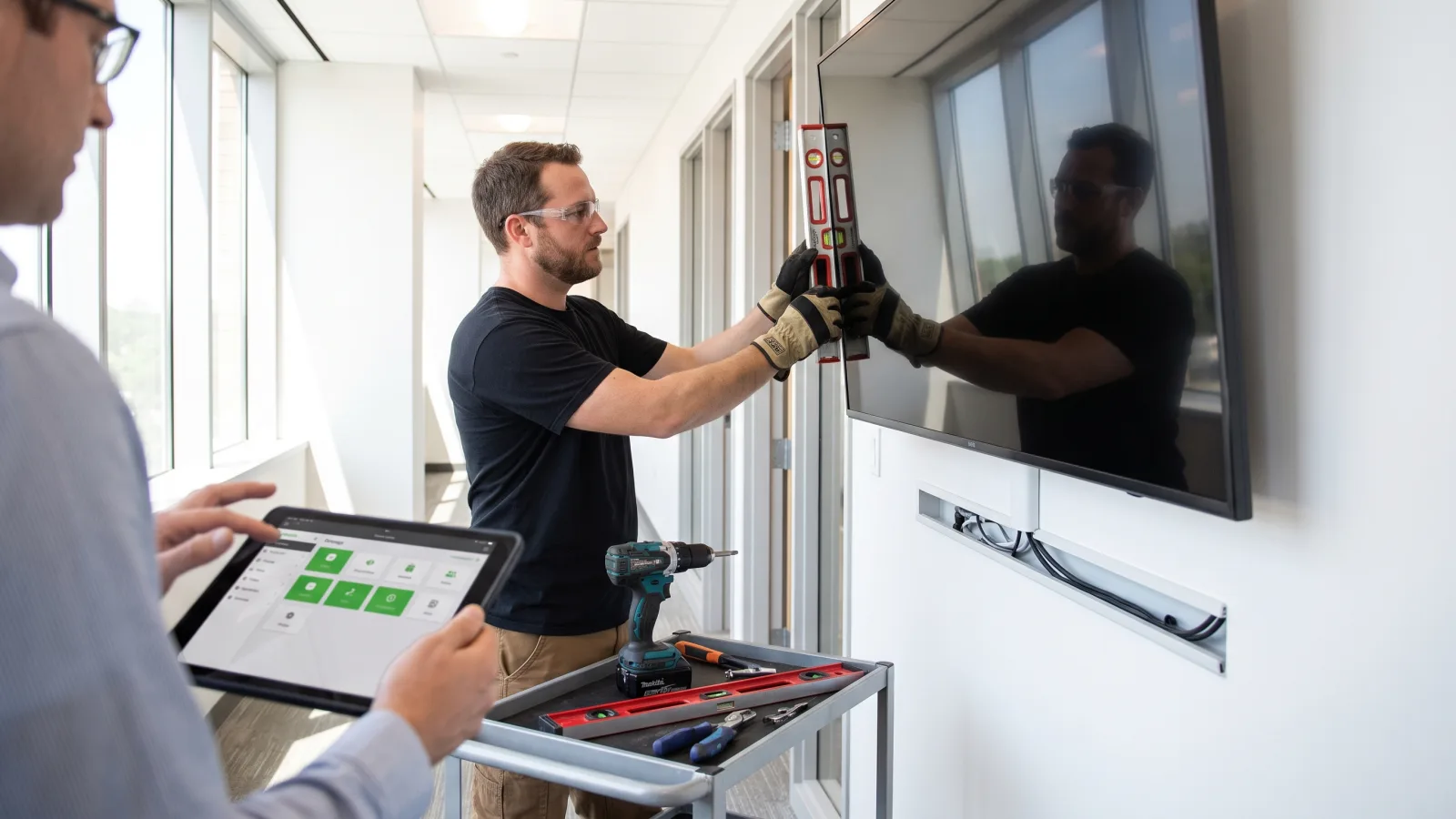
- Week 1 — walk the floor. Map where people actually wait and pass: lobby, elevator bank, break room, time clocks. Pick 3–5 pilot placements, name the channel owner, and pick two or three delegated publishers.
- Week 2 — build the loop before the screens arrive. Ten slides max: two practical (menu, transit), two recognition, two KPI, one safety, one events, one culture, one branded filler. Wire the KPI slides to live data from day one.
- Weeks 2–3 — hardware and install. Commercial panels only. An office running screens 12+ hours a day burns out consumer TVs in 18–30 months and voids their warranties doing it; commercial displays are rated for continuous duty and carry a 3-year warranty. Standard install runs 7–10 business days from approval — each location just needs a working power outlet.
- Week 4 — launch and calibrate. Announce the screens once (by email — the irony is fine), run your first screen-only promotion, and watch where people actually stop. Extend to more placements only after the pilot loop has survived a month without a stale slide.
What it costs
CrownTV workplace signage is priced all-in and one-time per screen — commercial 4K display, wall mount, media player, professional installation by licensed insured technicians, setup, and the first year of content software in a single number:
| Screen size | All-in price (per screen) | Typical workplace placement |
|---|---|---|
| 32″ | $3,250 | Huddle areas, small reception desks |
| 43″ | $3,450 | Department zones, corridors |
| 50″ | $3,650 | Elevator banks, mid-size corridors |
| 55″ | $3,850 | Lobby, break room |
| 65″ | $4,450 | Cafeteria, large lobby |
| 75″ | $5,200 | Warehouse floor, time-clock zones |
A 3–5 screen office pilot lands around $11,000–$20,000 all-in for year one. Pricing above is for indoor 500-nit panels; a screen facing out a window or mounted outdoors needs a high-brightness or sealed outdoor panel, quoted separately. Full cost math, including software renewals, is in our digital signage cost breakdown.
How CrownTV helps
One contract for hardware + software + install + service:
- Commercial displays at all-in per-screen pricing, with a 3-year commercial warranty and typical install in 7–10 business days
- CrownTV Dashboard with role-based access, approval workflows, scheduling by location and shift, live data integrations, and instant alert override
- White Glove installation — site survey, mounting, cabling, commissioning, and warranty service in all 50 states
- 13+ years and 16,000+ live screens across corporate, retail, and industrial environments, including Herman Miller and L'Occitane
- Dedicated corporate workplace deployments and internal comms screen networks as a practiced playbook, not a first attempt
Book a live dashboard demo and get a quote in 2 business hours →
Frequently asked questions
What is workplace digital signage?
Workplace digital signage is a network of commercial displays inside an office, warehouse, or facility that shows employee-facing content — company news, KPIs and dashboards, recognition, safety messaging, cafeteria menus, and event reminders — managed from one content platform. Unlike email or Slack, the screens reach everyone who walks past them, including frontline and deskless staff who rarely sit at a computer. Each screen runs a scheduled playlist, and urgent messages can override every display at once.
How much does workplace digital signage cost?
CrownTV workplace signage is priced all-in and one-time per screen: $3,250 for a 32″, $3,450 for 43″, $3,650 for 50″, $3,850 for 55″, $4,450 for 65″, and $5,200 for 75″. Each price includes the commercial 4K display, wall mount, media player, professional installation by licensed insured technicians, setup, and the first year of content software. A typical office pilot of 3–5 screens lands around $11,000–$20,000; multi-site rollouts get volume pricing.
Is digital signage better than email for employee communications?
For reach, yes — especially for frontline and deskless employees who don't live in an inbox. Email is opt-in attention: the reader has to open it. A screen in the break room or by the elevator gets seen during moments employees already spend waiting. The two work together: email carries detail and documents, screens carry awareness and repetition. The mistake is treating signage as a place to paste the same all-staff memo — screen content has to be glanceable in under ten seconds.
What content should you put on office digital signage?
Rotate five content types: live KPIs or team dashboards, employee recognition (new hires, anniversaries, wins), safety and compliance messaging, practical daily info (cafeteria menu, shuttle times, room bookings, weather), and a social or culture feed. The practical items are the secret — menus and commute info train people to look at the screen daily, which earns attention for everything else. Skip long paragraphs, full memos, and anything that requires more than ten seconds to absorb.
How do you measure whether workplace signage actually works?
Measure it like a channel, not a decoration. Practical yardsticks: awareness checks in your existing pulse surveys ("did you know about X?") before and after launch, participation in events or programs promoted only on screen, QR-code scans from screen content, and reductions in repeated questions to HR or facilities. Playback logs from the content platform confirm what actually ran. If a message needs proof of individual receipt — policy sign-offs, for example — signage supports the push, but the system of record stays email or your HRIS.
Can HR and team leads update the screens themselves?
Yes — that's the point of role-based access. Good workplace signage software lets HR own recognition and policy slides, facilities own the menu and building notices, and a plant or floor manager own their location's screens, each publishing to their own zones without touching anyone else's. Set an approval workflow for company-wide slides and an audit log so you can see who changed what. Without governance, shared access turns the screens into a cluttered free-for-all within a quarter.
How many screens does an office need?
Plan one screen per natural gathering or waiting point rather than per square foot. A single-floor office of 50–150 people typically runs 3–5 screens: lobby, break room, and the main corridor or elevator bank, plus a floor screen per department if the space is deep. Warehouses and plants add screens at time clocks, shift-change areas, and cafeterias. Start with a 3–5 screen pilot, watch where people actually stop, then extend — screen count is easy to grow and painful to over-buy.
Read Next
Keep reading
More guides like this
Operator-grade playbooks, weekly.
Proof, not pitches
See real installs
Live deployments across hospitality, retail, and offices.
Ready to deploy?
Get a quote in 2 business hours
Reply within two business hours. No call required.