
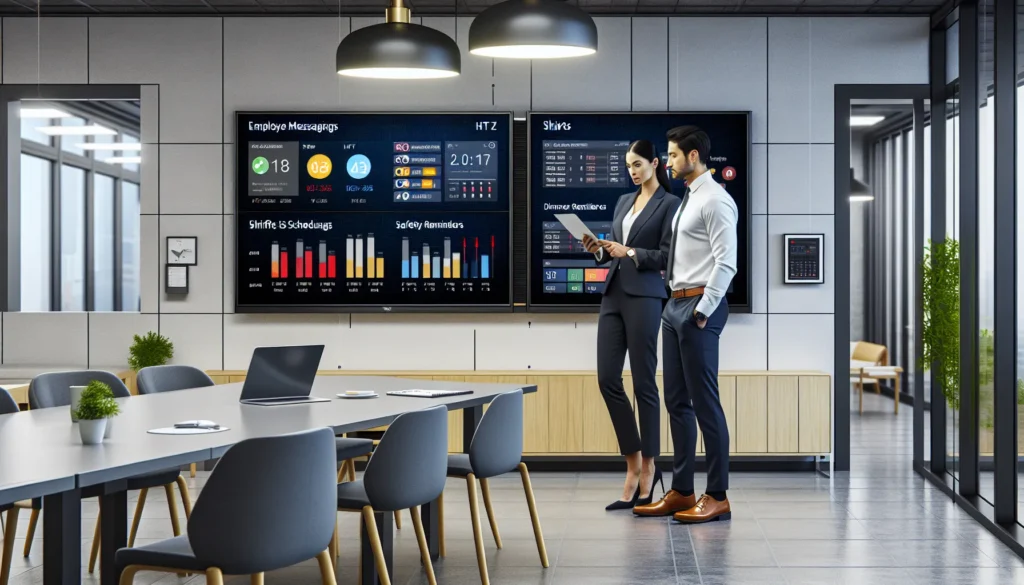
We’ve all seen it happen: an internal comms team finally gets approval for digital signage, a software vendor says “just use any screen,” and someone spots a 55″ consumer TV for $400 at Best Buy. Done, right?
Not quite. In real workplaces, bright break rooms, busy lobbies, factory floors, multi-location rollouts, that “cheap” TV often turns into the most expensive part of the project. Not because the screen is bad for a living room, but because employee communication has different rules: longer run times, harsher environments, and far less tolerance for downtime.
In this commercial display vs consumer TV employee communication guide, we’ll lay out what actually breaks (and why), what commercial-grade digital signage displays do differently, and how the three-year costs usually shake out when you factor in replacements, labor, and management overhead.
What Workplace Employee Communication Needs From A Screen
Employee comms screens aren’t “TVs on a wall.” They’re infrastructure, more like Wi‑Fi access points than décor. The job isn’t to look nice at 8pm: it’s to be readable at 8am, 2pm, and 11pm, every day, without someone babysitting it.
In multi-location businesses, retail chains, restaurants and QSRs, corporate offices, healthcare networks, franchises, screens also have to scale. If one location needs a daily manual workaround, you don’t have a signage program: you have a recurring headache.
If you want a deeper view on how internal comms teams are using screens today, we break it down in our guide to employee comms with digital signage.
Visibility Across Lighting Conditions And Viewing Distances
Break rooms and back-of-house areas are deceptively tricky. Overhead fluorescents, windows, glossy paint, and people walking by create glare and contrast problems that living-room TVs weren’t designed to solve.
A quick reality check on brightness:
- Many consumer TVs land around 300–350 nits (some go higher, but not consistently across models).
- Commercial signage displays commonly start around 500 nits, and specialty window displays can go far beyond that.
That difference isn’t academic. If we’re posting shift updates, safety metrics, or a daily production goal, “kind of readable” becomes “nobody reads it.” And if employees stop trusting the screen, you’ve lost the channel.
Viewing distance matters too. In a lobby, people might be 15–25 feet away. On a warehouse floor, they might be much farther. When the screen is dim or overly reflective, the content has to be oversized and simplified, so you lose the nuance internal comms usually needs.
Consistent Playback For Announcements, Schedules, And Metrics
Employee messaging isn’t just a looping slideshow. It’s often:
- Announcements and policy changes
- Safety reminders and compliance notices
- Rotating schedules and staffing updates
- Daily KPIs (sales, speed of service, patient satisfaction, etc.)
That means your screens must run 12–16 hours per day (sometimes longer) and play reliably. Consumer TVs are typically designed with a lighter duty cycle in mind, think evenings and weekends, not continuous operation.
Consistency also includes simple operational realities:
- The screen needs to be on when the first shift arrives.
- It needs to be off when the building closes (or at least on a controlled schedule).
- It needs to recover gracefully after power blips.
If “consistent playback” requires a manager to tap a remote every morning, the system will fail, not because anyone is lazy, but because operations are busy and repetitive tasks don’t survive real life.
The Core Differences: Commercial Displays Vs Consumer TVs
The temptation is understandable: many software-only signage vendors pitch their CMS as “hardware-agnostic,” which can sound like a win. But “it turns on and plays content” is a low bar. The true differences show up in heat, brightness, control, warranty coverage, and how the screen behaves after months of daily use.
For a more general breakdown, we’ve also covered this in our overview of TVs vs commercial displays for business use.
Panel Duty Cycle, Cooling, And Continuous Operation
Commercial displays are designed for extended duty cycles, often 16/7 (16 hours a day, 7 days a week) or even 24/7, depending on the model.
That design usually includes:
- Better thermal management (cooling pathways, sensors, firmware protections)
- Components rated for longer run time
- Commercial-grade power supplies
Consumer TVs can absolutely run for long stretches… until they can’t. We’ll often see them struggle when they’re mounted tight to a wall, installed in warm areas (kitchens/back-of-house), or left running all day. Heat is the silent killer here.
Brightness, Anti-Glare, And Wide Viewing Angles
Brightness is the most immediate “wow, this is different” factor when you compare screens side-by-side in a workplace.
Commercial displays typically offer:
- Higher sustained brightness (commonly 500+ nits for indoor signage)
- Better anti-glare treatments
- Viewing angles that hold contrast and color from the side
That last point matters in hallways, break rooms, and lobbies where people rarely stand centered in front of the screen like they would at home.
In a practical digital signage screen comparison workplace teams can use: if employees complain they “can’t read it unless they stand right in front,” that’s usually a display spec problem, not a content problem.
Orientation, Bezel Options, And Mounting Compatibility
Workplace layouts don’t always cooperate with landscape-only screens.
Commercial displays are built to support:
- Portrait mode for hallways, wayfinding, and narrow wall sections
- VESA patterns and chassis designs intended for professional mounting
- Cleaner bezel options (often logo-free or minimal branding)
Many consumer TVs either don’t support portrait at all, or they technically rotate but aren’t designed to dissipate heat in that orientation. If you’re planning directory screens, HR policy boards in hallways, or tight back-of-house corridors, portrait capability is often the difference between “we can deploy signage everywhere” and “we can deploy signage in only two places.”
Reliability, Lifespan, And Total Cost Over Time
If there’s one place where the consumer TV bargain collapses, it’s reliability over time.
A workplace screen doesn’t just have a “purchase price.” It has:
- downtime cost (missed messages, credibility loss)
- replacement logistics (shipping, scheduling, coordination)
- labor cost (install, re-mount, reconfigure)
- IT friction (network changes, security reviews)
And that’s before we talk about warranties.
Warranty Terms And How “Business Use” Affects Coverage
This is the part buyers usually learn the hard way.
Most consumer TVs come with a 1-year limited warranty, and many manufacturers explicitly exclude or limit coverage for commercial use (public displays, continuous operation, signage usage, etc.). Even when the language is fuzzy, claim approvals can be inconsistent.
Commercial displays, on the other hand, commonly include a 3-year warranty designed for business deployment. That’s not just peace of mind: it’s financial predictability. When you’re rolling out screens across 10, 50, or 300 locations, predictable support matters.
Failure Points: Burn-In Risk, Power Supply, And Thermal Stress
In signage, failure is often less dramatic than “it popped and died.” It’s more like:
- random reboots
- panels that get dimmer or uneven over time
- dead pixels that multiply
- ports that loosen after repeated service
- overheating that triggers shutdowns
Thermal stress is common in break rooms, kitchens, and sunlit lobbies, especially when a TV is mounted close to the wall with limited airflow.
Burn-in/image retention is another practical risk depending on panel type and what you display. Many workplaces show static elements (a safety header, a QR code, a KPI scoreboard). Commercial signage displays often include protective features such as pixel shifting or panel care modes intended for static content.
If you want a more detailed side-by-side view, our post on digital signage displays vs consumer TVs digs into the common failure patterns we see.
Replacement Cycles And Labor Costs In Multi-Location Rollouts
Now let’s talk about real costs over three years, the part internal comms buyers are usually responsible for, even if procurement only sees the upfront line item.
The “DIY consumer TV + software” path
A common DIY stack looks like:
- Consumer TV: ~$400–$600
- Mount + professional install: ~$550–$1,000 (mounting hardware plus labor varies by wall type, height, and cabling)
- Software subscription: ~$20–$30/month per screen (varies by vendor)
On paper, year-one cost might land around ~$1,500–$2,000.
But here’s the catch: in real workplace usage, it’s not unusual for a consumer TV to fail in 12–18 months under long duty cycles (especially in high-use, high-light, or warmer environments). Once you replace it, potentially twice over three years, your “cheap” option often becomes:
- Initial setup: ~$1,500–$2,000
- Replacement #1 (screen + labor/logistics): ~$600–$1,200
- Replacement #2 (screen + labor/logistics): ~$600–$1,200
All-in, three-year cost can easily creep past ~$2,700+ per location, and that’s assuming the installation can be quickly rescheduled and the downtime is acceptable.
The “commercial display turnkey” path
A typical 55″ commercial-grade signage setup, fully installed, is often in the ~$1,800–$2,200 range depending on the site and mounting needs. For example, commercial indoor displays like Samsung’s QMC series are built for business duty cycles, higher brightness, and long-run reliability.
The important part: you’re usually buying a screen that can reasonably run 5+ years in signage conditions, plus a warranty that actually matches business use.
At CrownTV, our turnkey approach (commercial display + install + software + support) is built around “no loose ends”, one vendor, one invoice, and one accountable team if something goes sideways.
Content Delivery For Employee Messaging At Scale
Once you get beyond a single screen, “how we deliver content” becomes just as important as the display itself.
A lot of teams start with whatever is easiest, built-in TV apps, USB sticks, someone casting from a laptop. Those methods can work for a pilot. They almost always collapse under multi-location reality.
Using A Media Player Vs Built-In Smart TV Apps
Smart TV apps are designed for consumers: streaming services, casual use, frequent UI changes, and minimal administrative control.
For internal comms signage, we typically want:
- a dedicated media player (or integrated commercial platform) that boots straight into signage
- consistent behavior after updates
- controlled app environment (no random prompts or pop-ups)
Even if a smart TV technically supports your signage CMS app today, you’re exposed to app store changes, OS updates, and model-to-model inconsistencies.
Remote Management, Monitoring, And Proof-Of-Play Reporting
Internal communication is only effective if it actually plays.
At scale, we need the ability to:
- update content remotely (no site visits)
- monitor online/offline status
- confirm playback (proof-of-play) for critical messages
- troubleshoot without asking a GM to “unplug it and plug it back in”
That’s why we like systems where screens can be managed from one dashboard and supported centrally. It’s also why “use any screen” isn’t really a strategy, it’s a way to push operational responsibility back onto your team.
If you’re mapping channels, it’s worth comparing signage to other internal comms tools too. We cover that tradeoff in digital signage vs email for employee communication.
Security And IT Considerations For Networked Screens
The more locations you have, the more your IT team will (rightfully) care about risk.
A few practical considerations:
- Network segmentation: signage devices often belong on a guest or IoT VLAN.
- Credential control: shared TV logins are a nightmare: we want centralized admin.
- Update governance: consumer TV OS updates can be unpredictable.
- Physical security: exposed USB ports and accessible settings menus invite tampering.
Commercial signage platforms tend to offer better control over lock-down settings, remote configuration, and device behavior, exactly the stuff IT asks about during rollout planning.
Choosing The Right Option By Workplace Scenario
Not every environment needs the same level of hardware. The fastest way to make a good decision is to start with the scenario, not the price tag.
Break Rooms, Back Of House, And Warehouse Floors
These are the “looks easy, actually hard” zones.
Why consumer TVs struggle here:
- Long run times (often 12–16 hours/day)
- High ambient light and glare
- Heat from kitchens or industrial areas
- People bumping into walls, vibrations, occasional impacts
In many of these spaces, commercial displays earn their keep through higher brightness, better cooling, and remote power scheduling (so nobody is responsible for turning it on/off daily).
Corporate Offices, Lobbies, And Shared Common Areas
Offices and lobbies are where leadership usually wants polish: brand-consistent messaging, clean installs, and screens that don’t look like a living room device bolted to drywall.
Commercial displays help because they’re designed for:
- professional mounting and cable management
- long operating windows without babysitting
- consistent color and brightness across multiple screens
If your lobby screen goes dark for a week waiting on a replacement TV, it’s not just an internal comms miss, it’s a brand moment.
Healthcare Staff Areas And Compliance-Sensitive Environments
Healthcare is less forgiving by default. Staff areas, back hallways, and waiting room adjacencies raise extra questions:
- Can we lock the screen down so staff can’t accidentally change inputs?
- Can we ensure critical updates display reliably?
- Can we manage devices without exposing credentials?
In compliance-sensitive environments, commercial displays and managed signage platforms are often the “mandatory” choice simply because they reduce variables.
Where does a consumer TV still make sense? A home office, a temporary setup, a short-lived event, or a pilot where the expectation is learning, not long-term uptime.
Where is a commercial display effectively mandatory? Break rooms, lobbies, factories/warehouses, and any multi-location deployment where downtime and travel costs quickly exceed the hardware savings.
Specs Checklist For A Workplace Digital Signage Screen Comparison
When we’re evaluating a commercial display vs consumer TV for employee communication, we like to use a short checklist that’s grounded in how signage fails in the field.
Minimum Brightness, Resolution, And Size By Distance
A practical baseline for indoor employee comms:
- Brightness: aim for 500 nits or higher in bright break rooms, lobbies, and common areas
- Resolution: 1080p is workable: 4K helps with crisp text and templates (especially on 55″+ screens)
- Size by distance: don’t guess, match screen size to typical viewing distance and content type
As a rule, if you’re posting small text (policy bullet points, QR codes, multi-item schedules), you either need a bigger screen, higher brightness, or a tighter content template. Usually all three.
Inputs, Control (RS-232/LAN), And Power Management
This is where commercial displays quietly separate themselves.
Look for:
- enough HDMI/DP inputs for your player or future needs
- RS-232 or LAN control for centralized commands
- remote power scheduling (on/off timers that don’t require a human)
Power scheduling alone can be a make-or-break feature. If a screen must be turned on manually, your “system reliability” becomes “who remembered the remote today?”
Audio, Captions, And Accessibility Considerations
Employee comms is increasingly video-heavy, but many workplaces are noisy (kitchens, warehouses) or require silent playback.
We like to plan for:
- captions by default (better comprehension, more accessible)
- clear audio only where it won’t annoy customers or patients
- layouts that are readable for quick glances, not seated viewing
Accessibility isn’t just a compliance box, it’s a reach multiplier. The easier it is to understand in a glance, the more likely employees will actually absorb it.
Installation And Ongoing Operations For Multi-Location Businesses
Most signage projects don’t fail because the content is bad. They fail because the rollout is inconsistent: different mounts, different installers, different hardware, and no standard way to support it.
That’s the operational gap between “we bought some screens” and “we deployed a communication channel.”
If you’re building the program from the ground up, our article on how to run internal comms on digital signage pairs well with the technical decisions.
Network Planning, Bandwidth, And Offline Playback
A few basics we like to clarify early:
- Will screens be on a dedicated VLAN?
- Do locations have stable bandwidth at all times?
- What happens if the network drops, does the player continue to show cached content?
Offline playback is underrated. It’s the difference between “a brief ISP outage” and “blank screens during a busy shift change.”
Standardized Mounting, Cabling, And Serviceability
From an internal comms buyer perspective, the install is part of the product.
Standardization reduces long-term cost:
- consistent mount types (flat vs tilt vs ceiling)
- predictable cable runs and concealment
- serviceable installs (so a tech can swap a player or display without re-engineering the wall)
In turnkey rollouts, we typically aim to keep each location’s install repeatable, so a 30-site deployment doesn’t become 30 custom projects.
Governance: Roles, Approvals, And Content Cadence
The screen is only as good as the operating rhythm behind it.
We’ve seen the best results when teams define:
- who owns message creation (HR, ops, internal comms)
- who approves what (especially safety/compliance)
- what content refresh cadence is realistic (daily, weekly, monthly)
Digital signage tends to outperform “wall posters + email” when the channel is treated like a living feed, not a one-time install. If you’re trying to drive engagement, our breakdown of how signage improves internal comms has practical examples you can borrow.
From there, the hardware decision becomes simpler: choose the screen that can keep up with your cadence without creating extra work for your team.
Conclusion
The $400 consumer TV is tempting because it looks like a shortcut. But in workplace employee communication, shortcuts tend to show up later as replacements, service tickets, manual workarounds, and screens that quietly go dark.
Commercial displays cost more upfront because they’re built for the conditions we actually deploy in: long duty cycles, brighter rooms, portrait installs, remote scheduling, and warranties that don’t disappear the moment the screen is used for business.
If we’re running a single screen temporarily, a consumer TV can be perfectly fine. But if we’re serious about internal comms across break rooms, lobbies, and multiple locations, investing in commercial-grade signage is usually the least expensive decision we make, just not on day one.
Frequently Asked Questions
Commercial display vs consumer TV for employee communication: what’s the real difference?
The biggest differences are duty cycle, brightness, thermal design, control, and warranty. Commercial displays are built for 16/7 or 24/7 operation, higher sustained brightness (often 500+ nits), remote management, and business-use coverage. Consumer TVs may work short-term but often struggle with heat, glare, and uptime.
Why do consumer TVs fail more often in break rooms, lobbies, and warehouses?
Workplaces create harsh conditions: long run times (12–16 hours/day), high ambient light, limited airflow behind wall mounts, and warmer areas like kitchens or back-of-house. Heat and thermal stress can cause reboots, dimming, port issues, or shutdowns. Downtime then triggers labor, logistics, and credibility costs.
How bright should a screen be for employee communication digital signage?
For bright break rooms, common areas, and lobbies, aim for about 500 nits or higher so messages stay readable under glare and overhead lighting. Many consumer TVs sit around 300–350 nits, which can force oversized content and reduce comprehension. Higher brightness helps keep text, KPIs, and schedules legible.
What warranty issues come up when using a consumer TV for business signage?
Many consumer TV warranties are 1-year limited and may exclude or restrict “commercial use,” public display, or continuous operation—sometimes resulting in denied or inconsistent claims. Commercial displays commonly include around a 3-year warranty designed for business deployment, which improves predictability for multi-location employee communication rollouts.
Do I need a media player, or can I use built-in Smart TV apps for employee communication?
For one-off pilots, Smart TV apps can work, but they’re risky at scale. OS updates, app-store changes, prompts, and inconsistent models can break reliability. A dedicated media player or integrated commercial signage platform typically boots directly into signage, enables remote updates and monitoring, and reduces “someone needs the remote” failures.
When does a consumer TV still make sense instead of a commercial display?
A consumer TV can be reasonable for a temporary setup, a short-lived event, a home office, or a learning-focused pilot where occasional downtime is acceptable. If you need 12–16+ hour days, bright rooms, portrait installs, or multi-location reliability, a commercial display is usually the safer long-term choice.